How to sort your Downloads folder into tidy folders
This guide shows how to sort a messy folder such as Downloads with rules you choose. You see where every file will go before anything moves, and you can undo a run.
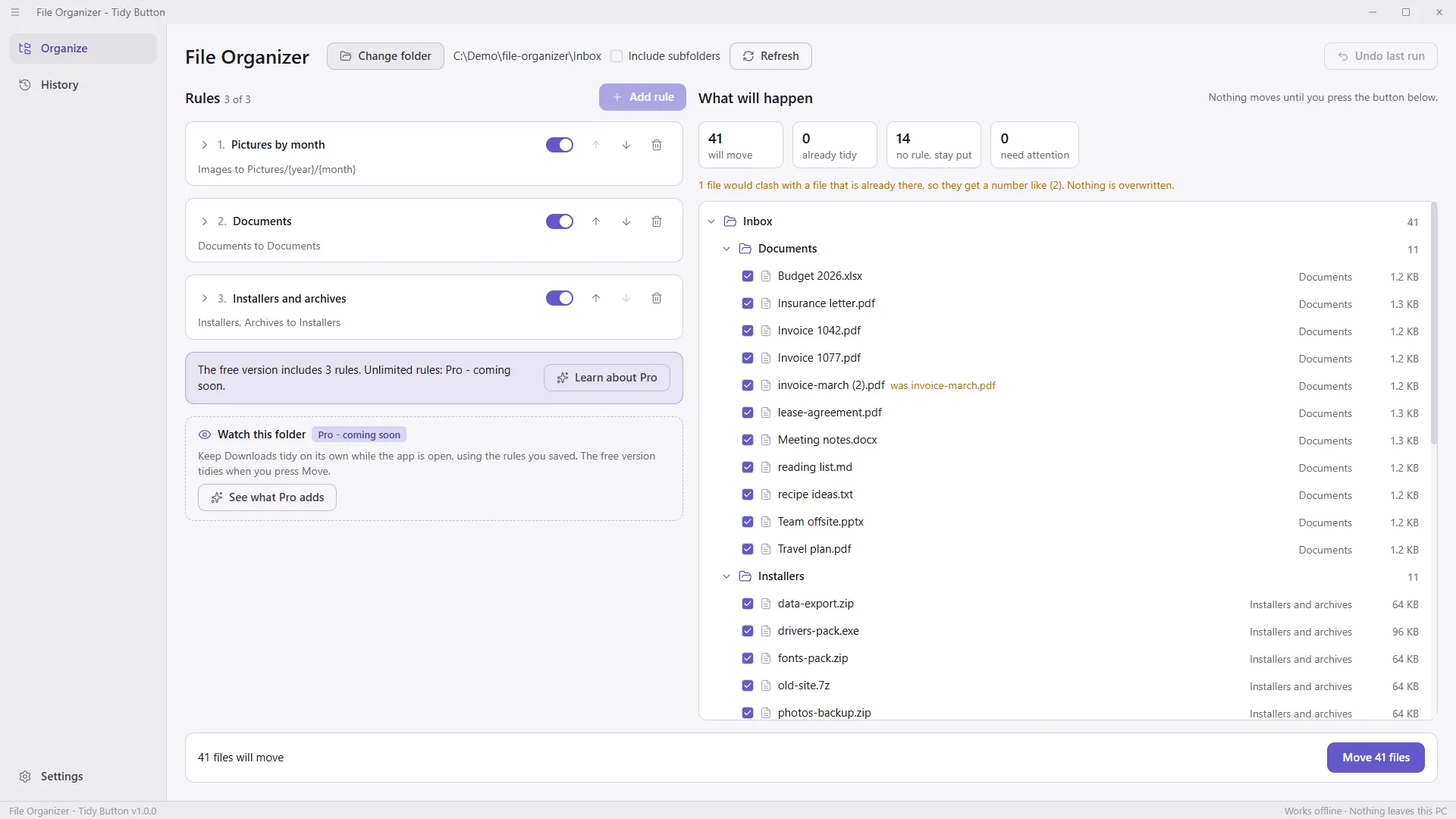
Sort a folder with the ready-made rules
- Open File Organizer.
- Press Choose folder and pick Downloads or any other folder. You can also drop a folder onto the window.
- Tick Include subfolders if you also want the files inside folders to be sorted.
- Look at What will happen. It shows the folders that will be made and the files that go in each. Nothing has moved yet.
- Press the Move button at the bottom and confirm.
Files that are open in another program, hidden files and unfinished downloads are skipped.
Leave some files where they are
- Choose a folder and wait for the preview.
- Untick the files you do not want to move.
- Check the count at the bottom. It shows how many will move and how many are left out.
- Press Include again next to a file under Left out if you change your mind.
Change a rule or add your own
- In the Rules list, click the arrow on a rule to open it.
- Change the Rule name if you like.
- Under Move files that are, choose kinds such as pictures or documents. You can also fill in Or these extensions and Name contains.
- Set At least (MB) or At most (MB) to match files by size.
- Type the folder in Move into this folder. Use words such as {year} and {month} to make date folders. An example appears under the box.
- Press Add rule to start a new rule from a template.
A file must match everything you fill in. The first rule that fits a file wins, so use the arrows to put rules in order. The switch on a rule turns it off.
Sort photos into month folders by the date taken
- Open a rule for pictures.
- Put {year} and {month} in Move into this folder.
- Open Take the date from and choose Date modified, Date created or Date photo was taken.
- Check the preview, then press the Move button.
Undo a run
- Press Undo last run at the top right of Organize.
- Read the message that appears and confirm.
- The files go back to the folders they came from.
Open History to see every run and every file it moved.
If something goes wrong
The Move button is greyed out. Why?
A note next to it says why. Common reasons are that no folder is chosen, no rule is turned on, or nothing matches your rules.
A file was not moved. Why?
Files that are open in another program, hidden files and downloads still in progress are skipped. They appear under Need attention with the reason.
What happens if a file with the same name is already in the folder?
The file is given a number, such as name (2). Nothing is overwritten.
The app will not let me choose my folder.
Windows folders, Program Files, whole drives and your whole user folder are refused. Choose a folder inside them instead, such as Downloads.
Good to know
- The app never deletes files. It only moves them.
- Undo only puts back files from the last run.
Still stuck? Support is by email, and a person reads it.