How to import a GEDCOM file and build a family tree on PC
This guide shows how to bring a family tree into the app, add people and events, make a printable chart, and keep a backup. Your tree stays in one file on your PC.
Import a GEDCOM file from another program
- Open Family Tree and go to the list of trees.
- Press Import GEDCOM and choose your .ged file. You can also drop the file onto the window.
- Wait while the file is read. A progress window shows how far it has got, and you can press Cancel import.
- Read the import report that appears. It lists what was read and any warnings.
- Press Open on the tree card to start using it.
If pictures were moved to another folder, press Find them in a folder to look for them.
Start a new tree and add the first person
- Press New tree, type a name in Name of the tree, and press Create tree.
- On the People screen, press Add person.
- Fill in Given names and Surname. Choose a value in Sex if you want to.
- Press Add person in the window to save.
Add a birth with a date and a place
- Choose the person in the list on the People screen.
- Press Add event.
- Under What happened, choose Birth.
- Type a date in Date, for example 12 MAR 1900. The line under the box shows how the app reads it.
- Under Place, choose a place you already have, or choose A new place... and type the town, county and country separated by commas.
- Press Add event.
Make a printable chart
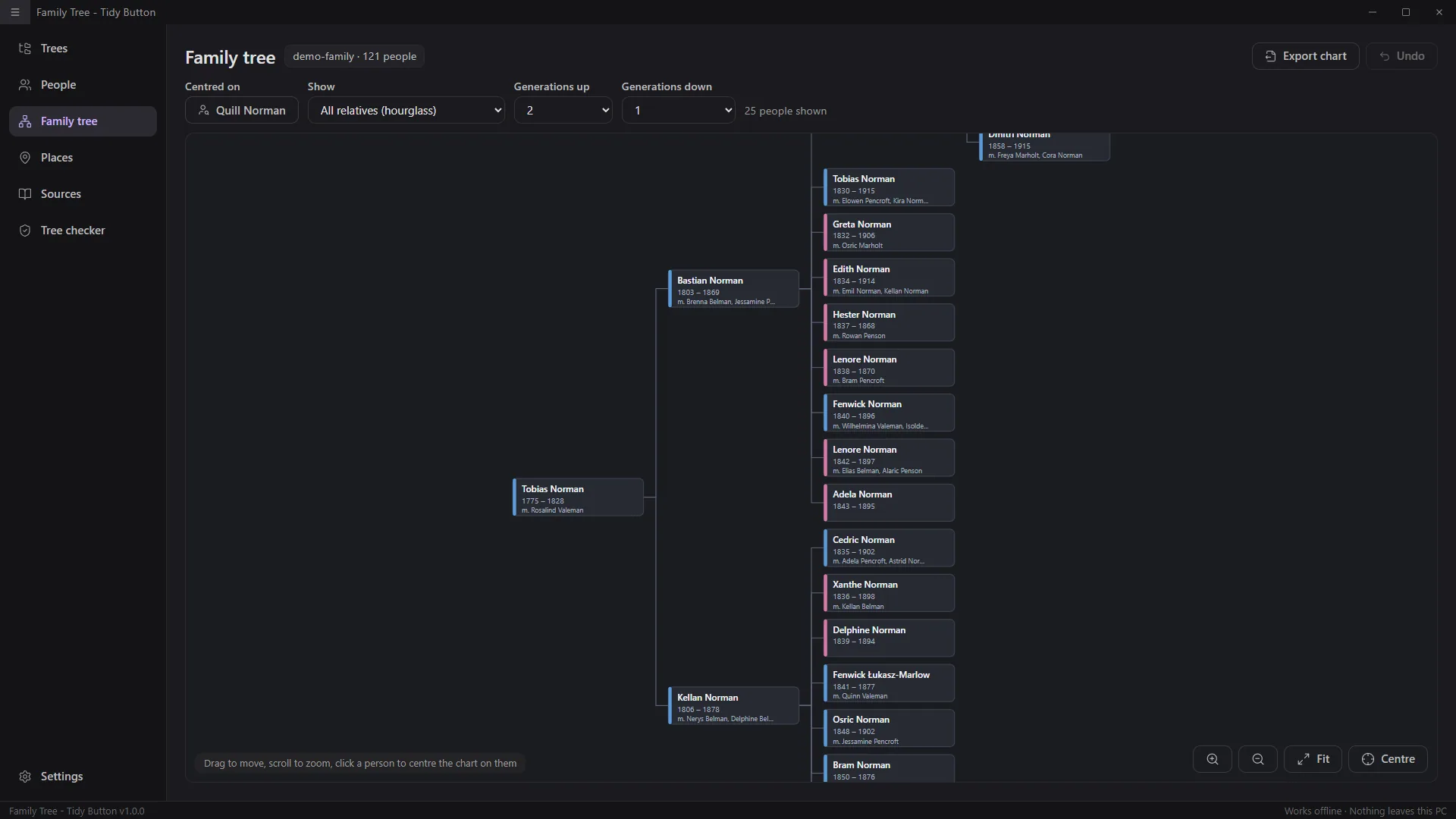
- Open Family tree. Under Centred on, press the person's name to choose who is at the centre.
- In Show, choose a view such as Ancestors (pedigree) or Descendants.
- Press Export chart.
- Choose the Chart, the number of Generations, the Paper size and the File type.
- Press Choose where to save.
With PDF output, a large chart is split over several pages that you can stick together.
Check for mistakes and make a backup
- Open Tree checker. The checks run when you open it.
- Read each finding. Press the Open button with a person's name to go to that person.
- Press Check again after you fix something.
- In the list of trees, press Back up tree and pictures and choose a file name.
- To use a backup later, press Restore backup and choose the zip file.
The checker only reports. It does not change your tree.
If something goes wrong
The app says my date is not understood. What should I do?
The date is kept as you wrote it. For a date the app can read, use forms such as 12 MAR 1850, ABT 1850 or BET 1850 AND 1860.
The chart is empty. Why?
The chart needs a person at the centre and a tree with people in it. Add someone on the People screen, then choose them under Centred on.
Can I undo a change?
Yes. Every edit can be undone with Undo at the top right of the window.
What happens if I delete a tree?
The tree is moved to the Recycle Bin. Your GEDCOM files and backups are not touched.
Can I save my tree back to a GEDCOM file?
Yes. In the list of trees, open your tree, then press Export GEDCOM 5.5.1 or Export GEDCOM 7.0.
Good to know
- The app has no online maps and no sync. Your tree is not shared or uploaded.
Still stuck? Support is by email, and a person reads it.