How to dim your screen below its lowest brightness
This guide shows how to dim your screen further than its own brightness buttons go, warm the colours, and turn it all off quickly. Screen Dimmer lays a see-through layer over the screen. It never blocks your mouse or keyboard.
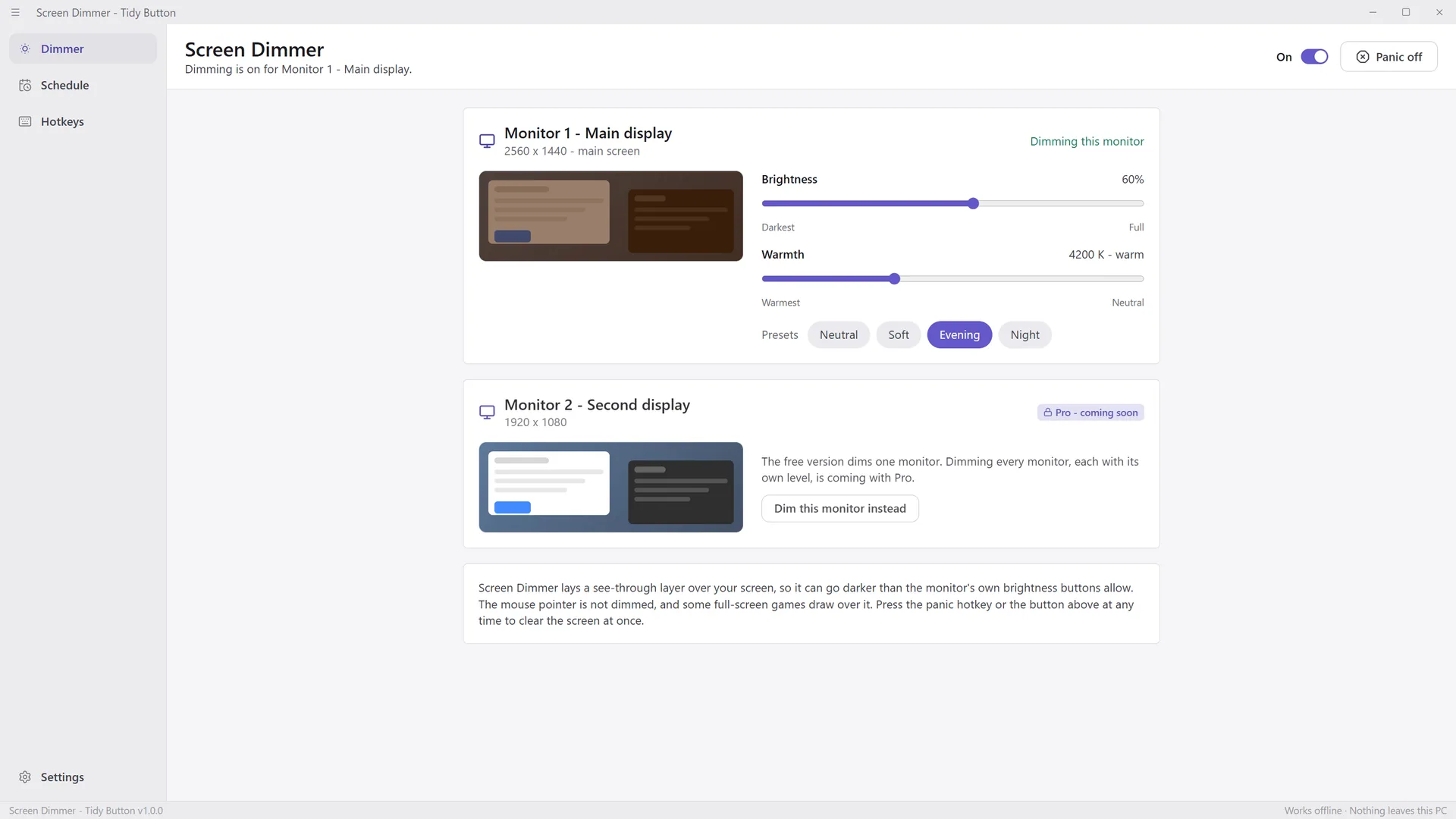
Dim the screen and warm the colours
- Open Screen Dimmer and stay on the Dimmer screen.
- Check that the switch named Dimming on or off is set to On.
- Drag the Brightness slider towards Darkest to dim the screen.
- Drag the Warmth slider towards Warmest for a warmer, candle-like tint.
- Or press one of the Presets buttons under the sliders: Neutral, Soft, Evening or Night.
The preview picture next to the sliders shows roughly how your screen will look. Neutral shows the screen with no dimming. Night is the darkest and warmest preset.
Clear the screen at once with Panic off
- Press Panic off at the top of the Dimmer screen.
- Your screen goes back to how it normally looks.
- Turn the switch back to On when you want dimming again.
The Hotkeys screen has a hotkey for Panic off that works even when another app is in front.
Control dimming from the keyboard
- Open Hotkeys in the left menu.
- Read the list. It shows the keys for turning dimming on or off, dimming more or less, and making the screen warmer or cooler.
- To change a hotkey, press Change beside it, then press the new keys.
- Press Esc if you change your mind while it is listening.
- Press Reset to the defaults to go back to the original keys.
If another app already uses a combination, the row shows a warning. Pick a different one.
Keep dimming running from the tray
- Close the Screen Dimmer window. Dimming keeps running in the tray.
- Click the tray icon to open the quick panel.
- Use the switch, the Brightness slider and the Warmth slider there, or press Open app to go back to the full window.
- To stop completely and give the screen back, choose Quit from the tray menu.
Start Screen Dimmer when Windows starts
- Open Settings in the left menu.
- Find Start with Windows.
- Turn on the switch next to Start Screen Dimmer when I sign in.
The text under the switch tells you the current state. If the switch is greyed out, that text explains why.
If something goes wrong
Why is my screen not dimmed in a game or video?
A full-screen game or video that takes over the display may draw over the dimming layer. The mouse pointer is also not dimmed.
Why do dark areas look a little lighter with a strong warm tint?
A layer can only add light to what is behind it, so a strong warm tint lifts the darkest areas a little.
Does it work with Windows Night light?
Yes. Night light keeps working alongside Screen Dimmer. The app does not change your display driver or colour profile.
How do I get my normal screen back?
Press Panic off, or use its hotkey. To remove the layer completely, choose Quit from the tray menu.
Good to know
- The dimming layer cannot dim the mouse pointer.
- The layer does not reach the Windows sign-in or security screens.
Still stuck? Support is by email, and a person reads it.