Free on the Microsoft Store
Screen Dimmer Darker than your monitor allows.
Dim your screen below its minimum brightness and warm the colours. Two sliders, four presets, hotkeys that work from any app, a tray slider and a panic button. Works offline, with no account.
Every monitor, schedules and break reminders.
Pro keys go on sale when this app's Pro update reaches the Microsoft Store.
One key for this app. Free to use without it. See all pricing
Prefer the command line? winget install 9P8W72PFR0J4 --source msstore
- Works offline
- No account, no ads, no tracking
- Never reads your screen
- Free
See it
Six views. Two sliders, a panic key.
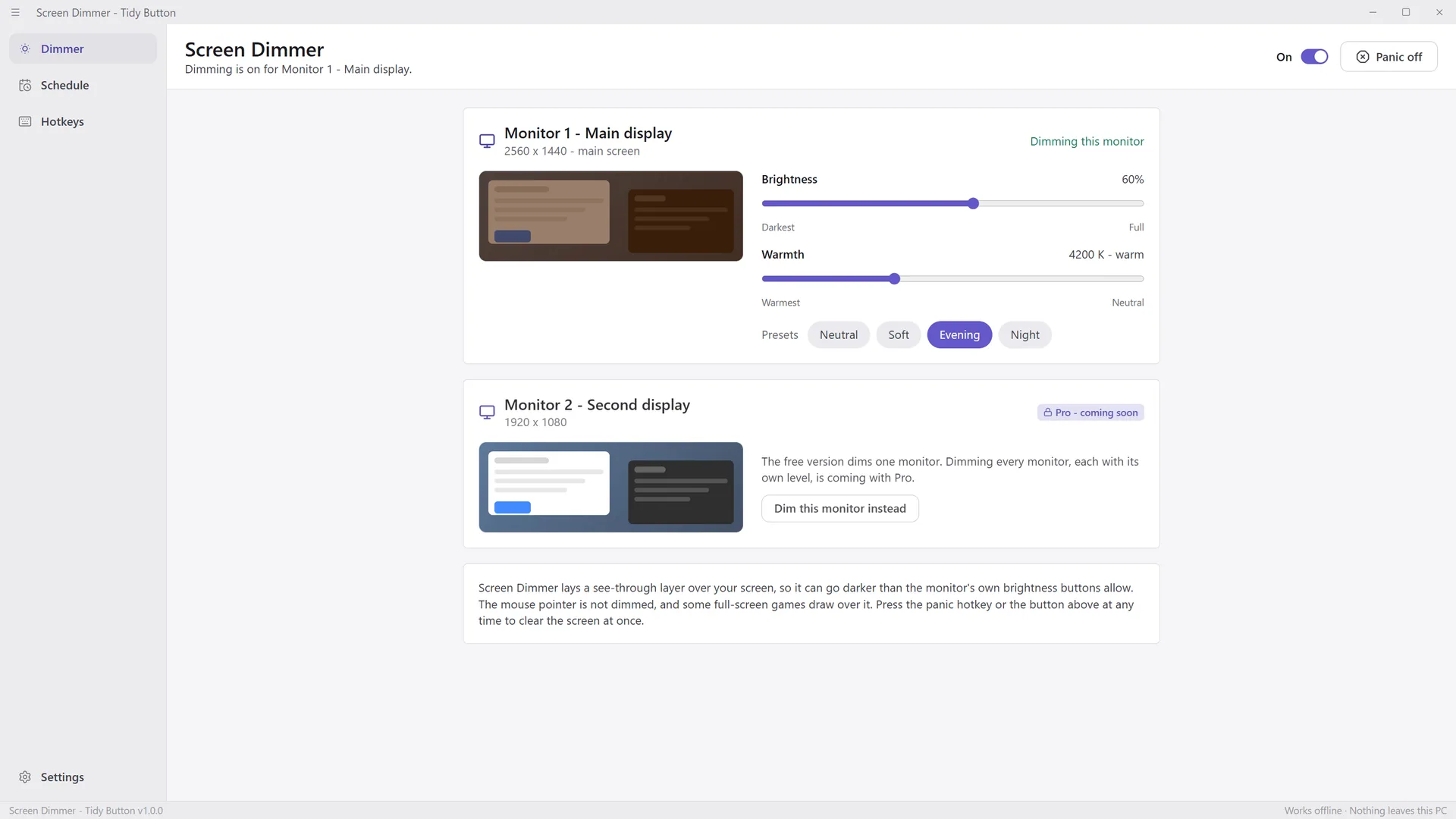
Evening
Two sliders and four presets. The Evening preset warms the colours and lowers the brightness
Night
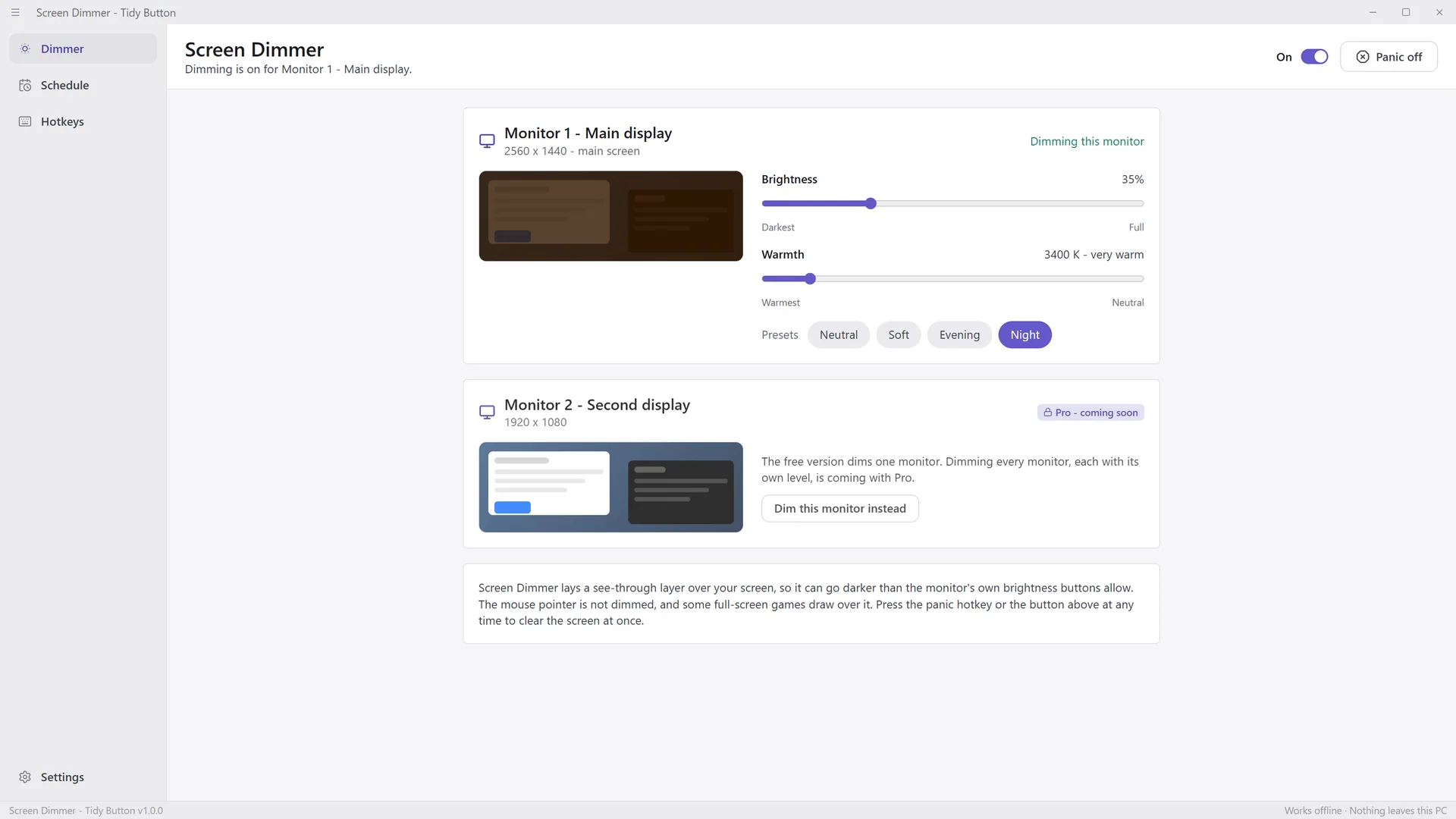
The Night preset: 35% brightness and a very warm tint, well below what most monitor buttons allow
Hotkeys
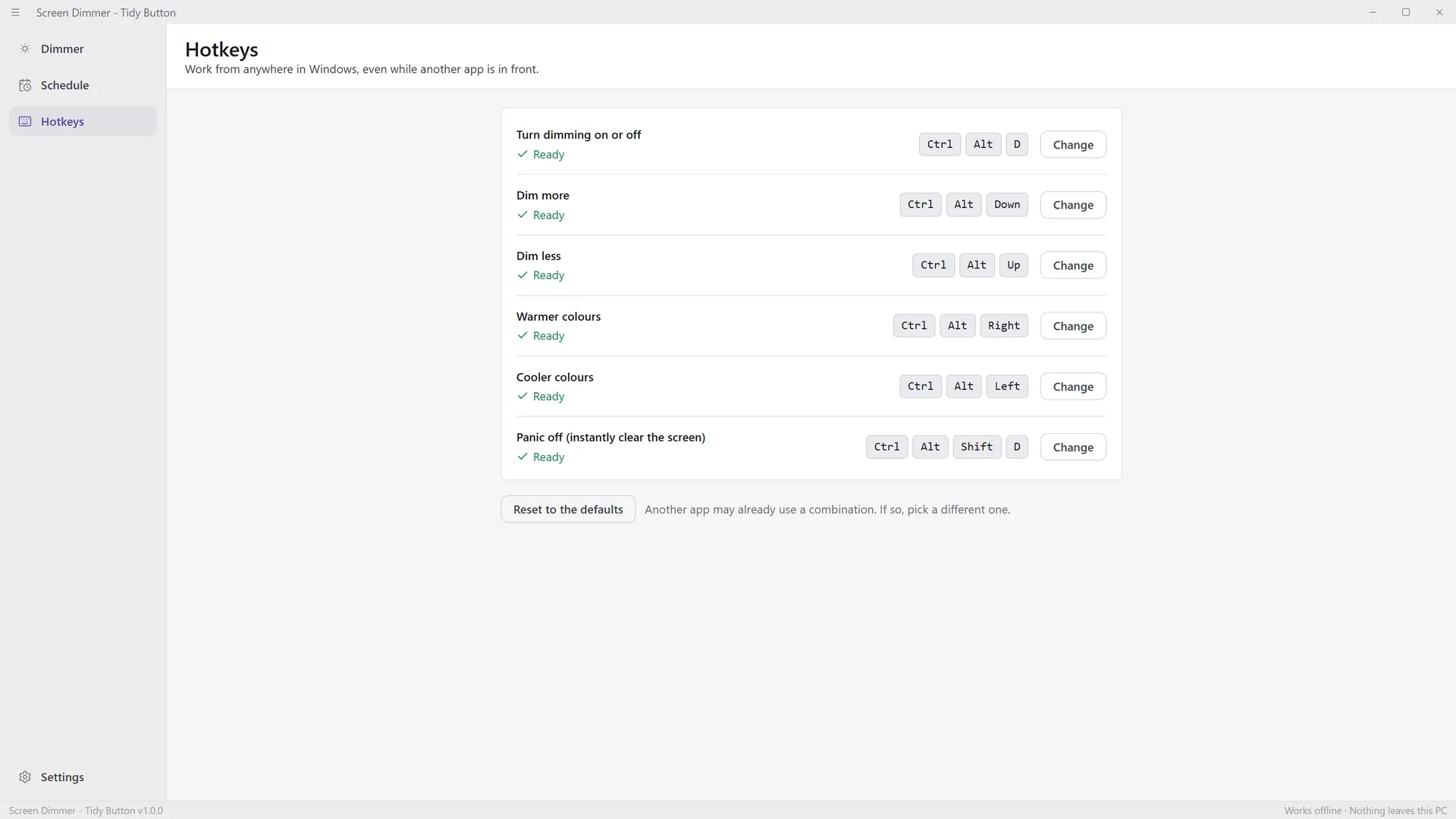
Global hotkeys for on or off, dim more and less, warmer and cooler, plus a panic key. All can be changed
Tray panel
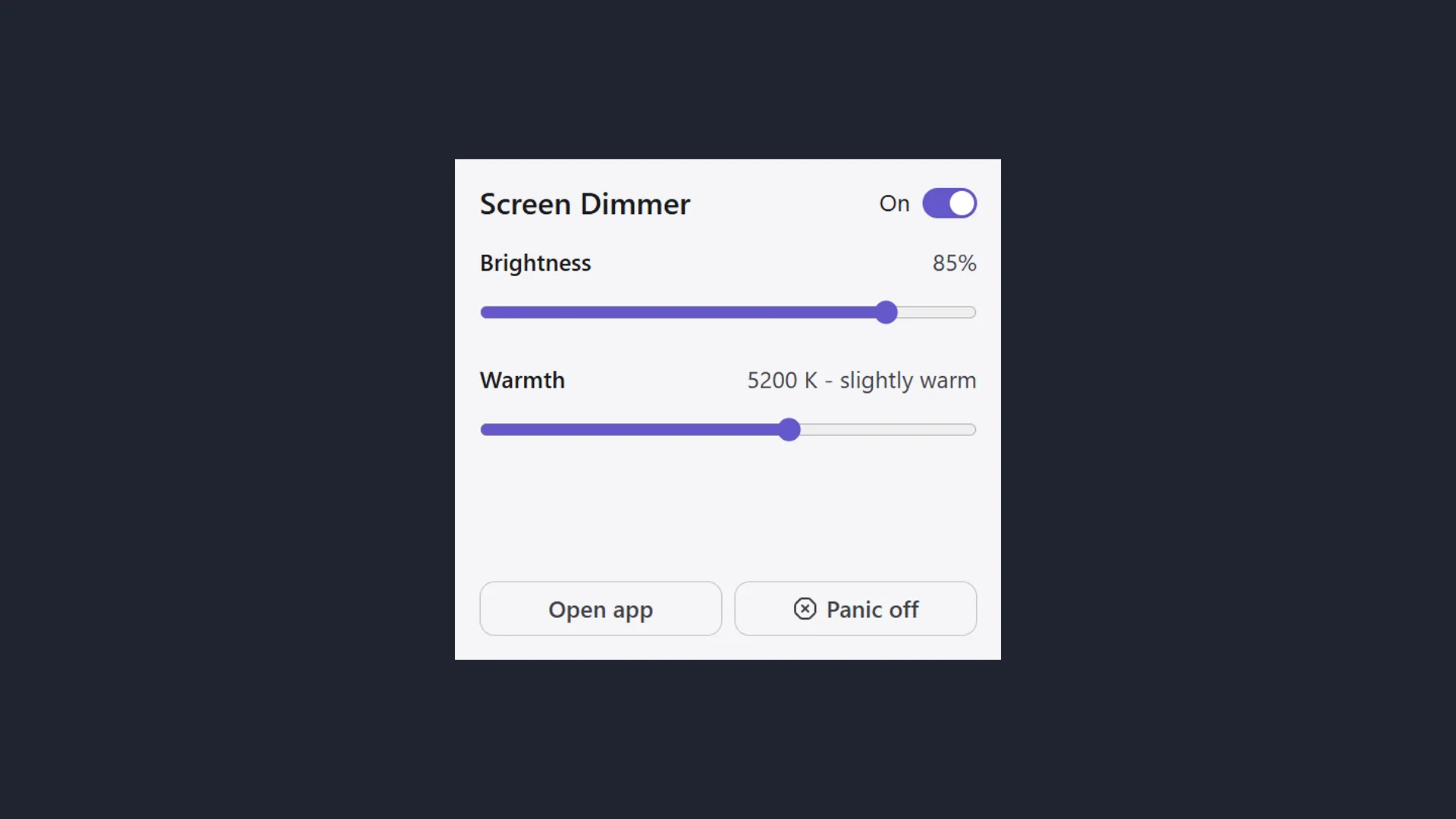
The tray panel: on or off, brightness, warmth, Open app and Panic off
Settings
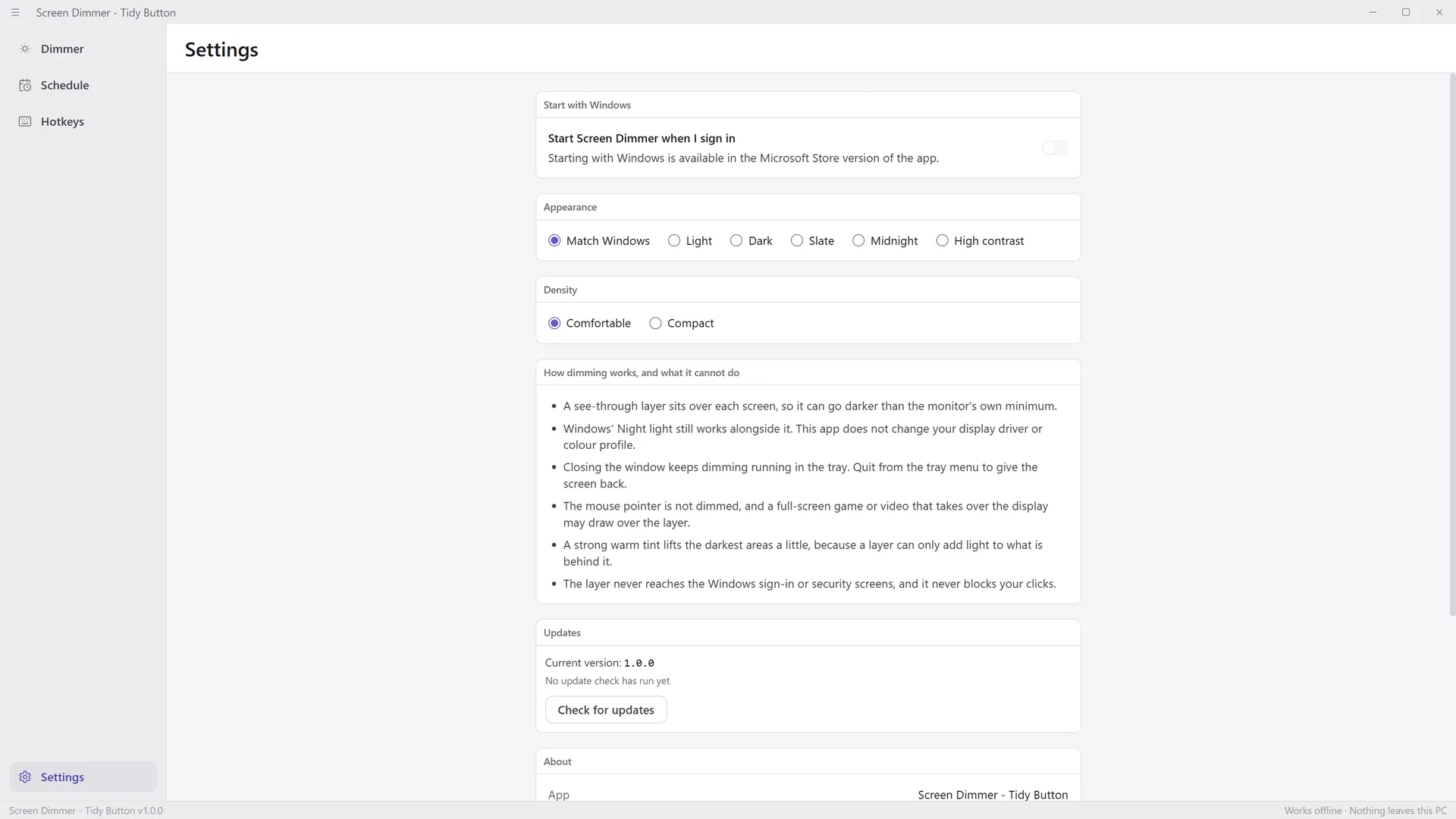
Start with Windows, theme, density, and a plain list of what dimming can and cannot do
Before and after
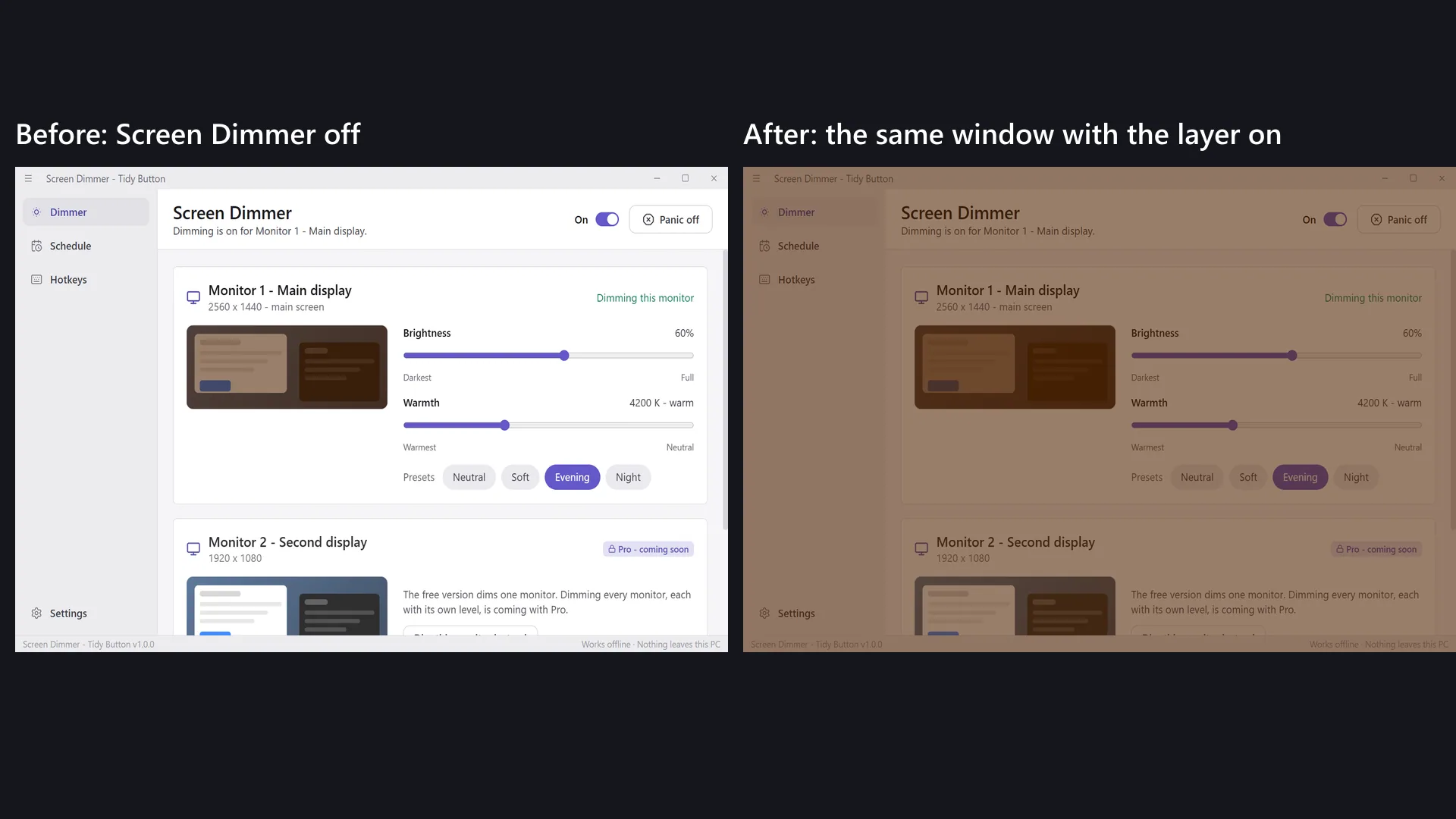
The same window before, and with the dimming layer on
The before and after picture is made from one real capture and the layer's real colour. The app has light and dark themes.
What it does
What it does.
Your monitor's own brightness buttons stop at a minimum that can still feel bright late at night. Screen Dimmer goes below it, down to 10% brightness. It lays a see-through layer over your screen, so you can make everything darker and warmer with two sliders: Brightness and Warmth. The layer never blocks your mouse or keyboard.
Dim below the hardware minimum
Down to 10% brightness.
Warmth slider
From neutral down to a candle-warm tint.
Presets
Neutral, Soft, Evening and Night, or set your own mix.
Global hotkeys
Turn on or off, dim more, dim less, warmer and cooler, from any app. Change any hotkey; if another app already uses it, you are told.
Panic off
A hotkey and a button that clear the screen instantly.
Tray quick panel
On or off, brightness and warmth from the tray icon. Closing the window keeps dimming running in the tray, and Quit gives your screen straight back.
Start with Windows
Set up from the app in the Microsoft Store version. It is off until you turn it on.
Honest limits
A plain list in Settings of what dimming can and cannot do.
The small print, in plain English
Safe by design.
- It never reads or captures what is on your screen, your files, your keystrokes outside its own hotkeys, or the clipboard.
- The layer never blocks your mouse or keyboard, and Quit gives your screen straight back.
- It does not change your display driver or colour profile.
- Works offline. No account, no ads, no tracking, no network use.
Good for
Handy when the screen is too bright.
- Working late in a dark room
- A monitor whose lowest brightness is still too bright
- Quick presets for evening and night
Questions
Plain answers.
Does it change my monitor settings?
No. It lays a see-through layer over your screen. It does not change your display driver or colour profile, and Windows Night light keeps working alongside it.
Will it block my mouse or keyboard?
No. The layer never blocks your mouse or keyboard.
What can it not do?
A layer cannot dim the mouse pointer. A full-screen game or video that takes over the display may draw over it. A strong warm tint also lifts the darkest areas a little.
How do I get my screen back at once?
Press the Panic off hotkey, press the Panic off button, or choose Quit from the tray icon.
Is anything sent anywhere?
No. The app makes no network requests and does not read what is on your screen.
What is free?
Dimming, warmth, presets, hotkeys, the tray panel and the panic button are free. Schedules, a separate level for each monitor and break reminders are planned for Pro (coming soon).
Which versions of Windows does it run on?
Windows 10 and Windows 11.