How to read EPUB books on a Windows PC with highlights and notes
This guide shows how to add EPUB books, read them, change the look of the text, and keep highlights and notes you can find again later.
This app is not on the Microsoft Store yet. This guide is ready for the day it arrives.
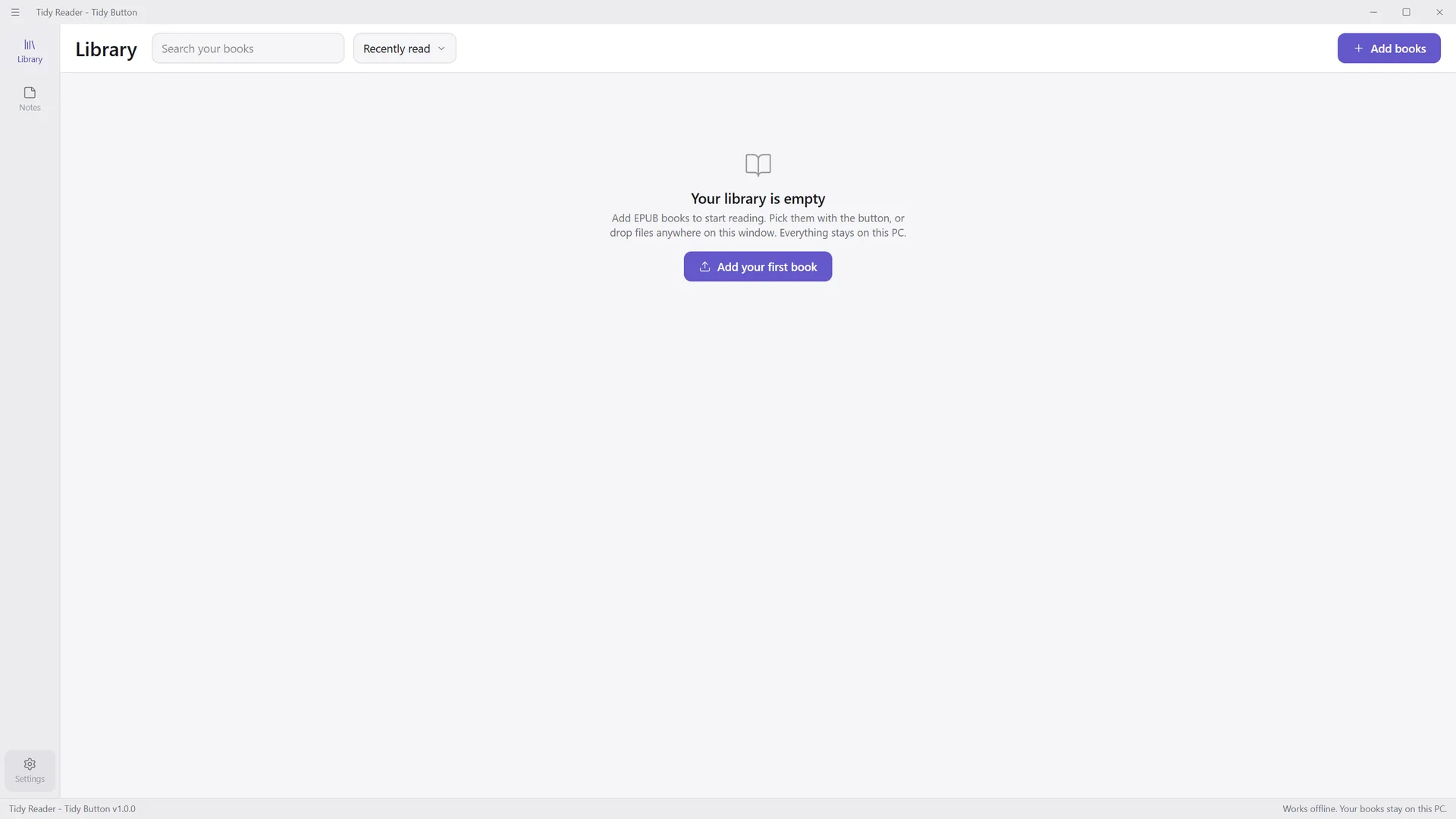
Add EPUB books to your library
- Open Library in the left menu.
- Press Add books and choose one or more files that end in .epub.
- Wait for each book to appear as a cover with its title and author.
- To find a book later, type in Search your books or change Sort books.
You can also drop .epub files onto the Library screen. The app keeps its own copy of each book, so your original file is not changed.
Read a book and find your place
- Click a book cover to open it.
- Read one chapter at a time. Use the Previous and Next buttons at the bottom of the chapter, or the [ and ] keys.
- Press Contents to see the book's own list of chapters and click one to jump there.
- Press Search in this book, type at least two letters, and click a result to go to the match.
- Press Add bookmark to mark your page. Press Remove bookmark to take the mark away.
The app remembers where you stopped. Press Continue on the Continue reading shelf in the library to go straight back.
Make the text easier to read
- Open a book and press Text and theme.
- Pick a reading theme: Paper, Night or Sepia.
- Pick a font: Serif or Sans.
- Move the Text size and Line spacing sliders until the page feels comfortable.
- Choose a text width to make the lines shorter or longer.
Highlight words and add a note
- Select some words in the book with the mouse.
- In the small bar that appears, click a colour to highlight them.
- To add a note instead, press Add a note in the same bar. The words are highlighted in yellow and a note box opens.
- Type your note in the box that says Add a note, then press Save note.
- Open Notes in the left menu to see every highlight and note from all your books.
- Press Open in book beside a note to jump back to that place in the book.
Inside a book, press Highlights and notes to see the marks for that book only.
If something goes wrong
The app says it only opens EPUB books. What does that mean?
Tidy Reader reads files that end in .epub. Other kinds of file, such as PDF, are not opened. Pick or drop an .epub file.
A book shows that it could not be opened. What can I try?
Press Try again. If it still does not open, press Back to the library and try another copy of the book. Books protected by DRM cannot be added or opened.
I cannot find a highlight I made. Where is it?
Open Notes in the left menu. Use Search highlights and notes to find words, or choose one book in Show notes from.
Where are my books and notes saved?
In a folder called Tidy Reader inside your Documents folder. Everything stays on this PC.
How do I get back to the page where I stopped?
Open Library and press Continue on the Continue reading shelf. Or click the book cover, and it opens where you left off.
Good to know
- The app reads EPUB books only. It does not read aloud.
Still stuck? Support is by email, and a person reads it.