How to find and delete empty folders on Windows
This guide shows how to scan a folder for empty folders, choose which ones go, and put them back if you change your mind.
This app is not on the Microsoft Store yet. This guide is ready for the day it arrives.
Scan a folder for empty folders
The scan only reads. Nothing changes until you confirm.
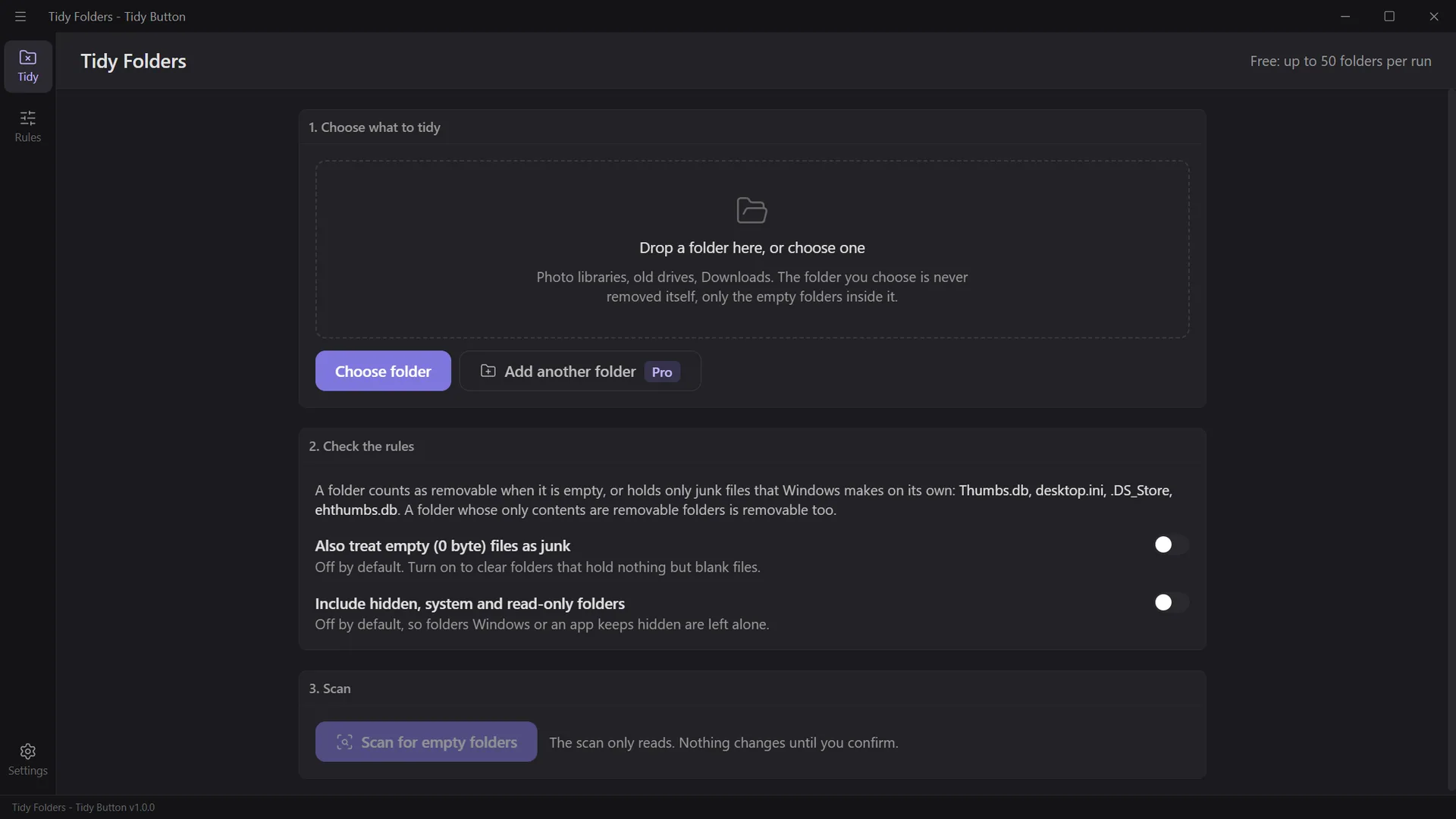
- Open Tidy in the left menu.
- Press Choose folder and pick the folder to tidy, such as Downloads or a photo library. You can also drop a folder onto the window.
- Press Scan for empty folders.
- Wait while the app counts folders. Press Cancel if you want to stop.
The folder you choose is never removed itself. Only the empty folders inside it can go.
Pick the folders to remove and move them to the Recycle Bin
- After the scan, read the line that says how many folders can go.
- Look through the list of folders. Each folder has a box you can tick or untick.
- Press Select none if you want to untick every box, then tick only the folders you want to remove.
- Press the red button below the list. Its text starts with Move and ends with Recycle Bin.
- In the window that asks you to confirm, press Move to Recycle Bin.
- Read the Done report. It shows what moved and which folders were kept in place.
Folders go to the Recycle Bin, not away for good.
Undo and put the folders back
- On the Done screen, press Undo: put them back.
- Wait for the line that says the folders are put back. If all went well it says everything is back where it was.
- If a folder could not be restored, read the notes on the screen. They say what to do.
You can also open the Recycle Bin in Windows and choose Restore.
Include blank files and hidden folders in the scan
These two switches are off until you turn them on.
- Open Tidy.
- Find 2. Check the rules.
- Turn on Also treat empty (0 byte) files as junk to clear folders that hold only blank files.
- Turn on Include hidden, system and read-only folders if you want those folders checked too.
- Press Scan for empty folders again.
If something goes wrong
The scan says No empty folders found. Why?
Every folder inside has something in it, or the folders are hidden. Turn on Include hidden, system and read-only folders and scan again.
A folder I expected is not in the list. Why?
Press the line that starts with Left alone under the list. It shows the folders the app skipped and the reason for each.
The app will not let me scan my whole drive. Why?
The app does not clean a whole drive, and it never scans the Windows or Program Files folders. Choose a folder inside the drive instead.
How do I start again with a different folder?
Press Start over on the results, or Scan again on the Done screen, then press Choose a different folder.
Good to know
- The app does not scan network folders or OneDrive folders. A folder the Recycle Bin cannot take is kept, not deleted.
Still stuck? Support is by email, and a person reads it.