How to set up your email on a Windows PC with IMAP
This guide shows how to add your email account, read and search your mail, write a message with an attachment, and sort your inbox.
This app is not on the Microsoft Store yet. This guide is ready for the day it arrives.
Add your email account
Many providers ask for an app password instead of your normal password. The app tells you where to make one.
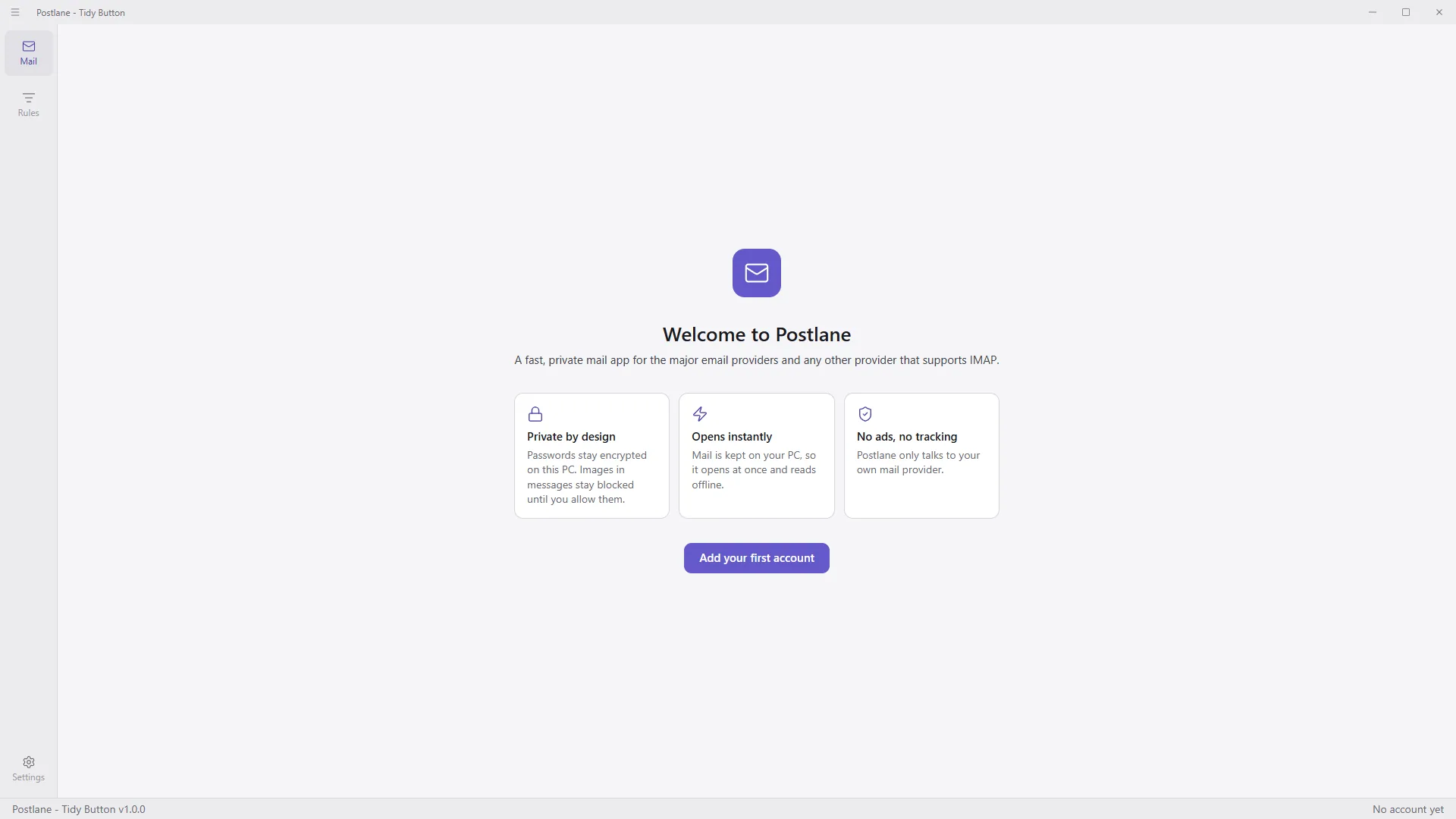
- Press Add your first account on the welcome screen.
- Type your name in Your name (shown on messages you send).
- Type your address in Email address. For well-known providers the server settings are filled in for you.
- Type your password in App password or Password. If a help note appears, press Open the page for this to make an app password.
- If your provider is not found, the server boxes open on their own. You can also press Server settings (manual setup) to show them. Fill in the incoming (IMAP) and outgoing (SMTP) servers.
- Press Add account.
Your password is kept encrypted by Windows on this PC and is only sent to your mail provider.
Read and search your mail
- Pick a folder such as the inbox in the list on the left.
- Click a message in the list to read it on the right.
- Type in Search mail to filter the list as you type.
- If nothing matches, press Search the server too. If some mail matches, a line below the list offers to search the server for the same words.
- To see older mail, scroll to the end of the list and press Load older messages from the server.
Mail is kept on your PC, so you can read and search it while offline.
Write a message with an attachment
- Press New message.
- Type the address in To. Press Cc / Bcc next to it if you need the Cc and Bcc boxes.
- Type a Subject and write your message in the large box.
- Press Attach and choose a file.
- Press Send.
Press Save draft to finish later. Ctrl+Enter also sends the message.
Reply, forward and tidy your inbox
- Open a message.
- Look at the row of buttons above the message. They show icons, so hold the pointer over one to see its name. Press Reply, Reply all or Forward.
- Press Archive to move it out of the inbox, or Move to Junk for unwanted mail.
- Press Flag to mark a message you want to come back to.
- Press Mark as unread to make it look new again.
- Press Delete to move it to Trash.
Show the pictures in a message
Pictures from the web are blocked at first to keep a sender from tracking you.
- Open the message. A bar says remote images are blocked.
- Press Load images to show them for this message only.
- Press Always for this sender to show them for every message from that sender.
If something goes wrong
The app says it could not sign in. What should I check?
Many providers need an app password, not your normal password. While adding the account, check the password and the server settings under Server settings (manual setup), then press Add account again. If the account is already added, open Settings, choose the Accounts tab, find your account, type the new password in Change the saved password and press Update.
My provider was not found. What do I enter?
Press Server settings (manual setup) and fill in the incoming (IMAP) and outgoing (SMTP) servers and ports. Your provider's help pages list them.
How do I check for new mail right now?
Press the Check for new mail button at the top of the folder list.
How do I delete a message for good?
Delete moves a message to Trash. Open the Trash folder and delete it there. The app asks you to confirm with Delete for good.
Where do my drafts go?
Save draft keeps the message in the Drafts folder on your mail server. Open it and press Edit draft to carry on.
Good to know
- The app works with email accounts that support IMAP and SMTP.
Still stuck? Support is by email, and a person reads it.