How to copy and move files between two folders at once
This guide shows how to use two folders side by side to copy, move, rename and clean up files without opening a second window.
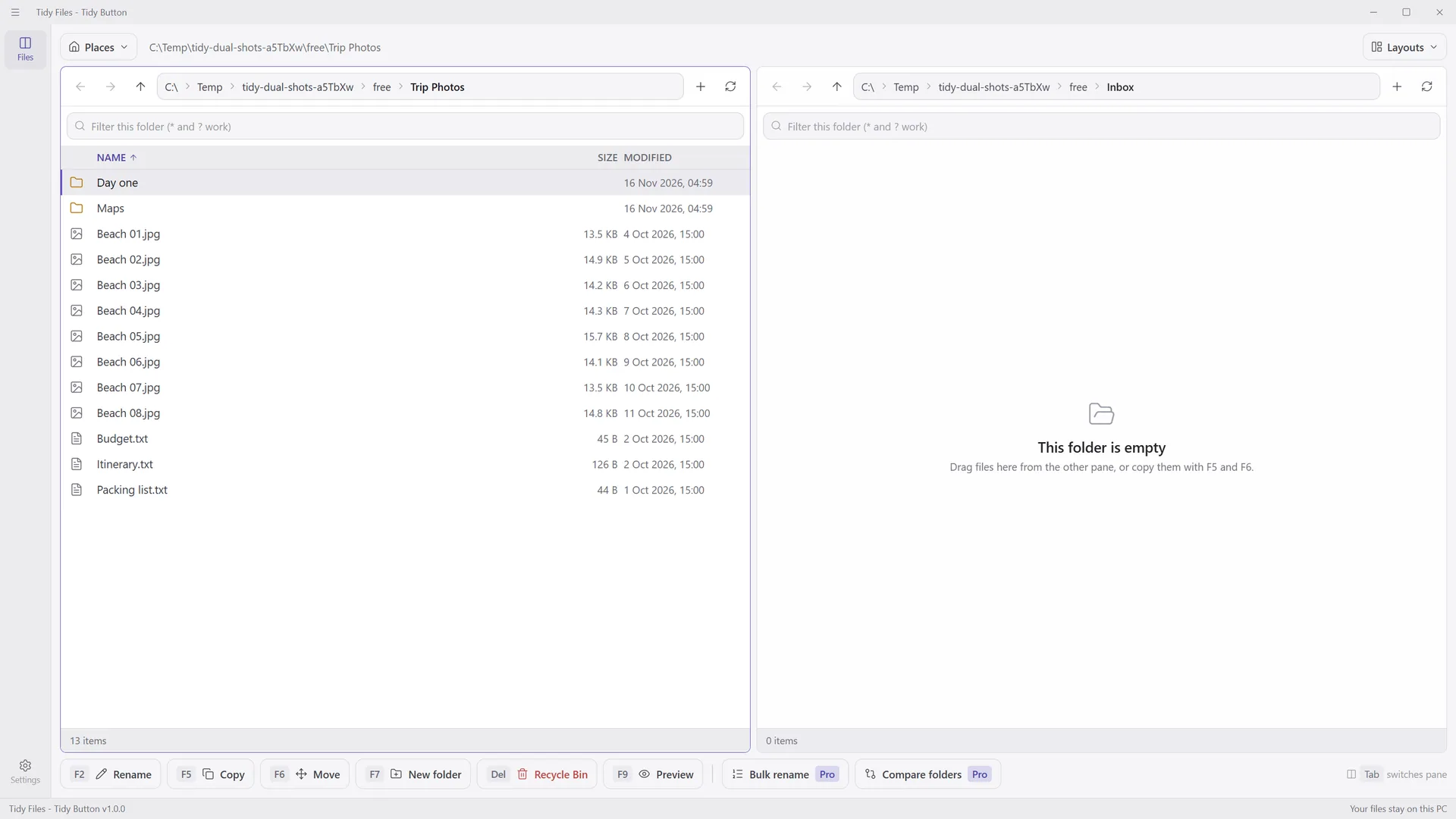
This app is not on the Microsoft Store yet. This guide is ready for the day it arrives.
Open two folders side by side
Each pane shows one folder. The pane you clicked last is the active one.
- Open Files in the left menu.
- In the left pane, open the folder you want to copy from. Double-click a folder to go inside it.
- Press the Places button above the panes to send the active pane to Quick access or one of your drives.
- Use Up one folder, Back and Forward to move around.
- Press Tab on the keyboard to switch between the two panes.
Press Ctrl+L to type a folder path, or click a part of the path above the list to jump to it.
Copy or move files to the other pane
- Click a file in one pane. Hold Ctrl and click more files to select several.
- Press Copy to put a copy in the folder shown in the other pane. Press Move to move the files there.
- You can also press F5 to copy and F6 to move. Dragging files to the other pane copies them, and holding Shift while you drop moves them.
- Watch the progress in Transfers at the bottom. Use Pause or Cancel on a job if you need to.
Copy leaves the original where it is. Move takes it out of the first folder.
Choose what happens when a file name already exists
- When a file with the same name is in the other folder, the window A file with this name is already there opens.
- Compare the size and date under Copying in and Already there.
- Press Skip this file, Keep both (rename), Keep the newer one or Replace the file.
- Tick Do this for every other file with the same problem in this job to give the same answer for the rest.
- Press Cancel the whole transfer to stop.
Make a folder, rename a file or delete it
- Press New folder, type a name and press Create.
- Select one file and press Rename. Type the new name and press Rename again.
- Select files and press Recycle Bin. If a window asks, press Move to Recycle Bin to confirm.
- Press Preview to show a panel beside the lists with a picture or the start of the text of the file you are on.
Files go to the Windows Recycle Bin instead of being erased straight away.
Find a file in a long folder
- Click the box Filter this folder above the list in a pane.
- Type part of a name. Use * for any letters and ? for one letter.
- Click Name, Size or Modified at the top of the list to sort by it.
- Press Ctrl+H to show or hide hidden files.
If something goes wrong
Copy and Move do nothing. What should I check?
Make sure you have selected at least one file, and that the other pane shows the folder you want the files to go to. The files always go to the folder in the other pane. Move does nothing if both panes show the same folder.
A folder will not let me change it. Why?
The app refuses to change anything inside the Windows folder or Program Files. Copying files out of them still works. Work in your own folders, such as Documents or Downloads.
A file I expect to see is missing. Where is it?
It may be hidden, or the filter may be hiding it. Clear Filter this folder and press Ctrl+H to show hidden files. The number of hidden items shows at the bottom of the pane.
A pane shows an error instead of files. What can I do?
Press Try again to read the folder again, or Go up to move to the folder above it.
Good to know
- Delete moves files to the Recycle Bin. It does not erase them for good.
Still stuck? Support is by email, and a person reads it.