Coming to the Microsoft Store
Tidy Files Two folders. One keypress.
Two folders side by side, F5 to copy and F6 to move, a queue with progress and conflict choices, and a preview pane. Free and offline, no account. Pro adds tabs, bulk rename, folder compare, layouts and custom keys.
We will link the Store listing here the day it is live. Until then there is nothing to download.
- Works offline
- No account, no ads, no tracking
- Recycle Bin only
- Free
See it
Eight views. Two panes, one job.
Start
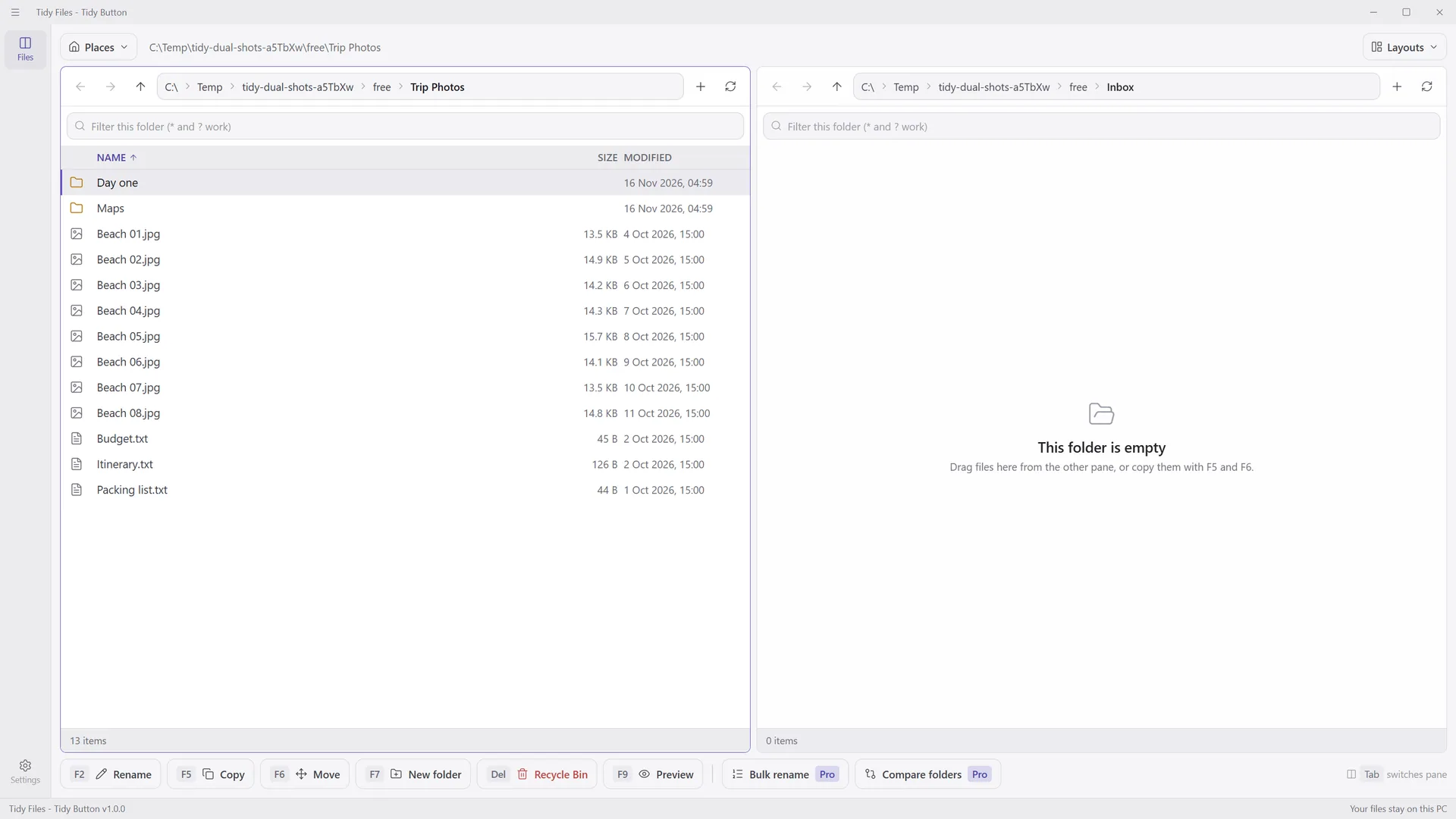
Two panes, one folder each, ready for files
Two panes
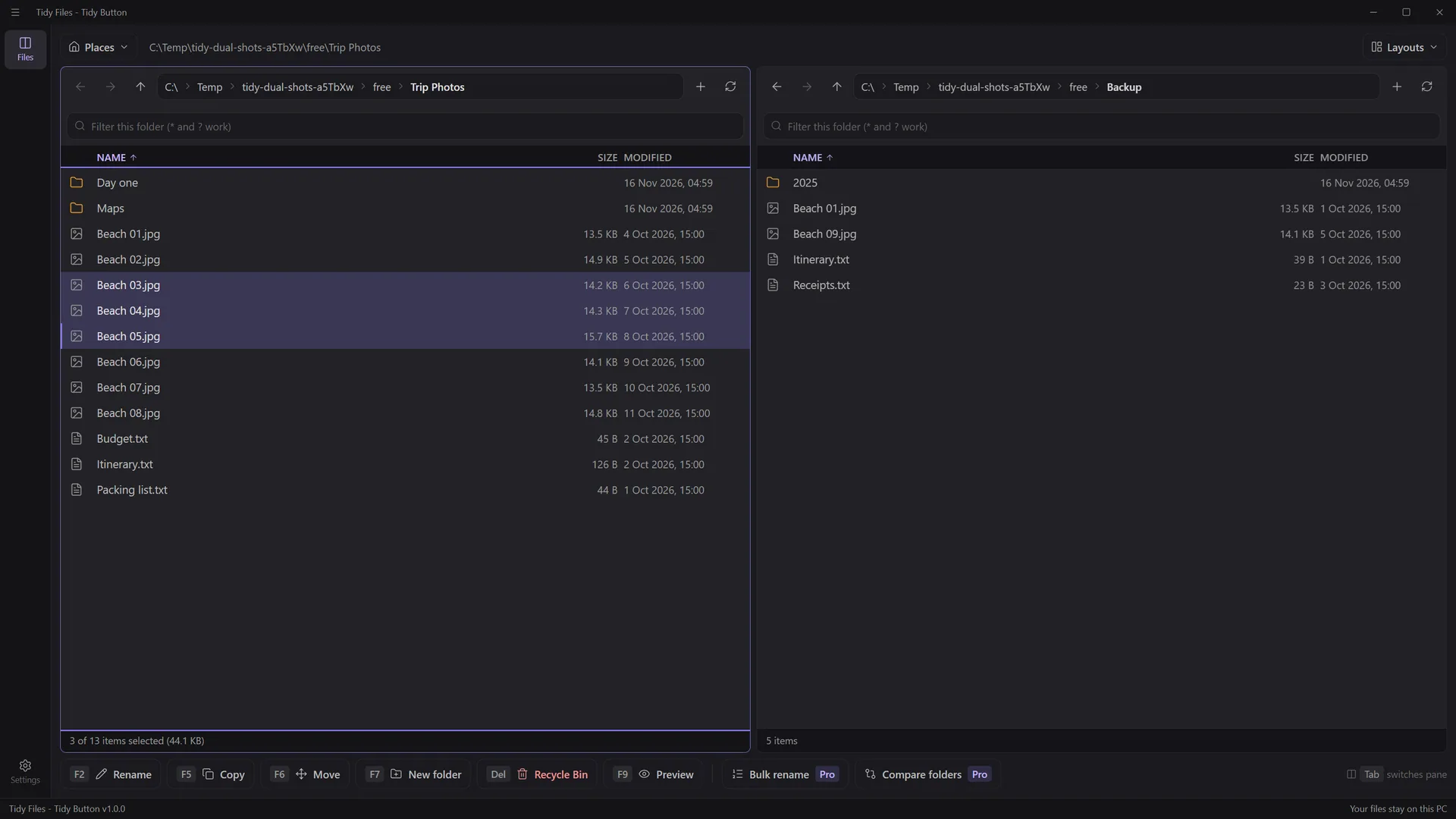
Select files in one pane, send them to the other
Preview
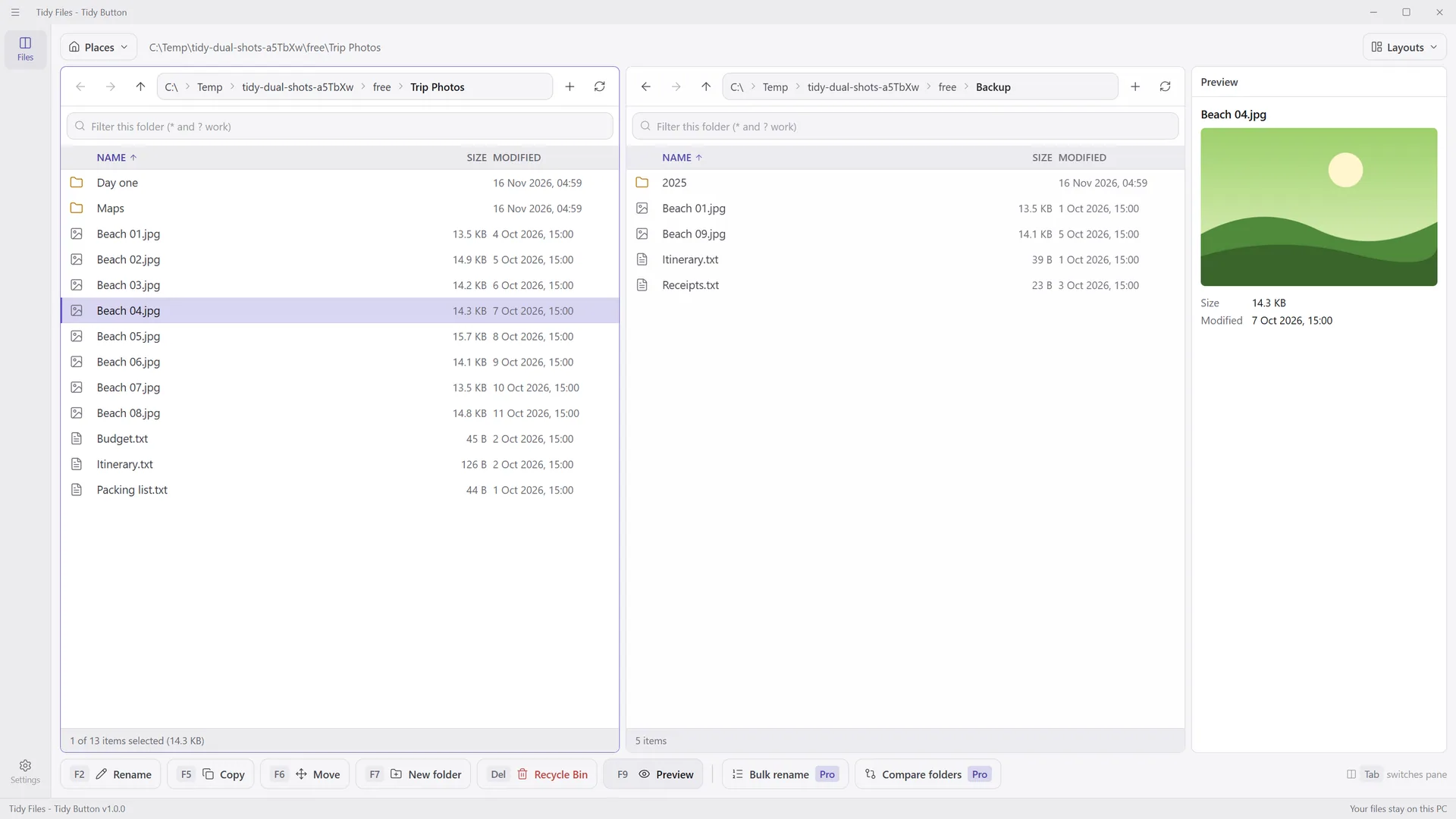
Preview a picture or text file without opening it
Transfers
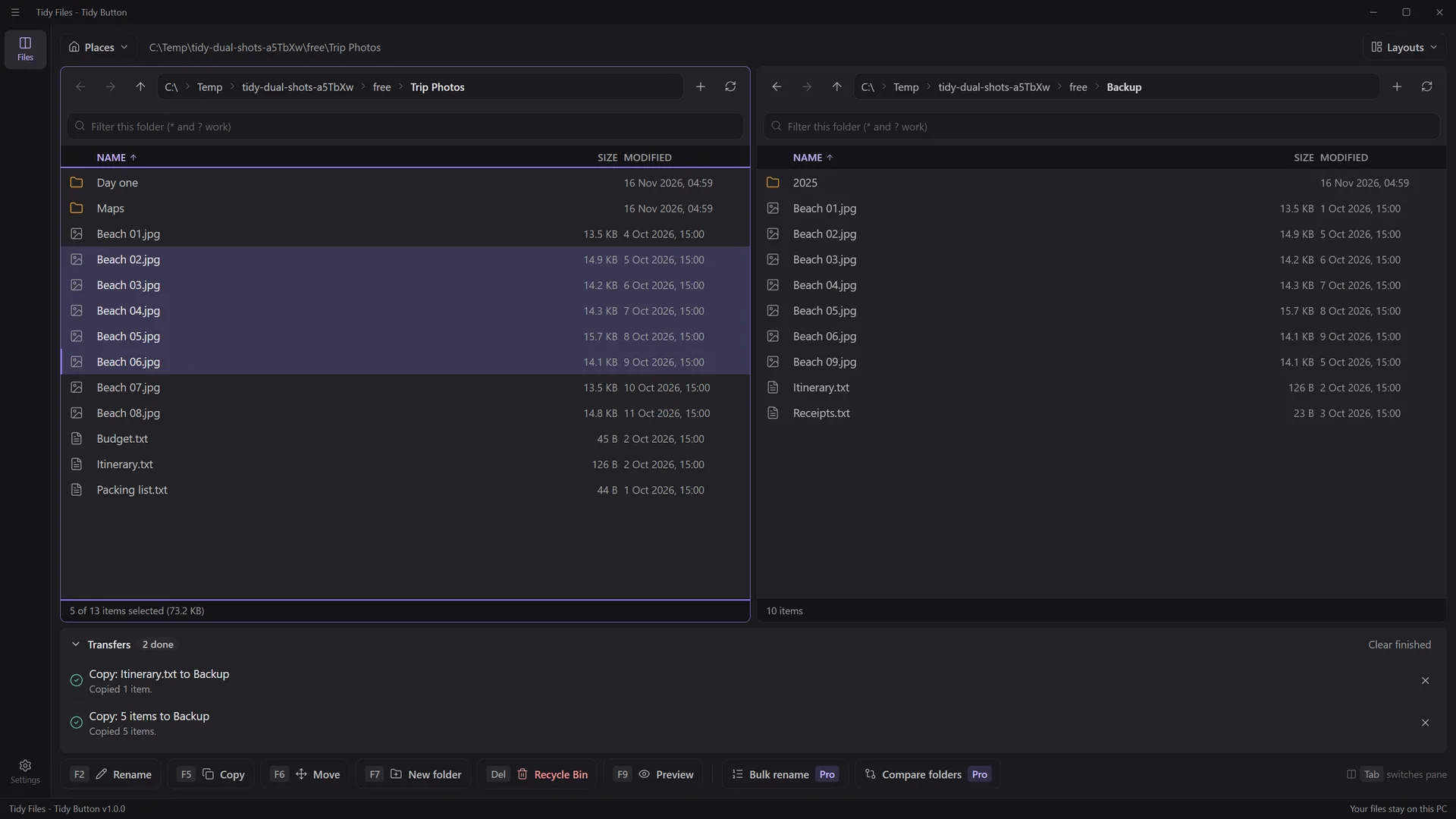
A transfer queue with progress and conflict choices
Bulk rename (Pro)
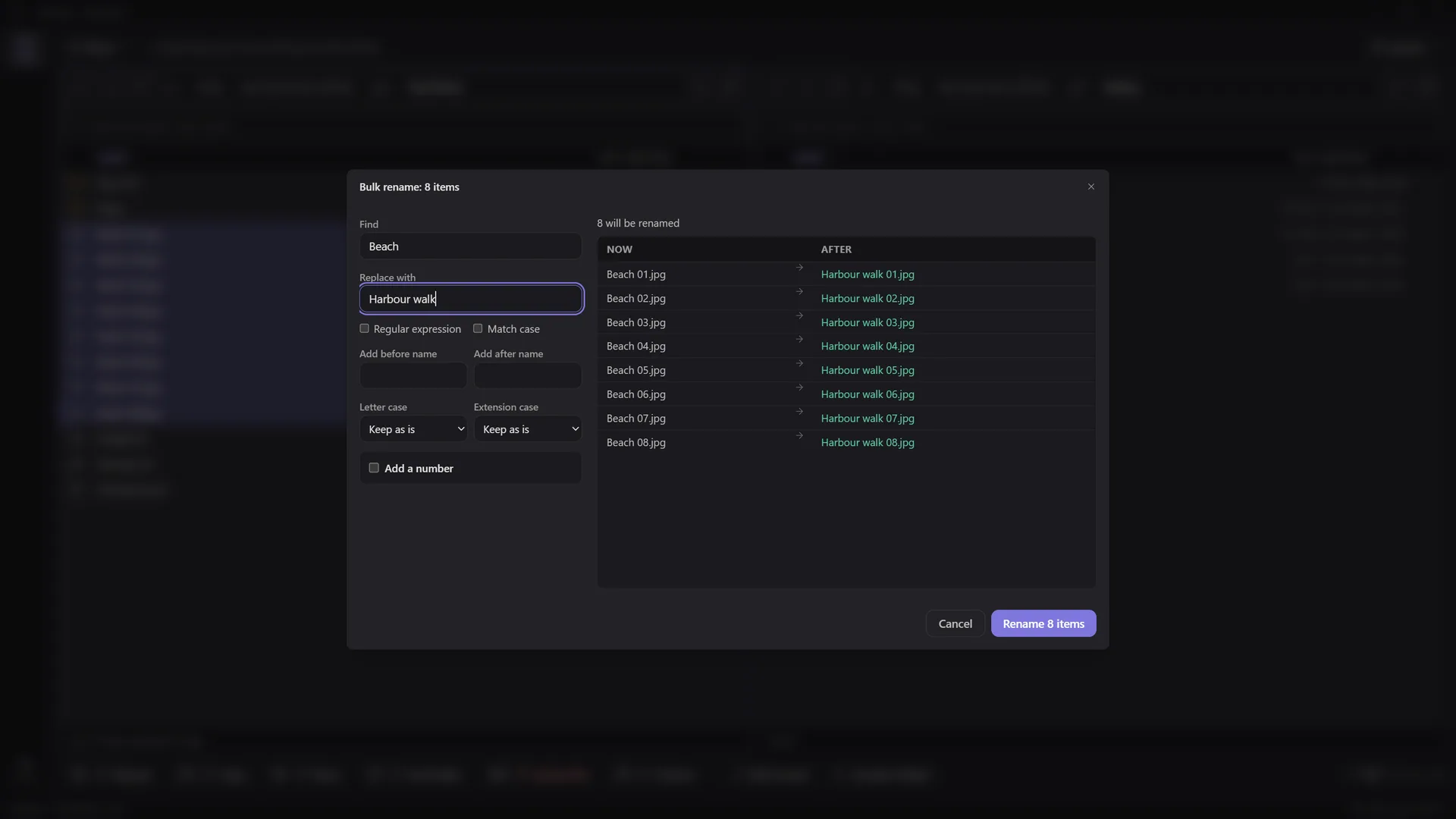
Pro: bulk rename with a live preview
Compare (Pro)
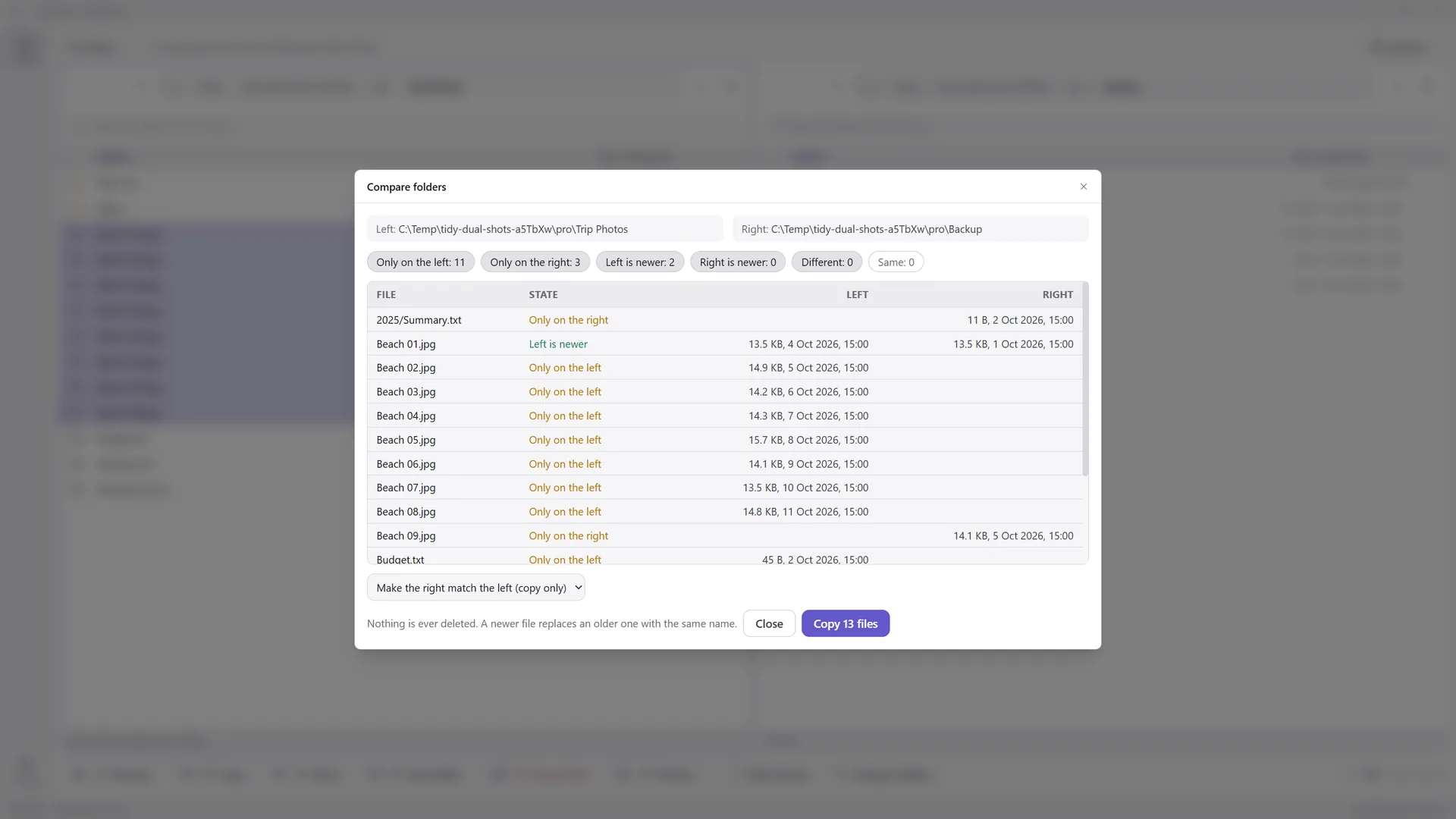
Pro: compare two folders and preview a sync
Tabs (Pro)
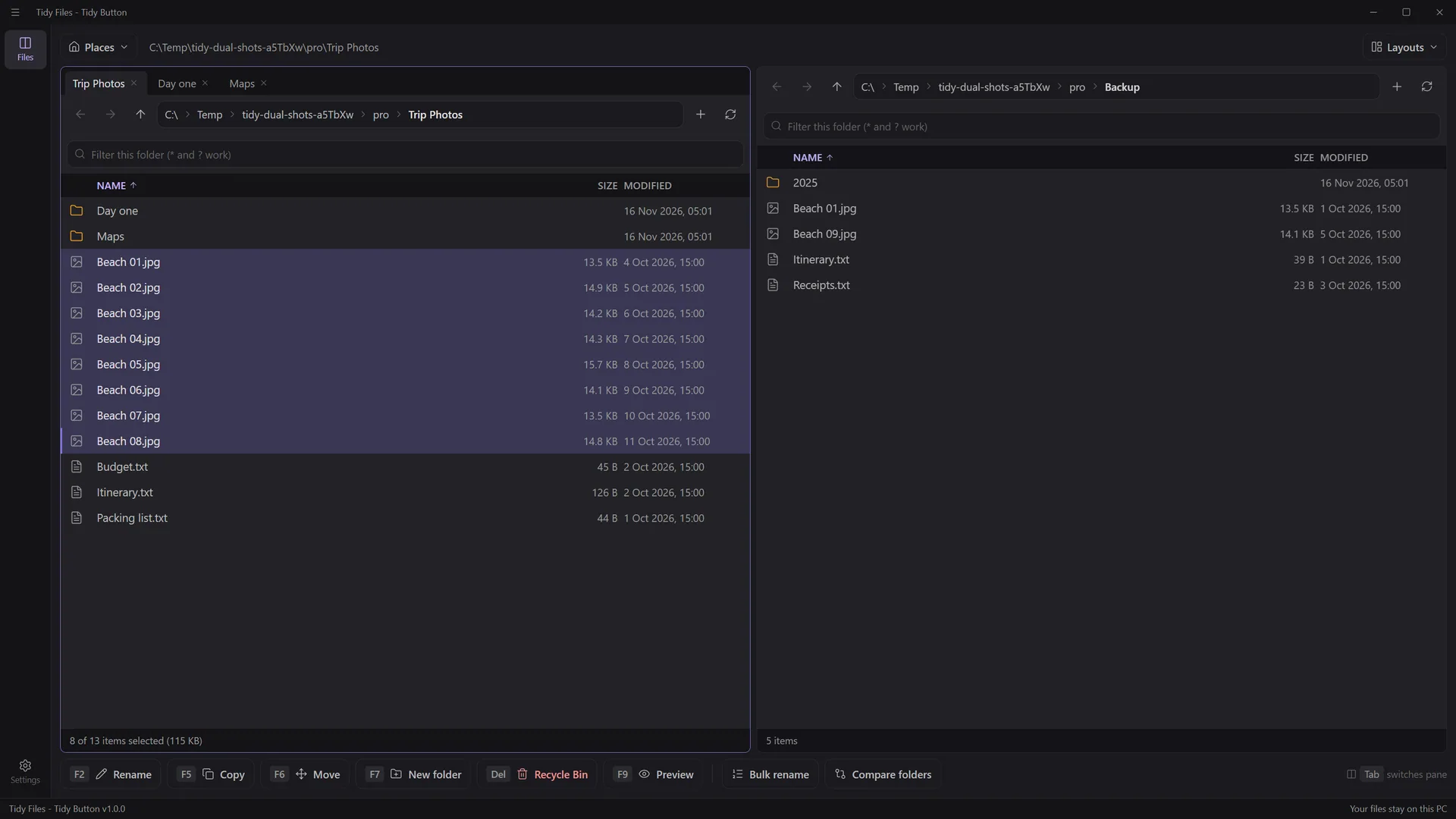
Pro: tabs in each pane
Pro prompt
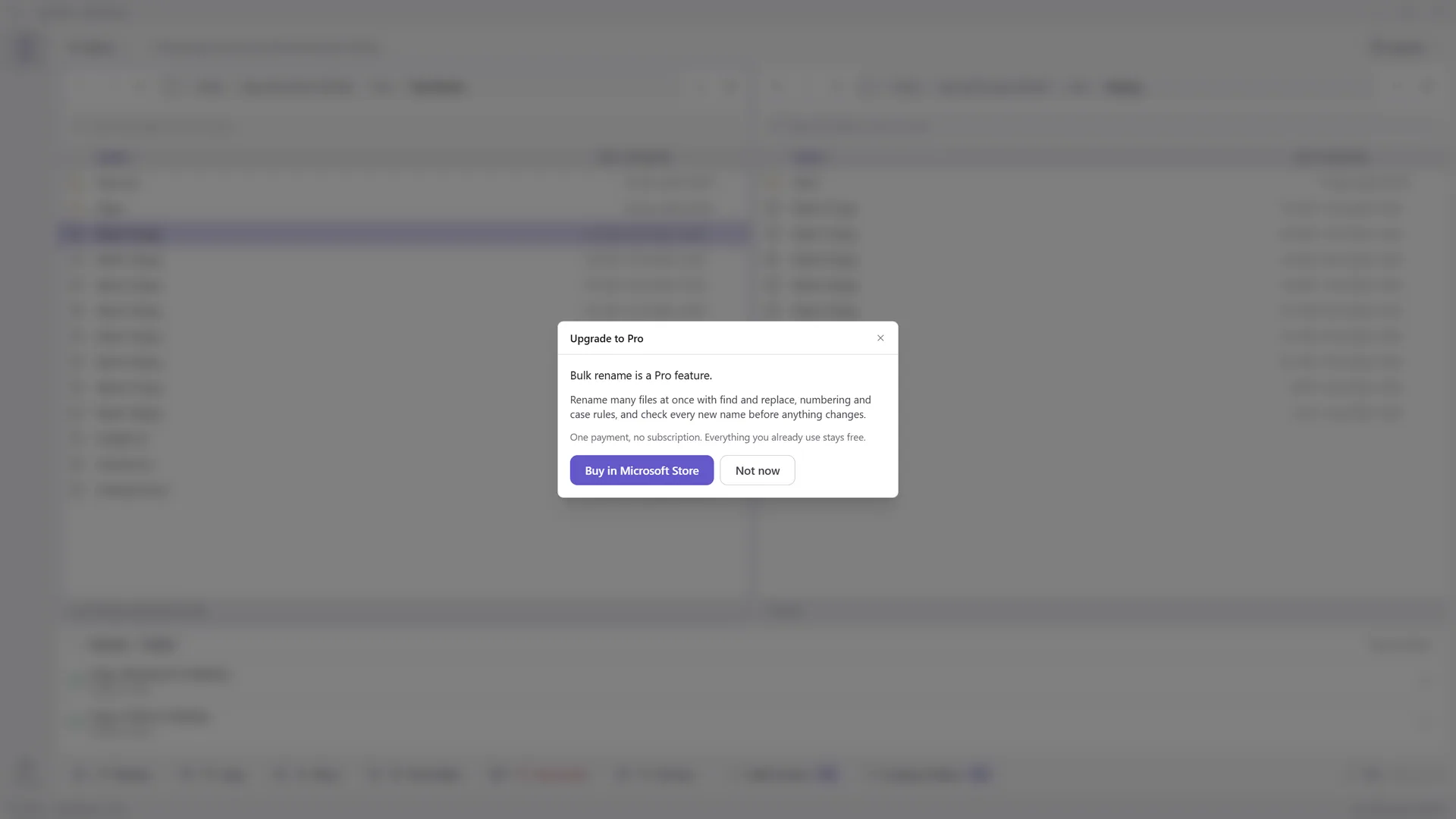
Pro controls are marked and explained, never forced
Screens show made-up trip photos and notes. The app has light, dark and other themes.
What it does
What it does.
Tidy Files shows two folders side by side, so moving things between them is a keypress away. Copies and moves run in a queue with progress, and when a name already exists you decide what happens. Everything happens on your PC. The free app is a complete file manager; an optional one-time Pro adds tabs, bulk rename, folder compare and more.
Two panes
Each pane has its own folder, back, forward and up buttons, a clickable path and a typed path box.
Keyboard first
F2 rename, F5 copy, F6 move, F7 new folder, Delete to the Recycle Bin, Tab between panes.
A safe queue
Transfers show progress and can be paused or cancelled. Name clashes ask: skip, replace, keep both or keep newer.
Recycle Bin only
Delete moves files to the Recycle Bin, and Windows system folders refuse changes.
Preview pane
See pictures, text and the first page of PDFs and documents without opening them.
Big folders
Folders with 100,000 files open without freezing the window.
Sort and filter
Sort, filter and show hidden files in each pane, with Quick Access and your drives.
Pro extras
Tabs, bulk rename with a live preview, folder compare, saved layouts, favourites and custom keys.
The small print, in plain English
Safe by design.
- Nothing is uploaded. Your files are read on your PC and never leave it.
- Delete only moves files to the Recycle Bin.
- Nothing is overwritten unless you choose to replace it.
- The free app is a complete two-pane file manager, and Pro is one payment with no subscription.
- Works offline. No account. No ads. No tracking.
Good for
Handy when files need moving.
- Moving photos and documents between folders
- Backing up a folder to a drive by keyboard
- Renaming a whole set of files at once
- Checking what differs between two folders
Questions
Plain answers.
Does it delete anything permanently?
No. Delete moves items to the Recycle Bin, where you can restore them. Windows system folders refuse changes.
What happens when a file with the same name exists?
A dialog asks: skip, replace, keep both or keep the newer one. You can apply the choice to all remaining files.
Can it open huge folders?
Yes. Folders with 100,000 files open without freezing the window.
Is anything uploaded?
No. Everything happens on your PC. The free app works with the internet turned off.
What does Pro add?
Tabs in each pane, bulk rename with a live preview, folder compare with a copy-only sync preview, saved layouts and favourite folders, and custom keyboard shortcuts. One payment, no subscription.
Will the sync preview delete files?
No. The compare and sync preview in Pro only copies; it never deletes.
Does it need an account?
No. There is no account, no ads and no tracking.
Which versions of Windows does it run on?
Windows 10 and Windows 11.