How to find files on an external hard drive without plugging it in
This guide shows how to list the files on a drive once, put the drive away, and find a file later by name. The app only reads your drive and never writes to it.
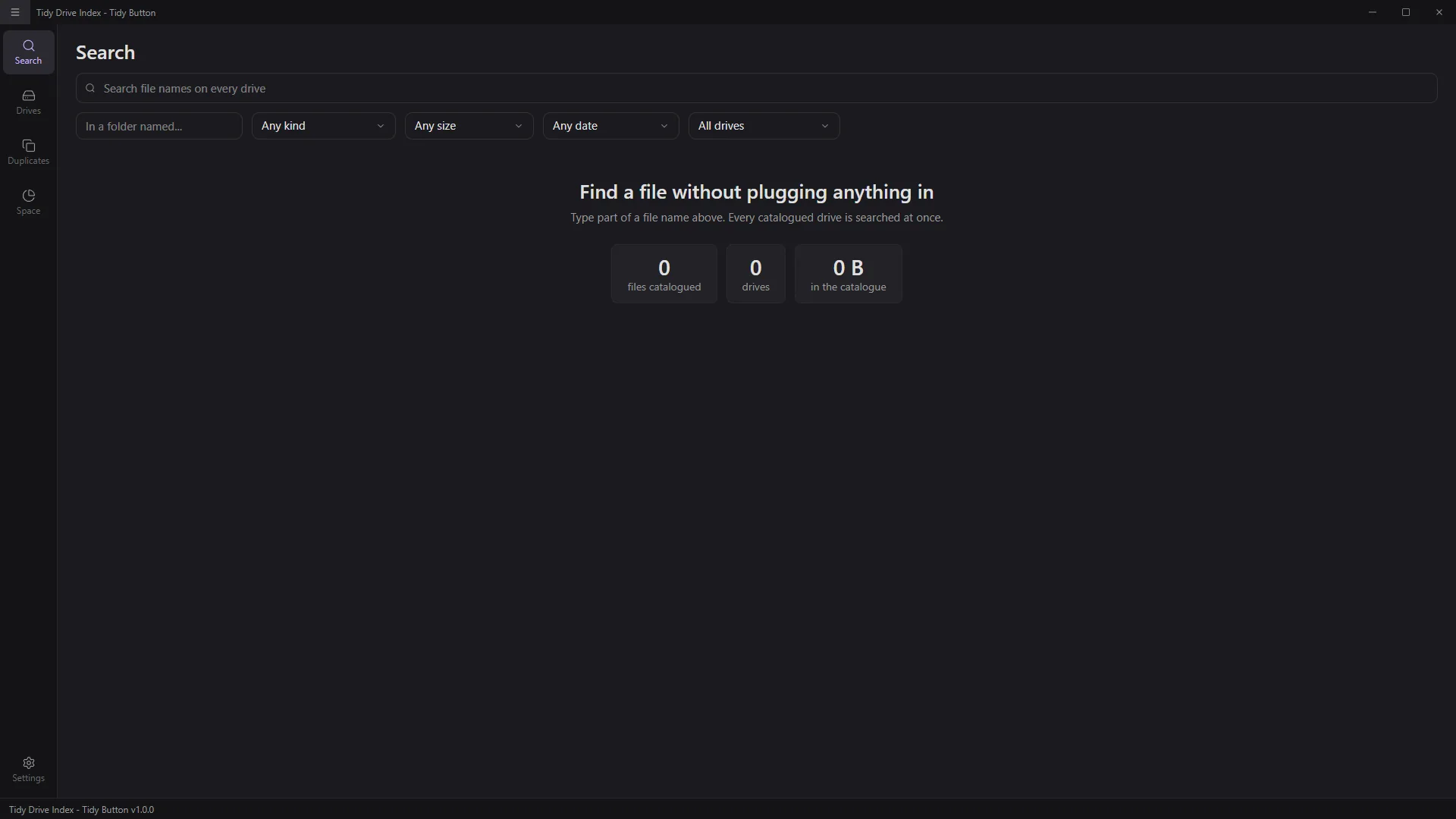
This app is not on the Microsoft Store yet. This guide is ready for the day it arrives.
Scan a drive or folder into your catalogue
The app reads file names, folders, sizes and dates. It does not copy your files.
- Plug in the drive, memory card or network folder.
- Open Drives in the left menu.
- Press Add a drive or folder and choose the drive or folder to read.
- Type a name in Drive name. Use what is written on it, like Wedding backup.
- Press Scan this drive. A banner shows the progress, and you can press Cancel to stop.
- Wait for the scan to finish.
You can unplug the drive afterwards. Its card in Drives then says On the shelf.
Search every drive at once
- Open Search in the left menu.
- Type part of a file name in Search file names on every drive.
- To narrow the results, type a folder name in In a folder named..., or use the Kind of file, Size, Modified and Drive boxes.
- Press Clear to remove all the filters.
- Click a result to see which drive it is on, and in which folder.
Only files seen at the last scan of each drive are listed.
Find the folder or copy the location of a file
- Open Search and click a result.
- In the panel that opens, read the line under Stored on. It names the drive and the folder.
- Press Copy location to copy the drive, folder and file name as text.
- If the drive is plugged in, press Show in folder to open the folder in Windows.
Update a drive and see what changed
- Plug the drive in again and open Drives.
- Press Re-scan on the drive's card.
- When it finishes, press What changed.
- Read the list of files marked Added, Removed or Changed.
- To look through a drive's folders as they were at the last scan, press Browse.
If you press Add a drive or folder and choose a drive that is already in your catalogue, the button says Update catalogue. The app updates that drive and does not add it twice.
If something goes wrong
The Re-scan button is greyed out. Why?
The drive is not plugged in. Plug it in and the button works again. What changed stays greyed out until the drive has been scanned once.
My search shows no matches. What should I try?
Use fewer or shorter words, or press Clear to remove a filter. The search only knows files that were there at the last scan.
How do I rename a drive?
Open Drives and press the pencil button (Rename drive) on its card. Type the new name and press Save name.
How do I remove a drive from the catalogue?
Press the bin button (Remove from catalogue) on the drive's card and confirm. Nothing on the drive itself is touched, and you can scan it again later.
Good to know
- The catalogue lists file names, folders, sizes and dates. It does not keep copies of your files.
Still stuck? Support is by email, and a person reads it.