How to find what is taking up space on your hard drive
This guide shows how to scan a drive, see which folders and files are using the most space, and clear out what you no longer need.
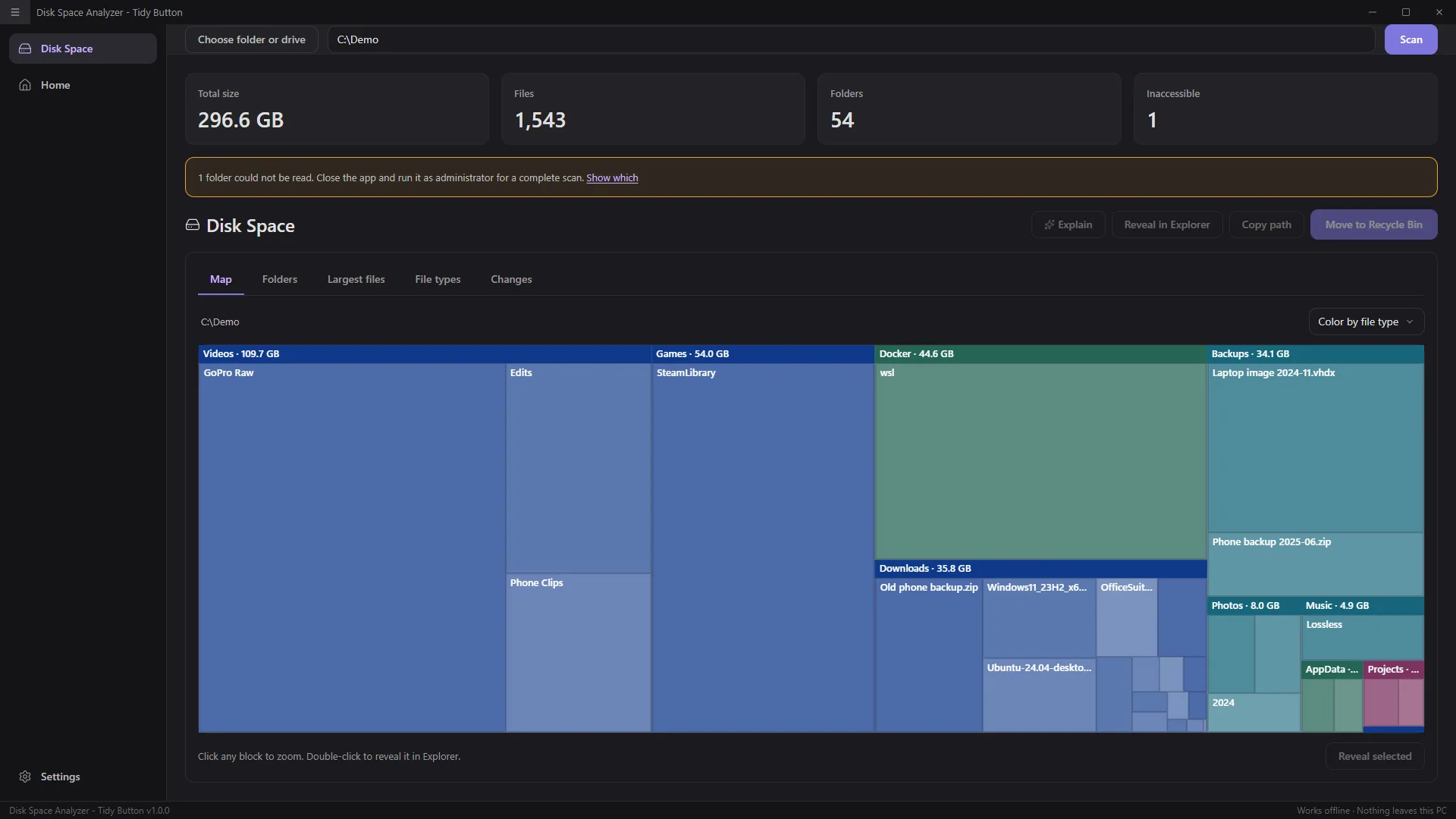
Scan a drive or folder
- Open Disk Space Analyzer.
- Press Choose folder or drive and pick a drive, or any folder such as Documents.
- The scan starts at once. Results appear while it works.
- To stop early, press Cancel.
- To scan the same place again, press Scan.
You can also drag a folder from File Explorer onto the window to scan it.
See which folders are biggest
- Scan a drive or folder first.
- Open the Map tab. Bigger blocks are bigger folders.
- Click a block to zoom in. Use the path above the map to zoom back out.
- Open the Folders tab for a list with size, share of the parent folder and file count.
- Click a folder name to open it and see what is inside.
Double-click a block on the map to show it in File Explorer.
Find the largest files
- Scan a drive or folder first.
- Open the Largest files tab.
- Use Older than to show only files you have not changed for a while.
- Type a number in Minimum size (MB) to hide small files.
- Open the File types tab to see which kinds of file take the most space. Click a type to filter the list.
Check an item and move it to the Recycle Bin
The app never deletes anything on its own.
- Tick a file in Largest files, or click a folder in Folders.
- Press Explain to read what the item is and how Windows suggests cleaning it.
- Press Reveal in Explorer if you want to look at it before you decide.
- Press Move to Recycle Bin.
- Read the message that appears, then press Move to Recycle Bin again to confirm.
Items go to the Recycle Bin, not away for good. You can empty the Recycle Bin from Windows when you are sure.
If something goes wrong
The app says some folders could not be read. What does that mean?
Windows kept the app out of those folders, so their size is not in the totals. Press Show which to see the list. Closing the app and running it as administrator gives a fuller scan.
The scan failed. What can I do?
Press Retry to run it again. If it fails again, try a smaller folder to find where the problem is.
Why does Explain say there is no guidance for an item?
Explain only has notes for well known items such as system files and caches. For anything else, use Reveal in Explorer to look at it yourself.
I moved files to the Recycle Bin but my drive is still full. Why?
Files in the Recycle Bin still use space until you empty it. The numbers in the app also do not update until you scan again.
Good to know
- Windows system folders are protected from removal.
- Some folders need administrator rights to be read.
Still stuck? Support is by email, and a person reads it.