How to test the speed of an SSD, USB stick or SD card
This guide shows how to measure how fast a drive reads and writes, what the numbers mean, and how to copy them to share.
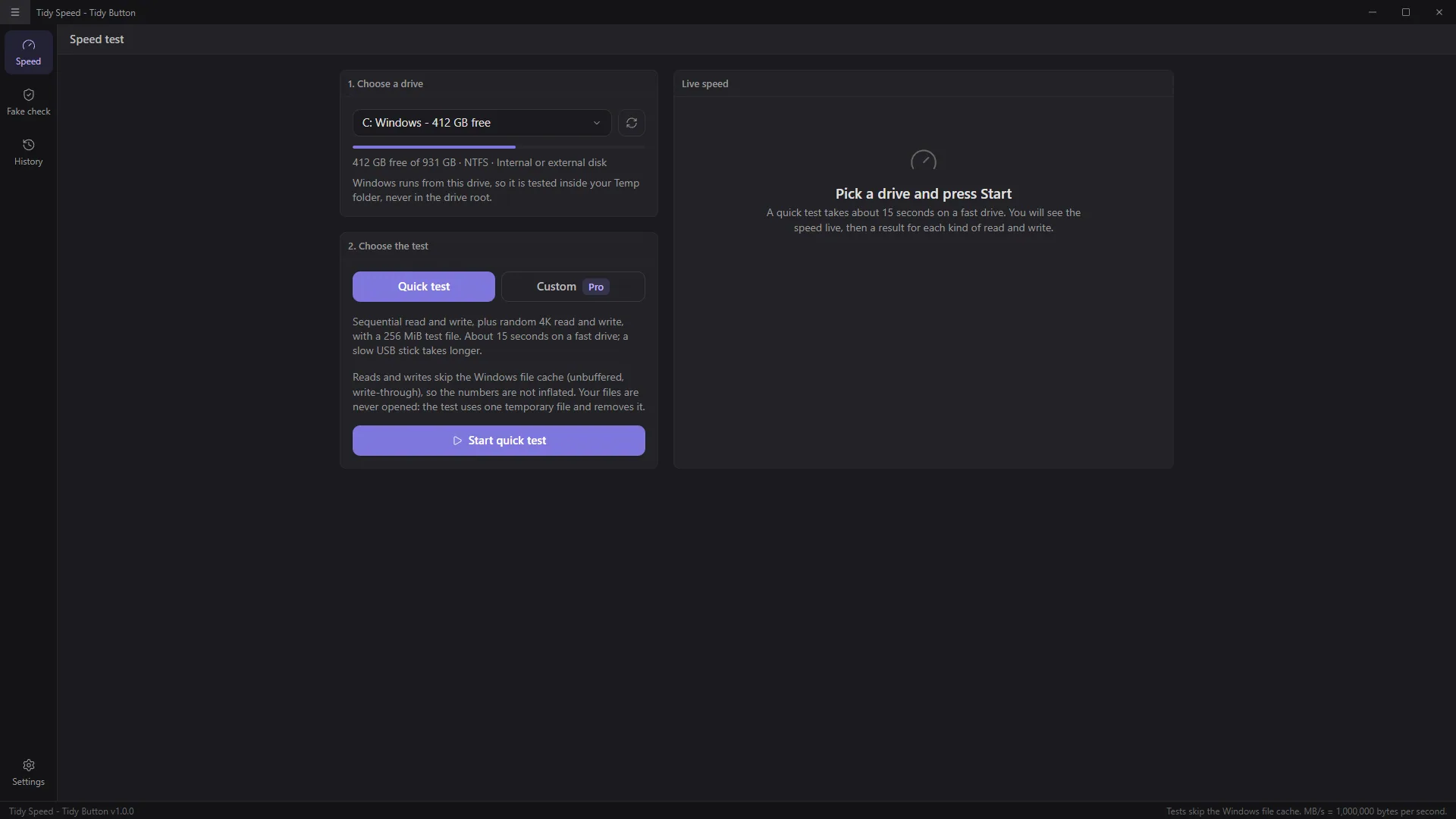
This app is not on the Microsoft Store yet. This guide is ready for the day it arrives.
Run a quick speed test on a drive
The test writes one temporary file and removes it when it ends.
- Plug in the USB stick or card you want to test, if it is not already connected.
- Open Speed in the left menu.
- Under 1. Choose a drive, open the Drive to test list and pick your drive. Press the refresh button beside it if the drive is missing.
- Under 2. Choose the test, leave Quick test selected.
- Press Start quick test.
- Watch the Live speed chart. The title above the number shows which part of the test is running.
A quick test takes about 15 seconds on a fast drive. A slow USB stick takes longer.
Stop a test that is running
- While the test runs, press Stop.
- Wait a moment while the app removes the temporary file. The button is off during this step.
- Your own files are not touched, whether the test ends by itself or you stop it.
Read the results
- When the test ends, look under Result. There is one card for each kind of read and write.
- The cards for Sequential read and Sequential write show how fast large files move, in MB/s.
- The cards for random 4K read and write show MB/s and IOPS. They also show the average time and the 99th percentile time of each request.
- Look at the badge next to the method line. It says Cache bypassed when the test skipped the Windows file cache.
MB/s here means 1,000,000 bytes per second.
Copy the results to share or save
- Finish a test so that Result shows on the screen.
- Press Copy results.
- A message says Results copied.
- Paste the text into an email, a note or a forum post.
If something goes wrong
The test will not start and says the drive needs free space. What now?
The test needs twice the size of the test file plus 1 GB free on the drive. The message under the test choice tells you how much it needs and how much the drive has. Free up some space or choose another drive.
My USB stick is not in the list. How do I find it?
Plug it in, then press the refresh button next to Drive to test. If the list is empty, the app says no drives were found.
Will the test touch my files or write to my Windows drive?
The test uses one temporary file and removes it. Your own files are never opened. If you pick the drive Windows runs from, the test runs inside your Temp folder and never in the drive root.
The badge says Cache not bypassed. What does it mean?
On some drives the test cannot skip the Windows file cache. The method line then says the cache was not bypassed and that read speeds may be too high.
Still stuck? Support is by email, and a person reads it.