How to burn files to a CD, DVD or Blu-ray disc on Windows
This guide shows how to write files to a blank disc, burn an ISO image, and erase a rewritable disc. You need a disc drive that can write discs.
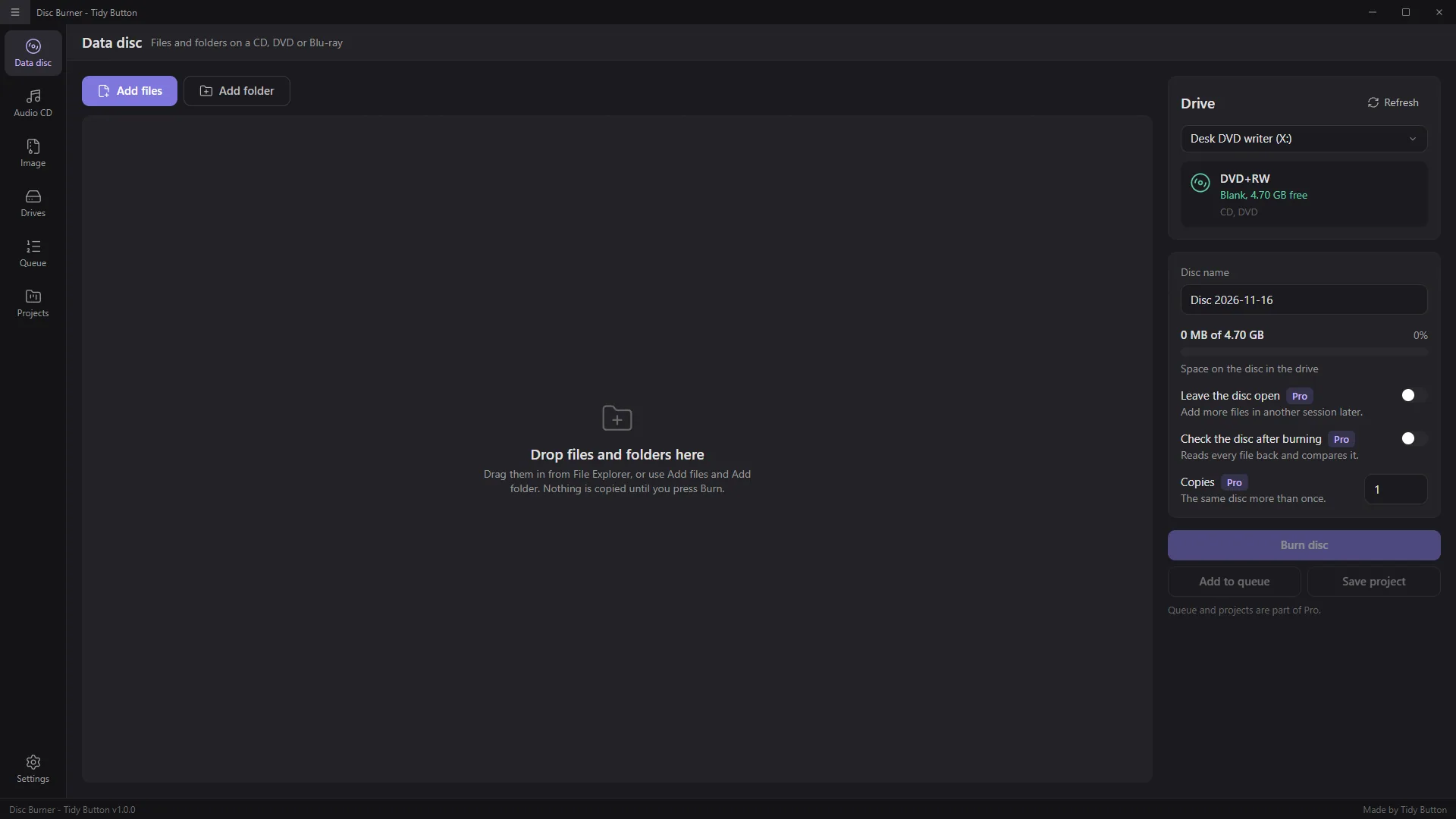
This app is not on the Microsoft Store yet. This guide is ready for the day it arrives.
Burn files and folders to a data disc
Use this to back up photos or documents, or to hand someone a disc.
- Put a blank disc in your drive.
- Open Data disc in the left menu.
- Press Add files or Add folder, or drag items in from File Explorer.
- Type a name in the Disc name box.
- Look at the space bar on the right to see whether everything fits.
- Press Burn disc and wait for the progress window to say Finished.
Nothing is copied until you press Burn disc.
Burn an ISO image to a disc
Use this for an installer or a disc backup that comes as one .iso file.
- Put a blank disc in your drive.
- Open Image in the left menu.
- Under Burn an image, press Choose an ISO file and pick the file.
- Check the name and size shown for the file.
- Press Burn image to disc.
The image is written to the disc exactly as it is.
Erase a rewritable disc
Use this to reuse a CD-RW, DVD-RW or similar disc. It deletes everything on the disc.
- Put the rewritable disc in your drive.
- Open Drives in the left menu.
- Find your drive and press Erase....
- Choose Quick erase or Full erase.
- Tick the box that says you understand everything will be deleted.
- Press Erase disc.
Only rewritable discs can be erased. The button stays off for other discs.
Check your drive and disc before you start
- Open Drives in the left menu.
- Read the card for your drive. It shows what kind of disc is inside and how much space is free.
- If you just changed the disc, press Refresh.
- Press Eject to eject the disc from that drive.
If something goes wrong
The Burn disc button is greyed out. Why?
The button needs at least one file or folder, and a drive. A message under the settings tells you what is wrong, such as no disc, a disc that is not blank, or files that are too big.
The app says No disc drive found. What now?
The PC may not have a disc burner, Windows may not see it, or burning may be switched off by Windows or your organisation. Connect a drive and press Refresh.
My files do not fit on the disc. What can I do?
The space bar on the right shows how much you are over by. Take some items out with the remove button beside them, or use a bigger disc.
Can I stop a burn that has started?
Press Cancel in the progress window. At some steps it cannot be stopped safely, so the button stays off until that step ends.
Good to know
- A full erase can take about half an hour and cannot be stopped once it starts.
Still stuck? Support is by email, and a person reads it.