How to show a looping slideshow on a TV from a Windows PC
This guide shows how to turn a TV or monitor into a simple sign, such as a menu board or a notice board, using a playlist on your PC.
This app is not on the Microsoft Store yet. This guide is ready for the day it arrives.
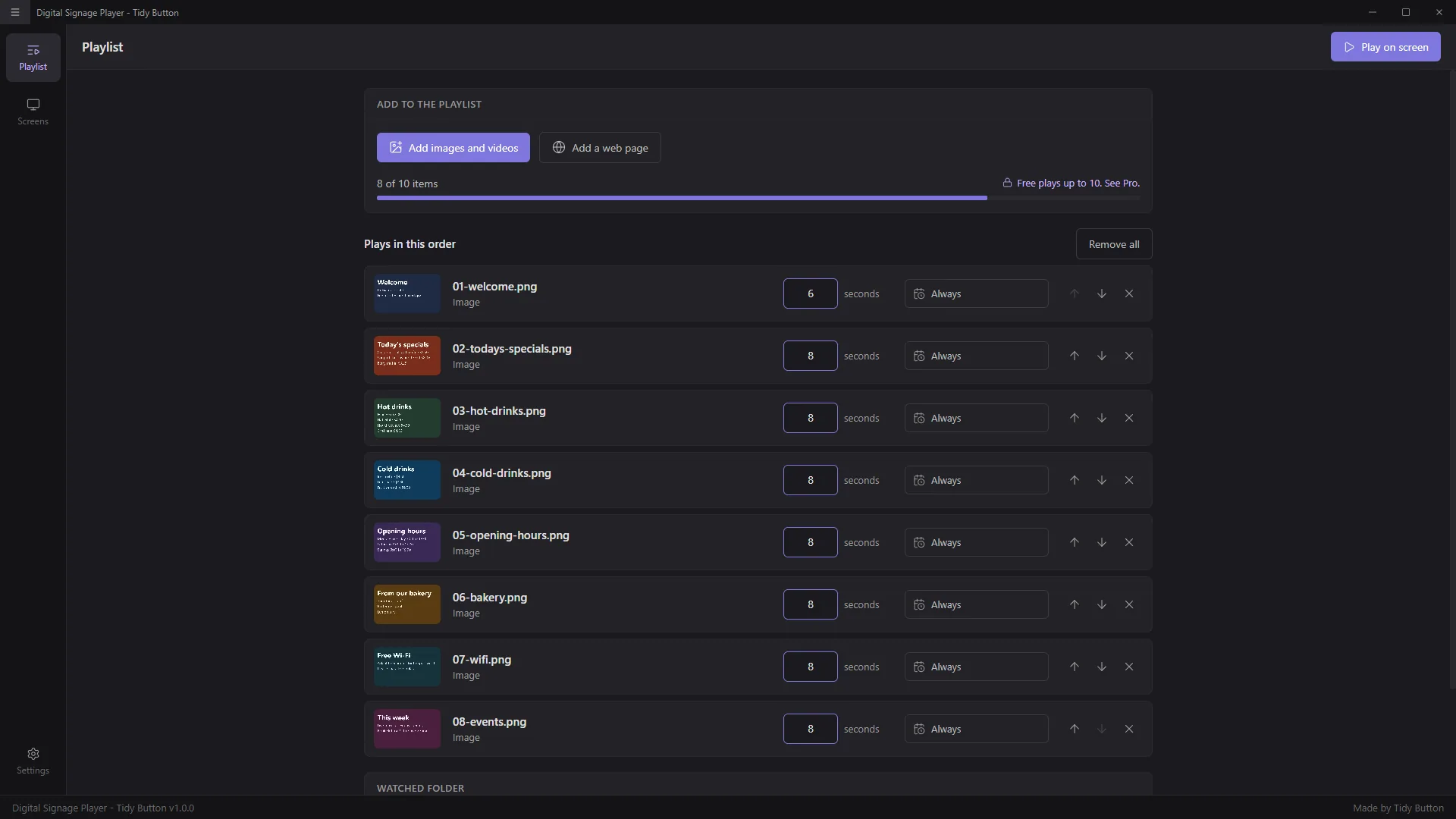
Build a playlist of pictures and videos
- Open Digital Signage Player and stay on the Playlist screen.
- Press Add images and videos and choose your files.
- Each file appears in the list with a thumbnail. Type the time in the seconds box to say how long it stays on screen.
- Use the up and down arrow buttons on a row to change the order. Items play from top to bottom, then start again.
For a video, set the seconds to 0 to play the whole video.
Play the playlist on a TV
- Connect the TV or monitor to your PC.
- Open Screens and look at Plays on. Choose the TV or leave Choose automatically.
- In Pictures and videos, choose Fit inside the screen to see the whole picture, or Fill the screen to crop the edges.
- Go back to Playlist and press Play on screen.
- Press Esc to stop.
Show a web page in the loop
- On the Playlist screen, press Add a web page.
- Type the address in Web address.
- Set Seconds on screen.
- Press Add web page.
A web page needs an internet or network connection each time it comes round.
Let a folder fill the playlist for you
- On the Playlist screen, find the watched folder box.
- Press Choose a folder to watch and pick a folder.
- Pictures and videos you put in that folder join the playlist by themselves. Files you take out leave it.
- Choose how many seconds each of them stays on screen.
Start playing when the app opens
- Open Settings.
- Switch on Start playing as soon as the app opens.
- Open the app after a restart and the playlist starts by itself.
If something goes wrong
The sign plays on the wrong screen. How do I change it?
Open Screens and pick the right display in Plays on. Then press Play on screen again.
How do I stop the slideshow?
Press Esc on the keyboard while the player is showing.
My pictures do not fill the whole screen.
Fit inside the screen shows the whole picture and can leave bars at the sides. Change the setting in Pictures and videos on the Screens page to crop the edges instead.
Does it need the internet?
Local pictures and videos play without a connection. Only a web page in the playlist needs one.
Good to know
- The playlist plays while the PC is on and the app is running. If the PC restarts, the app needs to open again.
Still stuck? Support is by email, and a person reads it.