How to add events and reminders to a desktop calendar on Windows
This guide shows how to add an event, make it repeat, get a Windows reminder, use the small desktop widget and save a copy of your events.
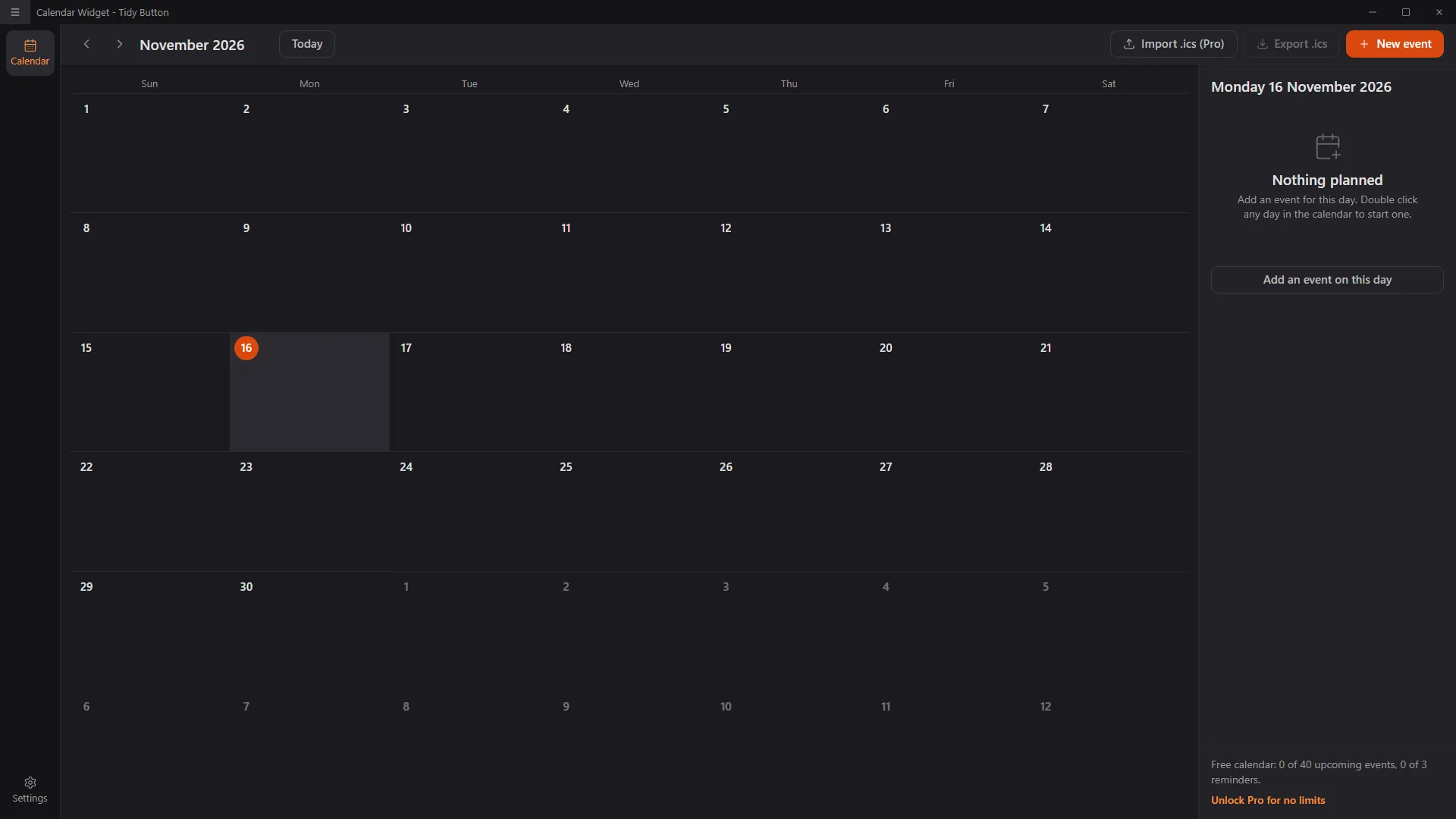
This app is not on the Microsoft Store yet. This guide is ready for the day it arrives.
Add an event
- Open Calendar in the left menu.
- Press New event. You can also double click a day in the month.
- Type what is happening in Title.
- Check the Date, then set Starts and Ends (optional).
- Pick a colour in Colour so you can spot the event in the month.
- Press Add event.
For an event that lasts the whole day, switch on All day instead of setting a time.
Make an event repeat and set a reminder
- Open the event, or press New event to make one.
- Open the Repeat list and choose Every day, Every week, Every month or Every year.
- For a weekly event, pick the days in the Repeat on row.
- Under Ends, choose Never, After a number of times or On a date.
- Open the Reminder list and choose how long before the event you want a Windows notification.
- Press Add event, or Save if you were editing.
Reminders are Windows notifications. They only appear if Reminders is switched on in Settings.
Use the small calendar on your desktop
The widget is a small month with today and your next events under it.
- Click a day in the widget to see the events on that day.
- Press the Go to today button to jump back to the current month.
- Press Add an event to start a new event from the widget.
- Press Open the full calendar to plan in the bigger window.
- Press Keep the widget on top if you want it to stay above other windows.
If you hide the widget, a click on the app icon in the system tray brings it back.
Change the week and clock settings
- Open Settings in the left menu.
- Open First day of the week and choose Sunday, Monday or Saturday.
- Switch on Week numbers to show the week of the year beside each row.
- Open Time format and choose a 12 hour or 24 hour clock.
Save a copy of all your events
- Open Calendar in the left menu.
- Press Export .ics.
- Choose where to save the file.
An .ics file can be opened by other calendar programs.
If something goes wrong
I did not get a reminder. What should I check?
Open Settings and check that Reminders is switched on. Then open the event and check that Reminder is not set to No reminder. Also check that Windows notifications are allowed on your PC.
The widget has disappeared from my desktop. How do I get it back?
Click the app icon in the system tray, near the Windows clock. You can also open Settings and switch on Show the widget.
I deleted a repeating event. Can I remove only one day?
When you press Delete on a repeating event, a window called Delete a repeating event asks which events to remove. Choose the option that matches what you want, or press Keep it to cancel.
Where are my events saved?
On this PC. They are not sent anywhere. The app also keeps automatic backups, and Open backups folder in Settings shows where they are.
Good to know
- Reminders are Windows notifications, so Windows must allow notifications from the app for them to show.
Still stuck? Support is by email, and a person reads it.