How to make the mouse pointer bigger on Windows
This guide shows how to make your mouse pointer larger or change how it looks, and how to put the normal Windows pointers back.
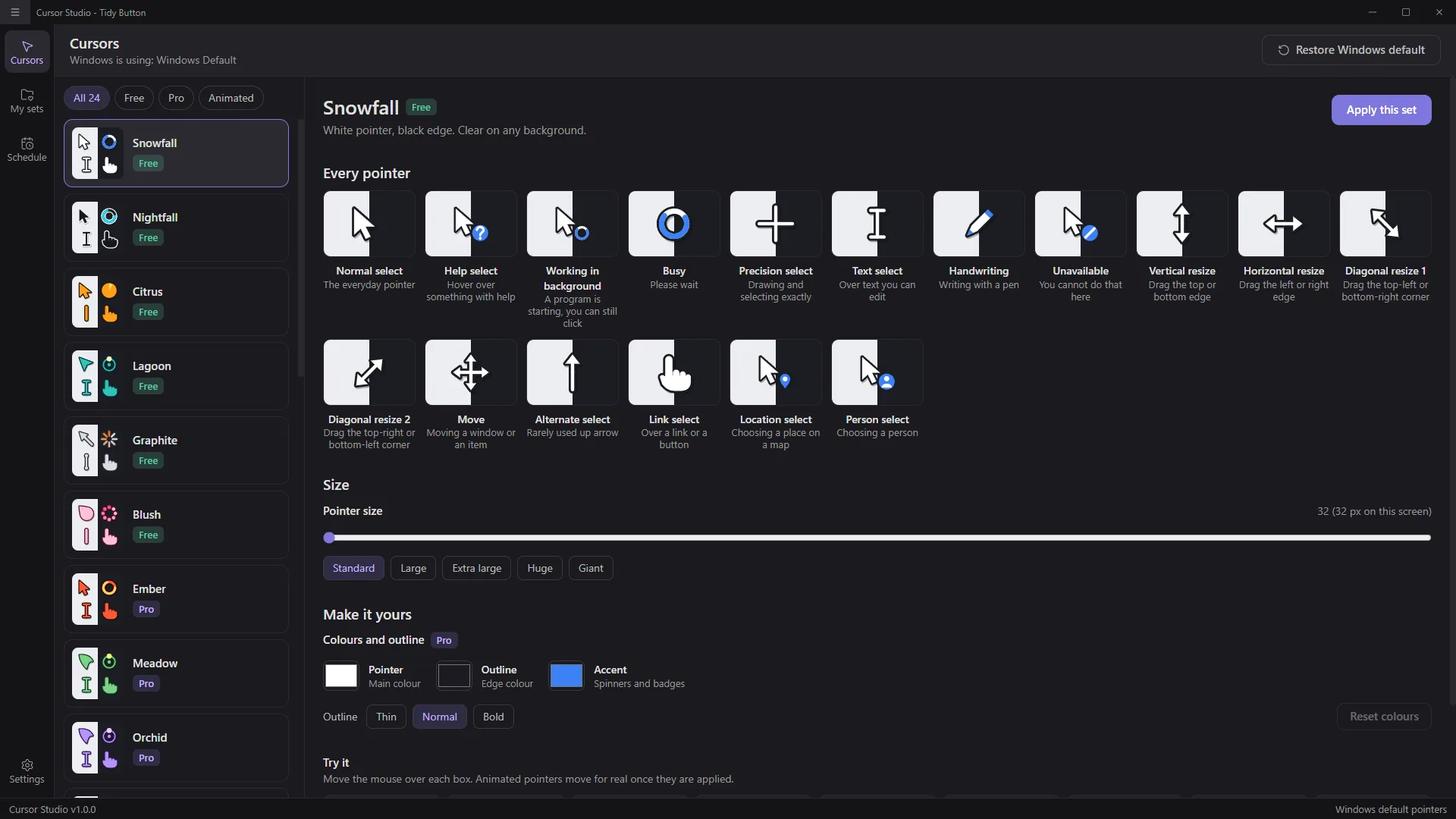
This app is not on the Microsoft Store yet. This guide is ready for the day it arrives.
Make the pointer bigger
The size control sits under every pointer set.
- Open Cursors in the left menu.
- Press Free above the list and click a set that shows the Free tag.
- Find Pointer size on the right.
- Press a size such as Large, Extra large, Huge or Giant, or drag the slider.
- Read the number beside the slider. It also shows how many pixels the pointer will be on this screen.
- Press Apply this set.
Standard is the size Windows shows by default.
Try a new pointer set before you apply it
- Open Cursors in the left menu.
- Press Free above the list to show the sets you can use.
- Click a set in the list. The right side shows every pointer in it under Every pointer.
- Scroll down to Try it and move the mouse over each box. Your pointer changes to the one in that set.
- When you like it, press Apply this set. A message tells you the set is now your pointer.
Trying a set does not change Windows. Only Apply this set does.
Keep your pointer after you restart
- Open Settings in the left menu.
- Find Your cursors.
- Turn on Keep my cursors after restart.
- Read the message under it to see whether it is on.
When it is off, the message under the switch says Windows goes back to its own pointers every time you sign in.
Go back to the Windows pointer
- Press Restore Windows default at the top of the Cursors screen.
- Wait for the message that the Windows default pointers are back.
- You can also open Settings and press Restore Windows default under Back to normal.
If the message says the pointers show fully after you sign out and in, sign out of Windows and sign in again.
If something goes wrong
My pointer went back to the Windows one after I restarted. Why?
Windows can go back to its own pointers every time you sign in when this option is off. Open Settings and turn on Keep my cursors after restart.
Where are the pointer files saved?
In your Documents folder. Open Settings and press Open folder to see them. They stay there so Windows can read them after the app is closed.
What does the line at the top of the Cursors screen mean?
The line that starts with Windows is using shows the pointer set Windows reports right now. If the app cannot tell, it says Pointer set unknown.
I clicked a set but my pointer did not change.
Clicking a set only shows it. Move the mouse over the boxes under Try it to see it, then press Apply this set to use it.
Good to know
- The boxes under Try it change your pointer only while it is over them, inside the app window. Windows uses a set only after you press Apply this set.
Still stuck? Support is by email, and a person reads it.