How to open a CSV file and filter or sort its rows
This guide shows how to open a CSV or TSV file, find the rows you need, and save them as a new file. Your original file is never changed.
This app is not on the Microsoft Store yet. This guide is ready for the day it arrives.
Open a CSV file
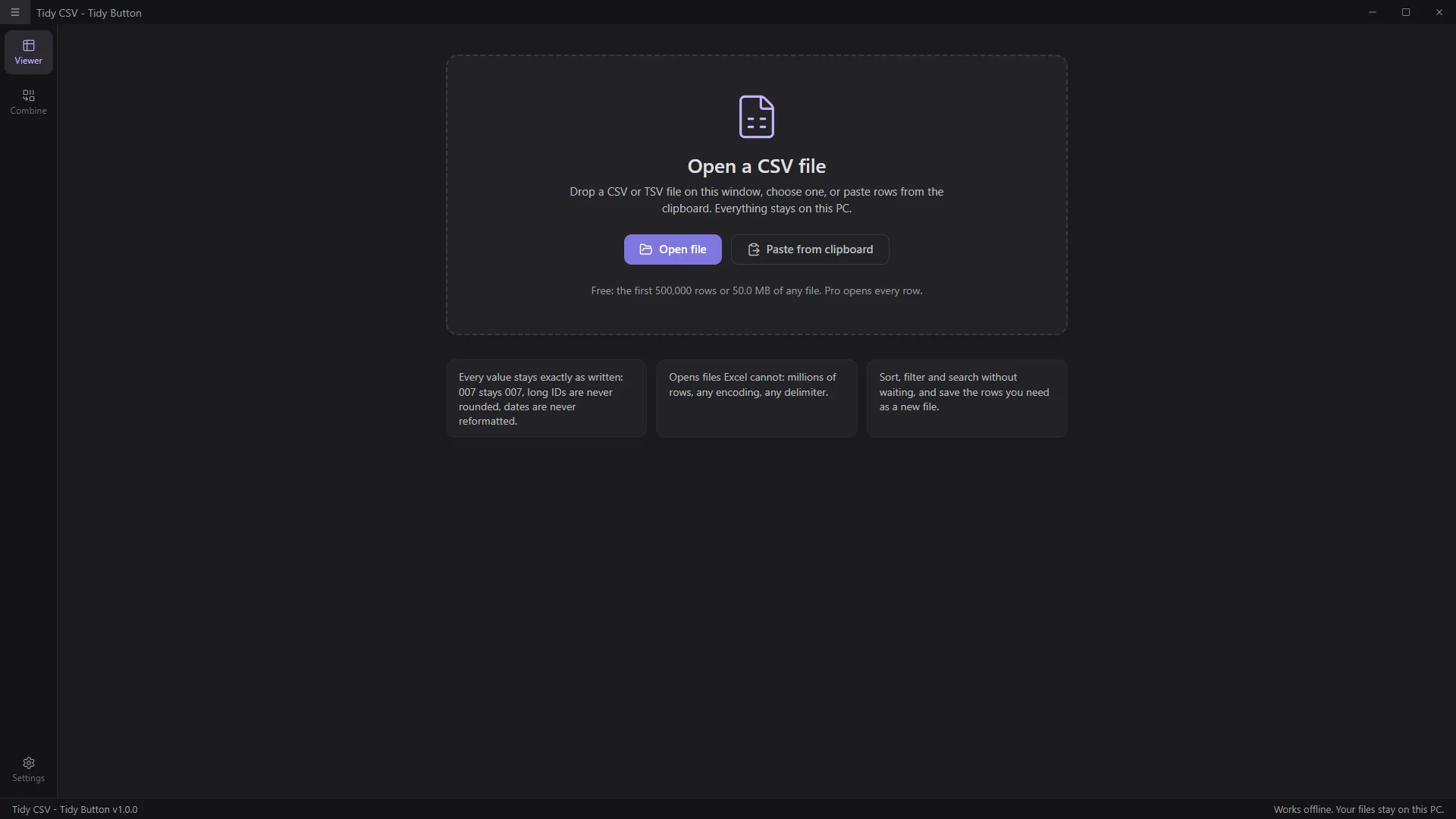
You can open a file with a button, by dragging it in, or by pasting rows.
- Press Open file on the first screen and choose your CSV or TSV file.
- Or drag the file onto the app window.
- Or copy some rows from another program and press Paste from clipboard.
- Wait a moment. You can scroll and read while the rest of a large file is still being read.
Values are shown exactly as written, so 007 stays 007.
Fix a file that shows in one column or has odd letters
The app guesses how a file is read. If the guess is wrong, you can change it.
- Open your file first. Then click the small button at the top that shows the text encoding, the separator and whether there is a header row.
- In Text encoding, pick another encoding if the letters look wrong.
- In Columns are separated by, pick the character that separates the columns, such as a comma, semicolon or tab.
- Tick or untick The first row holds the column names.
- Press Open again with these.
Your file is not changed by these settings.
Search, sort and filter the rows
- Type a word in Search all columns to find it in any column. Press Enter to jump to the next match.
- To sort, click a column heading. Click it again to reverse the order. A third click removes the sort.
- To filter, press Filter, or move the pointer over a column heading and press its filter icon.
- Choose the column in Column, a test in Test, and type what to look for in Value.
- Press Add filter. The rows that do not match are hidden.
- To undo a filter, press the small x on its chip, or press Clear all.
Filters only change what you see. They do not change the file.
See statistics for one column
- Find the column you want to check.
- Move the pointer over its heading and press the statistics icon.
- Read Rows, Blank and Distinct values in the side panel.
- Scroll down to Most common to see the values that appear most.
- Press the close button on the panel when you are done.
The numbers cover the rows you can see, so apply a filter first if you want statistics for part of the file.
Save the rows you need as a new file
- Sort and filter until the grid shows the rows you want.
- Press Save copy.
- Under Columns separated by, choose Comma (CSV), Semicolon or Tab (TSV), or keep Same as the file.
- Press Choose a name and save, then pick a folder and a file name.
- Press Show in folder to find the new file.
To copy one cell or row to a spreadsheet instead, click it and press Copy cell or Copy row.
If something goes wrong
All my data is in one column. What should I do?
The separator was probably guessed wrong. Click the format button at the top, change Columns are separated by, and press Open again with these.
Accents and other letters look wrong. How do I fix them?
Click the format button at the top and pick a different Text encoding. Then press Open again with these.
A sort or filter is taking a long time. Can I stop it?
Yes. A progress bar shows at the top while it runs. Press Cancel next to it.
Did saving a copy change my original file?
No. Save copy writes a new file with the name you choose. Your original stays as it was.
Excel shows strange letters in my saved copy. What can I do?
Save the copy again with Add a byte order mark ticked. Excel uses it to show accents and non-Latin letters correctly.
Good to know
- The app reads and saves CSV and TSV files. It is not a spreadsheet, so there are no formulas or charts.
Still stuck? Support is by email, and a person reads it.