How to put a custom crosshair on your screen in Windows
This guide shows how to draw a small crosshair on your screen, change how it looks, put it where you want it and hide it with a key. Some competitive games ban overlays, so check the rules of your game before you use one online.
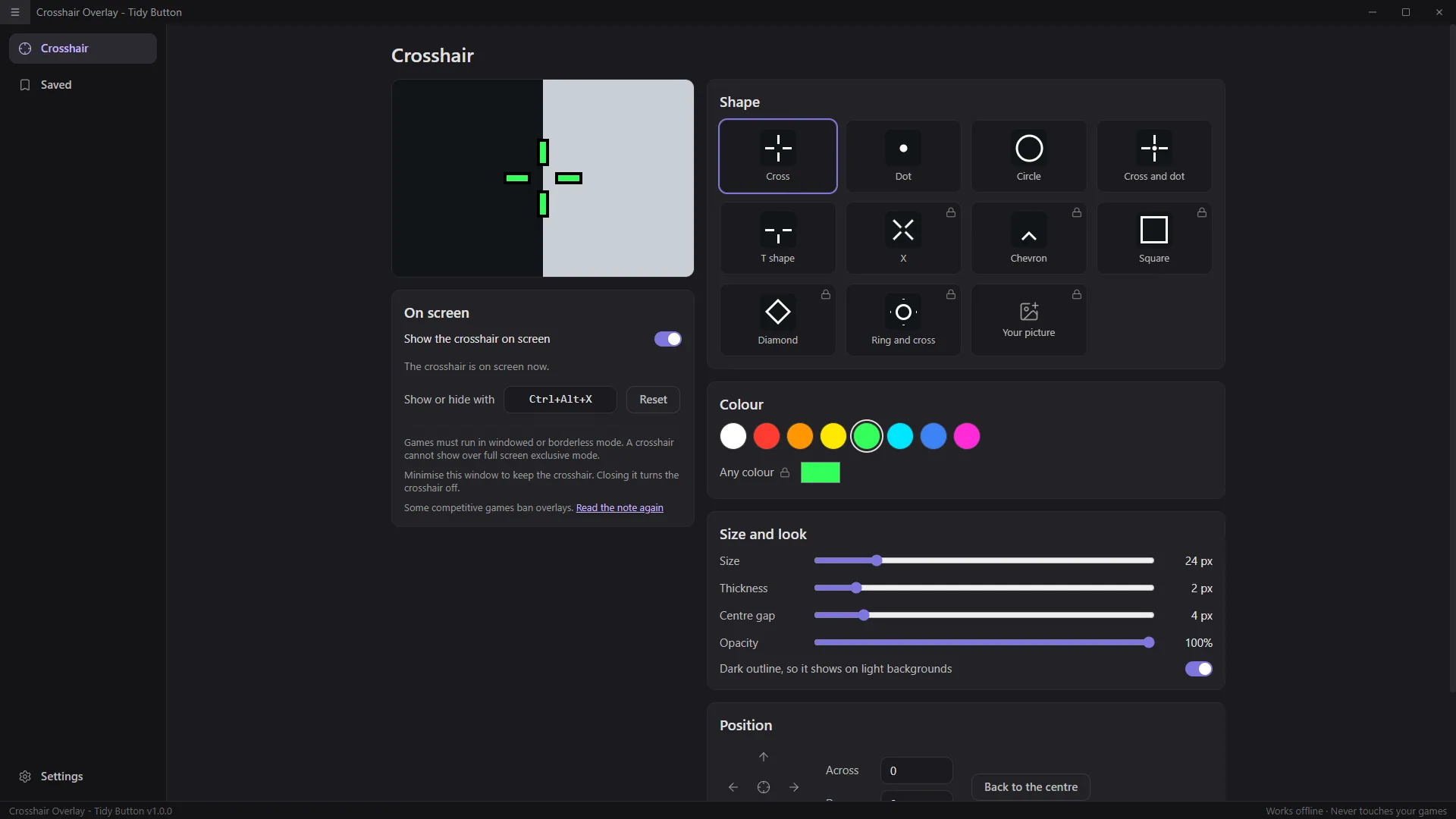
This app is not on the Microsoft Store yet. This guide is ready for the day it arrives.
Show a crosshair on your screen
The crosshair is a small see-through window on top of your other windows.
- Open Crosshair Overlay. The first time, a note says that some competitive games ban overlays. Read it and press I understand.
- The crosshair appears in the middle of your main screen. Check that Show the crosshair on screen is switched on.
- Run your game in windowed or borderless mode. A crosshair cannot show over full screen exclusive mode.
- Minimise the app window to keep the crosshair. Closing the window turns the crosshair off.
The app only draws a see-through window. It does not read or change your game.
Change the shape, colour and size
- Open Crosshair in the list on the left.
- Under Shape, choose one of the tiles, for example Circle or Cross and dot.
- Under Colour, press a colour such as Red or Cyan.
- Drag Size, Thickness and Opacity until it looks right. Centre gap changes the empty space in the middle of a cross.
- Look at the preview at the top left. It shows the crosshair on a dark half and a light half.
- Turn on Dark outline, so it shows on light backgrounds if the crosshair is hard to see on bright scenes.
Changes show on your screen straight away.
Move the crosshair to the right spot
Use this if the middle of the game window is not the middle of your screen.
- Open Crosshair and scroll down to Position.
- Press Move up, Move down, Move left or Move right to nudge it one pixel at a time.
- Or type numbers in Across and Down. Negative numbers move it left and up.
- Press Back to the centre to start again. Your position is saved.
Show or hide it with a hotkey
- Open Crosshair. Next to Show or hide with you can see the current hotkey. It starts as Ctrl+Alt+X.
- Press that key combination to hide the crosshair, and again to show it.
- To change it, press the hotkey box and press the keys you want instead.
- Press Reset to go back to Ctrl+Alt+X.
If another program already uses the keys you chose, the app tells you to pick different ones.
Save a crosshair and bring it back later
- Set the crosshair the way you like it.
- Open Saved in the list on the left.
- Type a name in Name and press Save current crosshair.
- To bring it back, press Use next to its name.
- Press Export to a file to keep a copy of your saved crosshairs, and Import from a file to add them back.
If something goes wrong
The crosshair does not show in my game. What should I check?
Run the game in windowed or borderless mode. A crosshair cannot show over full screen exclusive mode. Also make sure the app window is minimised, not closed, and that the crosshair is switched on.
The crosshair disappeared when I closed the window.
Closing the window turns the crosshair off. Minimise the window instead, or press the show or hide hotkey after you open the app again.
The hotkey does nothing.
Another program may already use that key combination. The app shows a message when that happens. Choose a different combination next to Show or hide with, or press Reset.
I cannot see the crosshair on a bright background.
Turn on Dark outline, so it shows on light backgrounds, or choose a darker colour such as Blue.
Will I be banned for using an overlay?
Some competitive games and their anti-cheat systems ban any overlay. The app cannot know your game's rules, so read them before you use a crosshair online.
Good to know
- It cannot draw over games that run in full screen exclusive mode.
- Some competitive games ban overlays, and the app cannot tell you whether yours does.
Still stuck? Support is by email, and a person reads it.