How to keep a private address book on your Windows PC
This guide shows how to build an address book on your PC, bring in contacts from a phone or another program, and keep a backup copy.
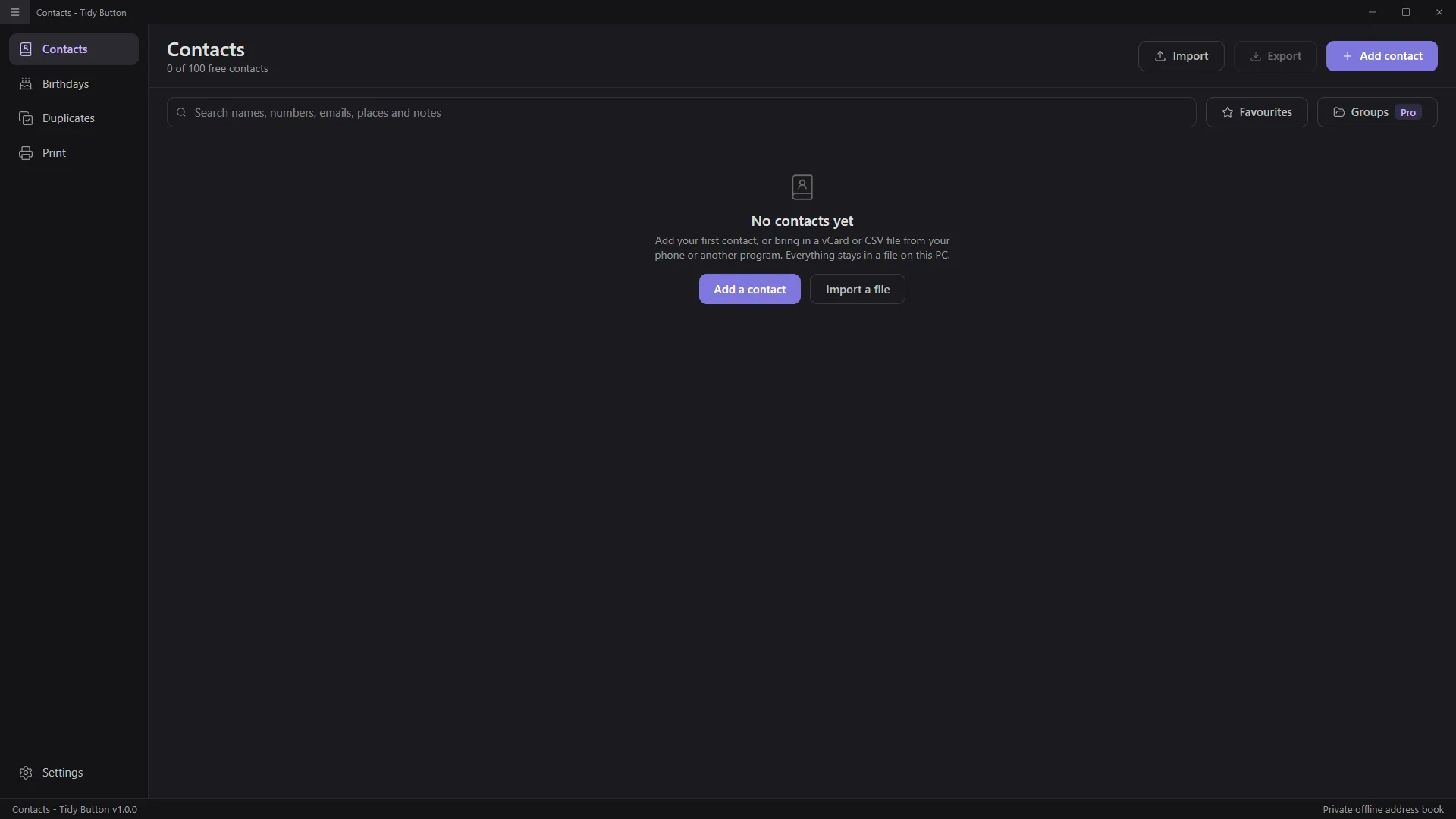
This app is not on the Microsoft Store yet. This guide is ready for the day it arrives.
Add a contact
- Open Contacts in the left menu.
- Press Add contact.
- Type the name in First name and Last name, and add a Company or Job title if you want.
- Press Add phone or Add email to add a number or an address. Pick a type such as Mobile or Work beside it.
- Set a Birthday if you want to see it on the Birthdays screen.
- Press Save contact.
A contact needs a name, a company, a phone number or an email address before it can be saved.
Bring in contacts from a vCard or CSV file
Most phones can save contacts as a vCard (.vcf) file. Many programs can save a CSV spreadsheet.
- Open Contacts and press Import.
- Choose your vCard or CSV file.
- Read the summary in the Import contacts window. It tells you how many contacts the file holds and shows the first few names.
- If the list looks right, press the button that says how many contacts it will add.
- Close the window with Cancel if the list looks wrong. Nothing is added until you add them.
Find a contact or a favourite
- Open Contacts.
- Click the search box at the top and type part of a name, a number, an email address, a place or a note.
- Press Favourites to show only your favourites. Press it again to show everyone.
- Click a name in the list to see the details on the right.
- Press Make favourite in the details to add the person to your favourites.
Press Edit in the details to change a contact, or Save as vCard to save one contact as a file.
See birthdays and anniversaries
- Open Birthdays in the left menu.
- The list shows the current month, with the age someone is turning and the days to go.
- Use the arrows beside the month name to look at another month.
- Press This month to come back.
- Clear Include anniversaries if you only want birthdays.
Back up your address book and restore it
- Open Settings in the left menu.
- Find Your data and backups.
- Press Back up to a file and choose where to save the copy.
- To go back to a copy later, press Restore from a backup and confirm.
- Choose the backup file you saved.
The contacts you have now are saved next to the data file before a restore replaces them.
If something goes wrong
Where are my contacts stored?
In one file in your Documents folder on this PC. Nothing is sent anywhere. Open Settings and press Show the file to see where it is.
My CSV file shows no contacts when I import it. Why?
The app finds the name and phone columns by their titles. If the titles have names it does not know, the Import contacts window shows no contacts to add. Try saving the file again from the program that made it, or import it as a vCard file.
Nothing shows when I search. What should I check?
Look at Favourites. If it is switched on, the list only shows favourites. Press it again to show everyone, or clear the words in the search box.
Does the app make backups by itself?
Yes. A copy is made once a day and when you close the app, and the newest 30 are kept in the Backups folder.
Good to know
- The Birthdays screen only shows people who have a birthday or an anniversary saved in their contact.
Still stuck? Support is by email, and a person reads it.