How to read CBZ and CBR comics on your Windows PC
This guide shows how to put your comic files in one library, read them page by page, and come back to the page you left. Your comics stay where they are.
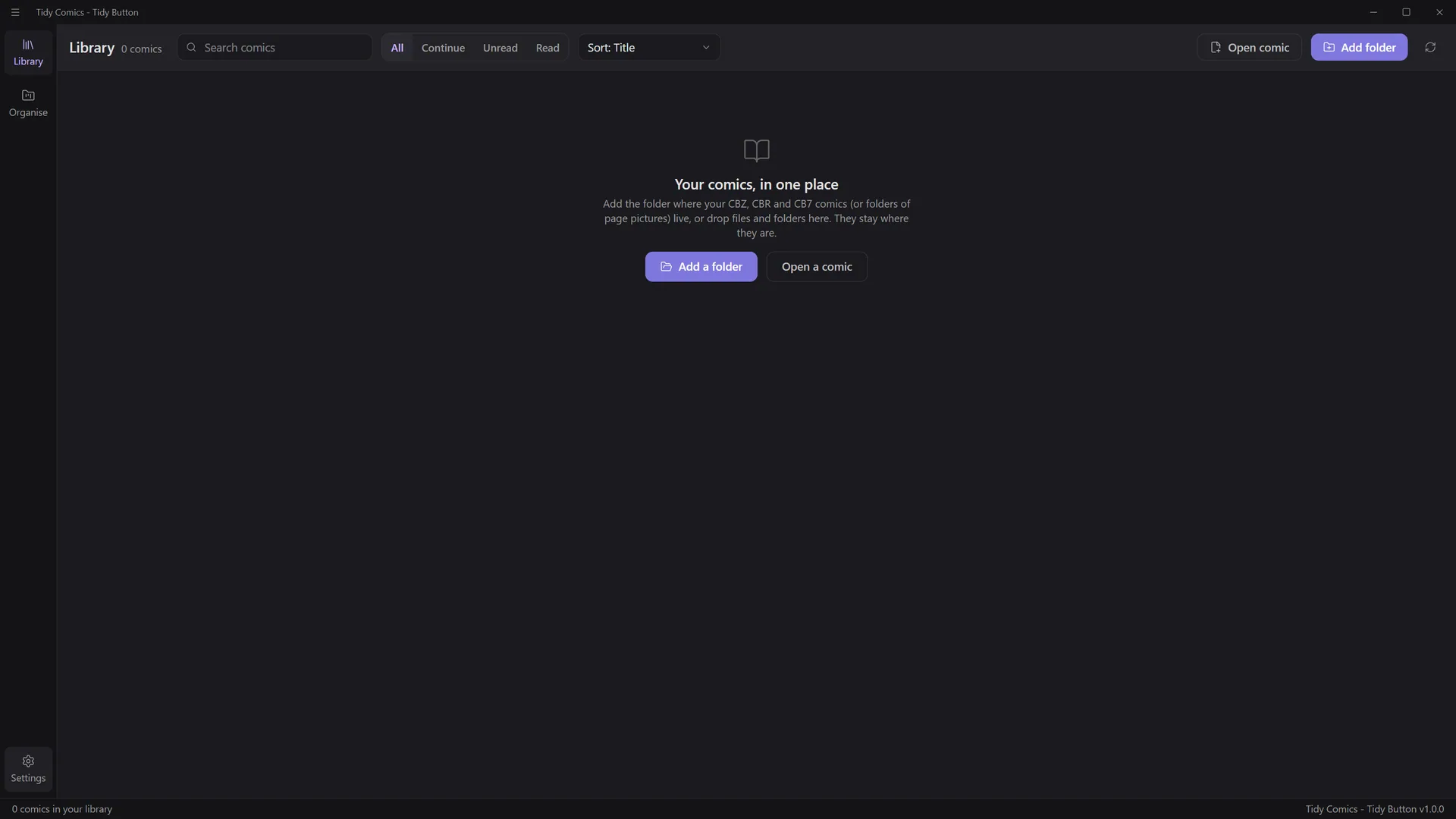
This app is not on the Microsoft Store yet. This guide is ready for the day it arrives.
Add your comics to the library
You can add a whole folder once, or open a single file.
- Open Library in the left menu.
- Press Add folder and choose the folder where your comics are.
- Wait while the covers appear. A progress bar shows while the app scans, and a Stop button ends the scan.
- To read one file without adding a folder, press Open comic and choose a CBZ, CBR or CB7 file.
- You can also drop files or folders onto the window.
The comics stay where they are. Press the refresh button (Scan folders again) to find comics you added later.
Read a comic and turn the pages
- In Library, click a comic to open it. A card that stands for a series opens its issues first, so click an issue there.
- Turn pages with the left and right arrow keys, the mouse wheel, or by clicking the left or right third of the page.
- Use the Fit box to choose Fit page, Fit width, Fit height or 100%.
- Press the plus and minus keys to zoom. Press 0 to reset the zoom.
- Drag the Go to page slider at the bottom to jump to a page.
- Press Full screen for a larger view, and press Library to go back.
Click the middle of the page, or press H, to show or hide the top bar.
Read manga from right to left
- Open a comic from Library.
- Press the arrows button in the top bar that switches between left to right and right to left, or press M.
- Turn pages as usual. The arrow keys and the click sides now follow the right to left order.
- To see two pages side by side, press the one page or two pages button in the top bar, or press D.
Find a comic and carry on reading
- Open Library and type in Search comics to find a title.
- Press Continue to see comics you started, Unread for ones you have not started, or Read for finished ones. Press All to see everything.
- Use the Sort by box to order by title, recently read or recently added.
- Open a comic again and it returns to the page where you stopped.
- Press the three dots button (More actions) on a comic card, then Mark as read or Mark as unread to change its state.
If something goes wrong
My comics do not show up after I add a folder. What should I check?
Wait for the scan to finish, then press Scan folders again. The app reads CBZ, CBR and CB7 files and folders of pictures.
A comic says File not found. Why?
The file was moved, renamed or deleted after it was added. Put it back in its folder, then press Scan folders again.
The pages turn the wrong way. How do I fix it?
Press the left to right and right to left button in the top bar, or press M. Manga usually reads from right to left.
One page does not load. What can I do?
Press Try again on the page. If it still fails, press Skip page to move on.
Good to know
- Pages must be JPEG, PNG, WebP, GIF or BMP pictures.
Still stuck? Support is by email, and a person reads it.