How to pick a colour from anywhere on your screen
This guide shows how to pick the colour of any pixel on your screen, copy it in the format you need, and save it so you can use it again.
This app is not on the Microsoft Store yet. This guide is ready for the day it arrives.
Pick a colour from the screen and copy it
The app shows a frozen picture of your screen under a magnifier so you can choose one exact pixel.
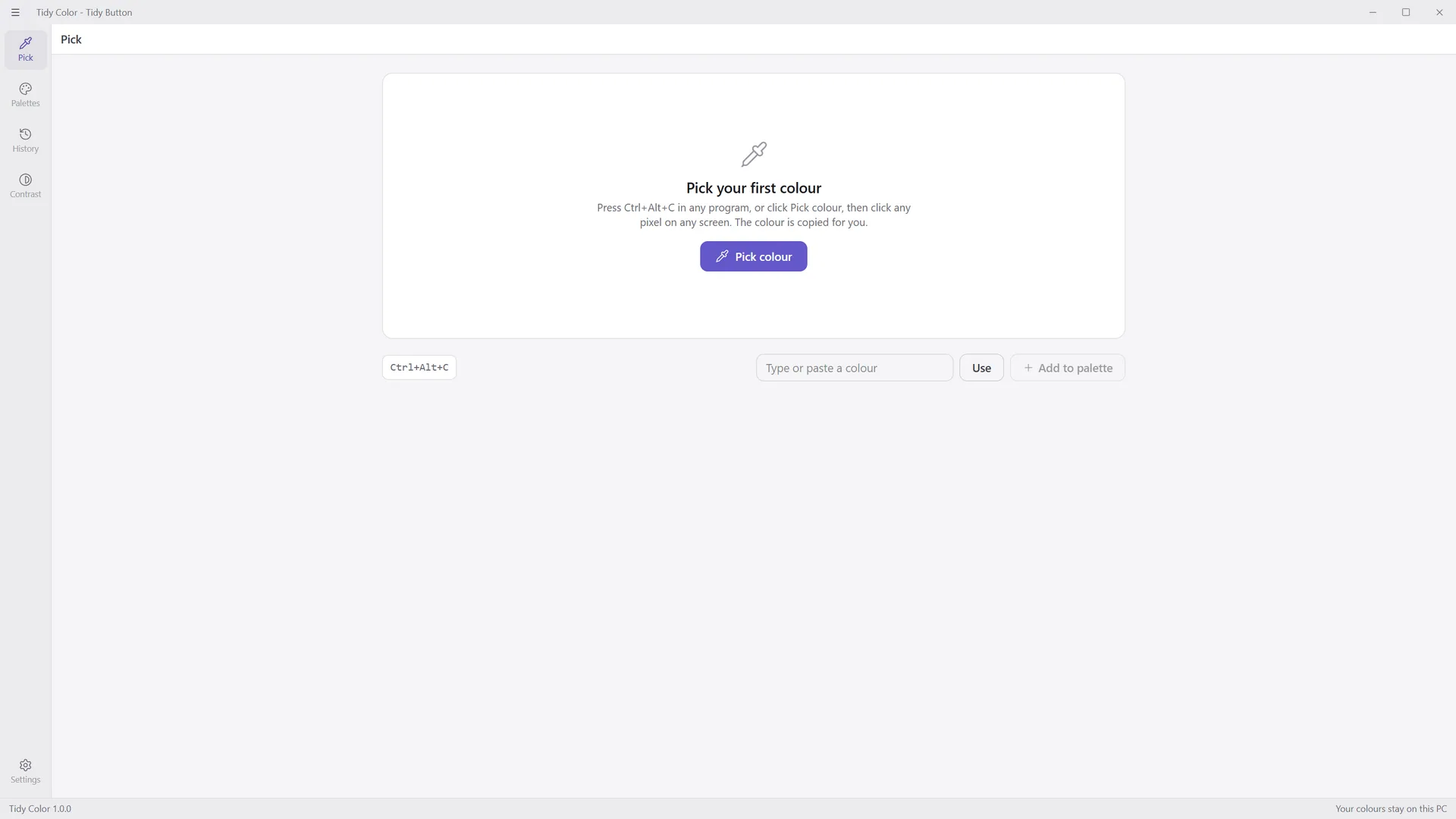
- Open Pick in the left menu.
- Press Pick colour, or press the shortcut shown next to it. The shortcut works while Tidy Color is open or minimised.
- Move the pointer over the pixel you want. The magnifier shows its value.
- Click to pick it. Press Esc or right-click to cancel instead.
- The colour is shown on the Pick screen as HEX, RGB and HSL. Press Copy beside the format you need.
The arrow keys move the point by one pixel, and Shift with an arrow key moves it by ten. Press Enter to pick.
Choose how colours are copied
- Open Settings in the left menu.
- In the Picking section, find Copy picked colours as.
- Choose HEX, RGB or HSL.
- Tick Copy the colour as soon as I pick it if you want the colour on the clipboard right away.
- Paste into your design tool, stylesheet or message.
Change the keyboard shortcut
- Open Settings in the left menu.
- Click the box under Shortcut to start a pick.
- Press the keys you want to use, for example Ctrl+Alt+C.
- Press Use this shortcut.
- To go back to the first shortcut, press the button that starts with Back to.
Tick Keep running in the tray when closed if you want the shortcut to work after you close the window.
Look up a colour you already have
- Open Pick in the left menu.
- Click the box that says Type or paste a colour.
- Type a value such as #3366CC, rgb(51, 102, 204) or hsl(220, 60%, 50%).
- Press Use. The colour shows in all three formats, and you can press Copy on any of them.
Keep colours in a palette and find old picks
- Pick a colour, then press Add to palette on the Pick screen.
- Open Palettes in the left menu to see the saved colours.
- Click a swatch to copy that colour. Press Copy as text to copy the whole list.
- Open History to see your recent picks, newest first. Click a swatch there to copy it.
- Press Clear history if you want to empty the list. Your palettes are not changed.
If something goes wrong
The shortcut does nothing. Why?
Another program may already use that shortcut. The Pick screen shows a notice when this happens. Press Pick colour instead, or choose a different shortcut in Settings.
The colours are copied in the wrong format. How do I change that?
Open Settings and choose HEX, RGB or HSL under Copy picked colours as. You can also press Copy beside any format on the Pick screen.
The shortcut stops working when I close the window. What can I do?
In Settings, tick Keep running in the tray when closed. The shortcut then keeps working. To quit, use the tray icon.
I picked a colour by mistake. Can I remove it from the history?
Open History and use the small remove button on the swatch, or press Clear history to empty the list.
Still stuck? Support is by email, and a person reads it.