How to record church offerings and save giving statements
This guide shows how to keep a member list, take attendance, record the offering and save a giving statement for each donor. The statements record what you entered. They are not tax advice.
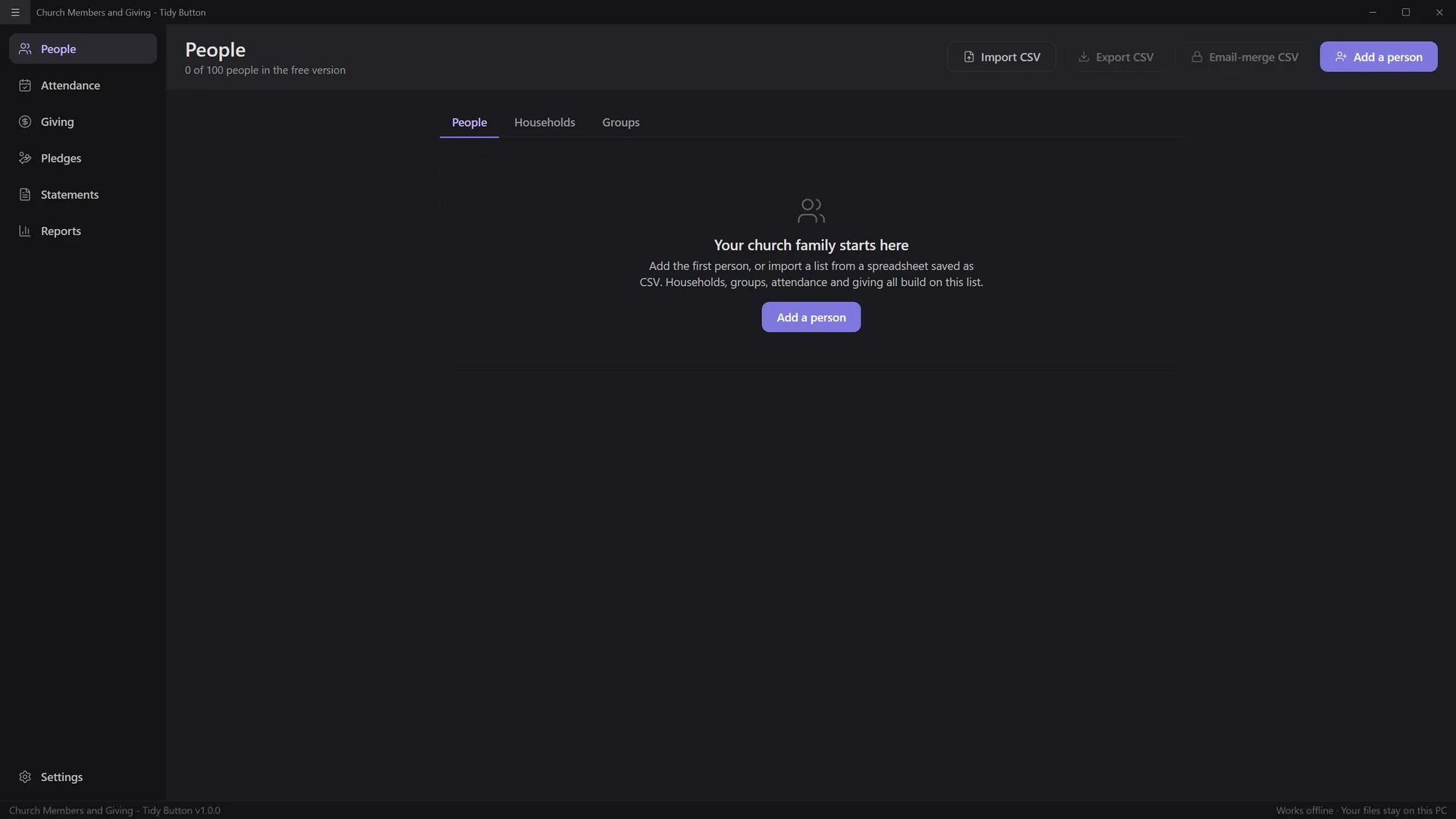
This app is not on the Microsoft Store yet. This guide is ready for the day it arrives.
Add people to your member list
- Open People in the left menu.
- Press Add a person.
- Type their First name and Last name, then fill in any other details you want, such as Email or Phone.
- Press Save.
- To bring in a whole list, save your spreadsheet as a CSV file, press Import CSV and choose the file.
- Check the preview, then press the button at the bottom that starts with Add.
The import preview shows how many people it will add, and how many it leaves alone because they are already in your list or repeated in the file.
Take attendance for a service
- Open Attendance in the left menu.
- Press New service, or Add a service if you have none yet.
- Check the Date, choose the Type, and press Save.
- Tick each person who came in the list of people to check in.
- Press Check in everyone shown to tick the whole list at once. Use Find a name to narrow the list first.
- Type the number of visitors who are not on your list in Guests.
Choose a service in Choose a service to look at an earlier day.
Record an offering and make it balance
A batch is one offering, one deposit or one pile of envelopes.
- Open Giving in the left menu.
- Press New batch, or Create the first batch if you have none yet.
- Type a Batch name and the Date. If the counters wrote down a total, type it in Counted total.
- Press Save.
- In the Add a gift form, pick the donor in Given by, type the Amount, and check the Fund and Method.
- Press Add gift. Repeat for each gift in the batch.
- Look at the Entered and Counted totals. The batch shows Balanced when they match.
If the totals differ, the batch shows how much it is over or under.
Save a giving statement for each donor
- Open Settings in the left menu and fill in Church or organisation name and Address. Press Save church details.
- Open Statements in the left menu.
- Choose the year in Statement year.
- Check the list of donors. A donor marked Missing has no address yet. Add one under Households on the People screen.
- Press Save PDF beside one donor, or press Save each as a PDF or All in one PDF for everyone.
You can change the wording under the totals in Settings, in the Giving statements section.
If something goes wrong
Where is my church data stored?
In one file on this PC, in your Documents folder. Nothing is sent anywhere. Open Settings and press Back up now to save a copy.
A person will not delete. Why?
A person who has given cannot be deleted, so statements stay right. Open the person and set their Membership to Inactive instead.
A batch shows Over or Under. What does it mean?
The gifts you entered do not add up to the Counted total. Check each amount in the gift list and fix any that are wrong. The batch changes to Balanced when they match.
The Statements screen says there are no gifts with a donor. What should I check?
Statements only use gifts that have a donor. Open Giving, check that each gift has someone in Given by, and check that Statement year is the right year.
My CSV import found nobody new. Why?
Put one person on each row, with a first name column and a last name column. People who are already in your list are not added again.
Good to know
- Statements list what was recorded in the app. What a statement must say depends on where you live, so check your local rules.
Still stuck? Support is by email, and a person reads it.