How to show song lyrics on a projector from a laptop
This guide shows how to type in a song, send the words to a projector or TV, and move through the slides during a service or meeting.
This app is not on the Microsoft Store yet. This guide is ready for the day it arrives.
Add a song and put it on the projector
Use this the first time, with one song.
- Open Songs in the list on the left and press New song.
- Type the name in Title. Add the writer in Author (optional) if you like.
- Paste or type the words into Lyrics. Leave a blank line between verses, and put a name such as [Chorus] on its own line to label a part.
- Press Save song, then press Add to service.
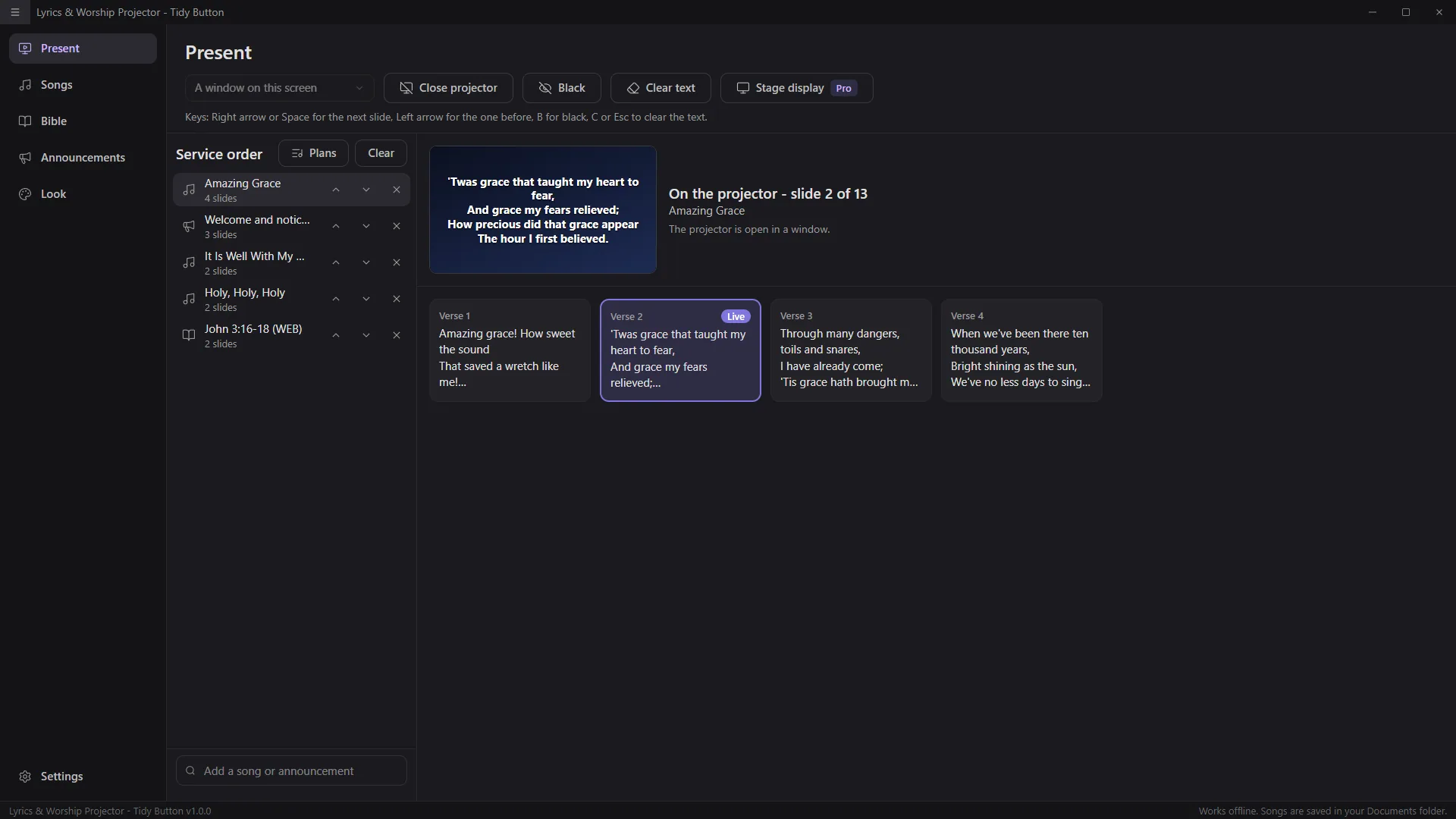
- Open Present. Under Projector screen, choose A window on this screen if you have only one screen. With a projector or TV connected, you can leave the choice as it is.
- Press Open projector.
- Click a slide card to put it on the projector, or press Space to start from the top.
The text sizes itself to fit each slide.
Move through the slides during the service
Keep the Present screen in front and use the keyboard.
- Press Right arrow or Space to show the next slide.
- Press Left arrow to go back one slide.
- Press B, or the Black button, for a black screen. Press it again to bring the slide back.
- Press C or Esc, or the Clear text button, to take the words off while the background stays.
- In the service order, use the arrows next to an item to move it up or down.
Show a Bible verse
- Open Bible.
- Click Find a verse and type a reference such as John 3:16, or a few words from the verse.
- Press Find. A reference shows the passage. Words show a list of verses; click one to open it.
- Press Show now to put it on the projector straight away, or press Add to service to place it in the order.
The Bible text is stored in the app, so this works without an internet connection.
Put up a notice
- Open Announcements and press New announcement.
- Type a heading in Title and the message in Text. Leave a blank line to start a new slide.
- Press Save.
- Press Show now, or Add to service to show it at its place in the order.
Change the font and the background
- Open Look.
- Pick a typeface in Font and move the size slider to set the largest text size.
- Under Background, choose Colour, Gradient or Picture.
- Move Darken the background to make a picture easier to read behind the words.
- Watch the preview on the right. The projector uses the same look.
If something goes wrong
The projector opened in a small window instead of the other screen. Why?
The app only found this screen, so it opened a window. Connect the projector or TV, then close the projector, choose that screen under Projector screen and press Open projector again.
A long verse is split across two slides. Can I change that?
Yes. Open Look and change Lines per slide. A song section longer than that is split evenly.
Space or the arrow keys do nothing.
The keys work while the Present screen is in front. Click an empty part of the window first, then try again.
The projector shows a black screen.
Black may be switched on. Press B or the Black button to switch it off, or click a slide card.
Good to know
- The app comes with no song lyrics. You add your own, so make sure you may show them.
Still stuck? Support is by email, and a person reads it.