How to balance your checkbook on a Windows PC
This guide shows how to enter checks and deposits, keep a running balance, and agree your register with the statement from your bank. The app only records what you type. It does not connect to your bank.
This app is not on the Microsoft Store yet. This guide is ready for the day it arrives.
Start a register for your account
- Open Checkbook Register and press Create account.
- Type a name in Account name, for example Household checking.
- Type the balance the account has today in Opening balance.
- Press Create account in the window. The register opens with that balance.
Enter a check, a deposit or a fee
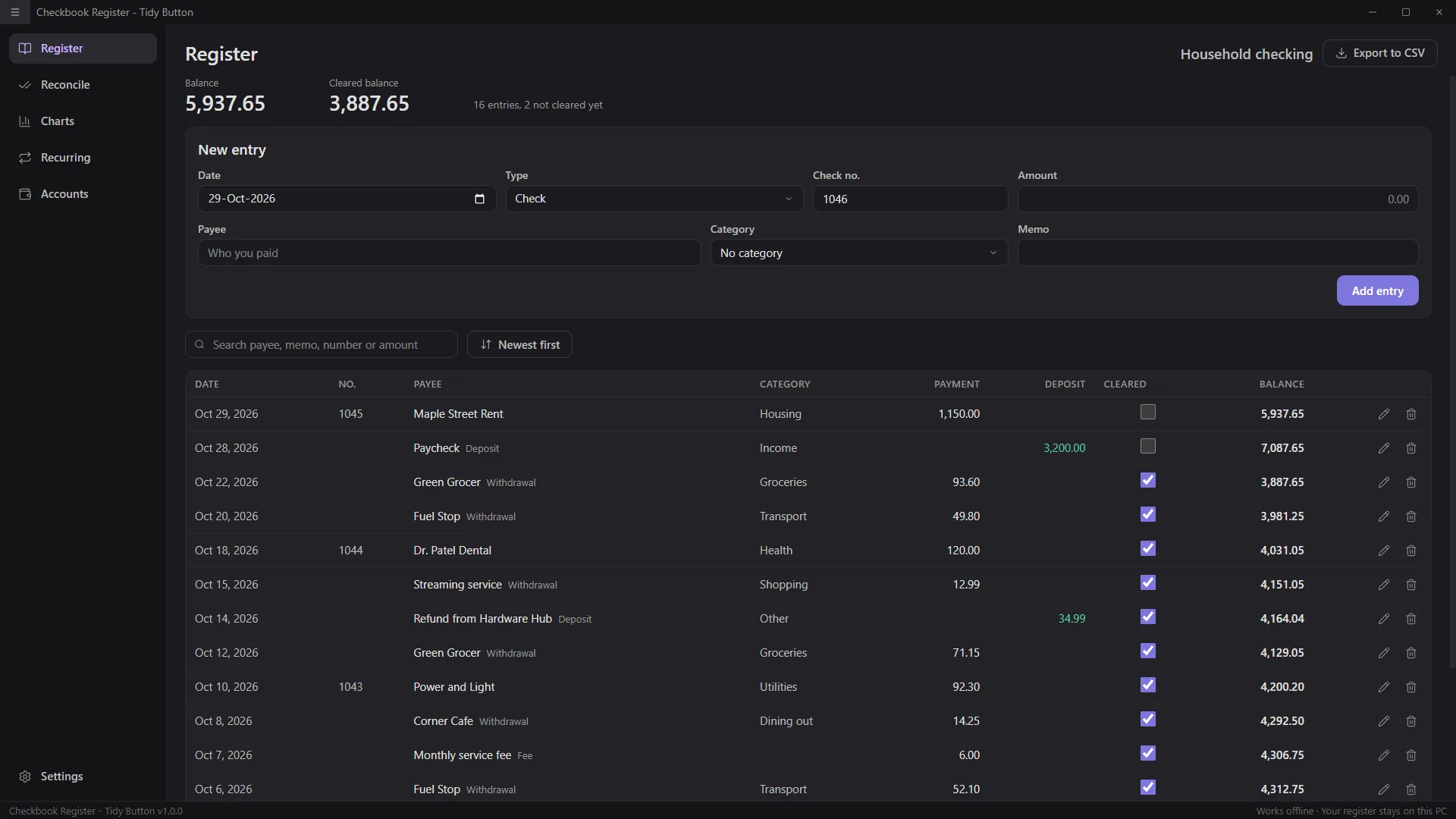
- On the Register screen, find the New entry row.
- Choose the kind in Type: Check, Deposit, Withdrawal or Fee.
- Check the Date. For a check, the Check no. moves on by one each time.
- Type who you paid or who paid you in Payee. Names you used before are suggested as you type.
- Type the money in Amount and, if you like, pick a Category and add a Memo.
- Press Add entry. The running balance updates.
Use Search entries above the table to find an entry by payee, memo, number or amount.
Reconcile against your bank statement
Do this when your statement arrives.
- On the Register screen, tick the Cleared box on every entry that appears on the statement.
- Open Reconcile.
- Set Statement date and type the ending balance from the statement in Statement ending balance.
- Look at Difference. When it shows 0.00 your register agrees with the statement.
- Press Finish reconciliation. Those entries are now locked.
If the difference is not zero, look for an entry you have not ticked, a typing mistake in an amount, or a fee that is on the statement but not in your register.
Export your register to a spreadsheet
- Open the Register screen.
- Press Export to CSV.
- Choose where to save the file and a name for it.
- Open the file in a spreadsheet program.
If something goes wrong
The difference is not zero. What should I check?
Make sure every entry on the statement is ticked and no entry that is not on it is ticked. Then compare the amounts one by one. The Cleared balance at the top of the Reconcile screen should match the statement when everything is right.
I made a mistake in an entry. Can I change it?
Yes, until it is reconciled. Use the pencil button on the row to edit it, or the bin button to delete it. The app asks before it deletes an entry.
An entry has a lock icon and I cannot edit it. Why?
It was part of a finished reconciliation, so it is locked to stop accidental changes. Open Reconcile and press Undo next to the last statement so its entries can be changed again.
The app says the check number is already in the register.
Another check in the same account has that number. Change the number in Check no., or leave the warning if you meant to reuse it.
Good to know
- The app does not connect to your bank or import statements. You type the entries yourself.
- It keeps records only and does not give financial, tax or legal advice.
Still stuck? Support is by email, and a person reads it.