How to make a certificate and save it as a PDF
This guide shows how to type a name onto a certificate, change the look of the page, and save it as a PDF or send it to your printer.
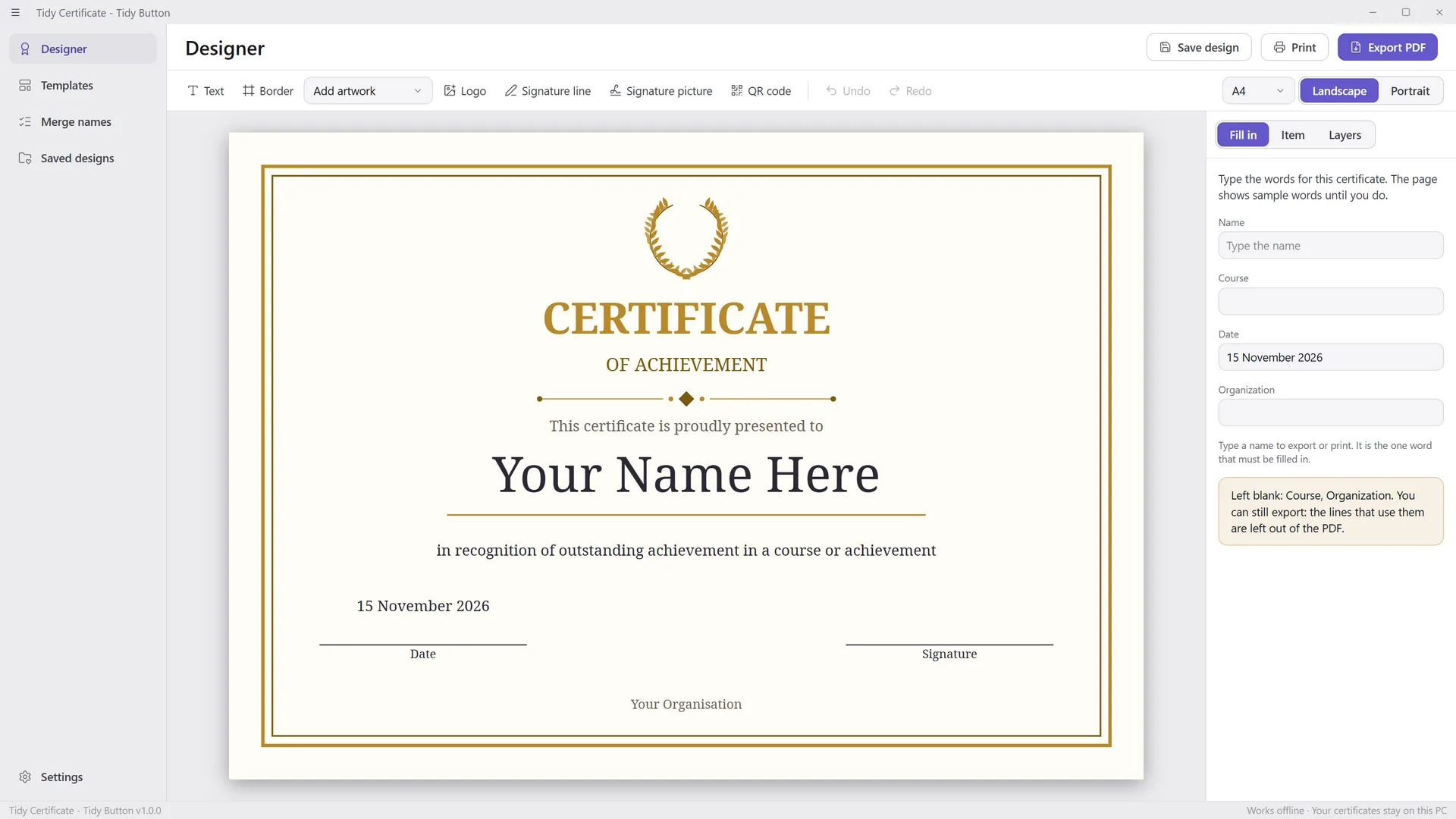
This app is not on the Microsoft Store yet. This guide is ready for the day it arrives.
Fill in a certificate and save it as a PDF
A certificate is already on the page when you open the app.
- Open Designer in the left menu.
- Open the Fill in tab on the right if it is not already showing.
- Type the name in the box with the hint Type the name. The page changes as you type.
- Fill in any other boxes that appear, such as the course or the date.
- Press Export PDF and choose where to save the file.
- A short message at the bottom right says the PDF is saved. Press Show in folder in it to open the folder, or look in the folder you chose.
The name is the one box that must be filled in. A line you leave blank is left out of the PDF.
Print the certificate
- Open Designer and type the name in the Fill in tab.
- Press Print.
- Choose your printer in the Windows print window and confirm.
Choose a different template
A template changes the border, artwork and layout. Your words stay in the Fill in boxes.
- Open Templates in the left menu.
- Use the buttons along the top to show one kind of certificate, or press All.
- Click a template card that shows the Free tag.
- If the app asks Replace your design?, press Use this template.
- The Designer opens with the new template. Type the name and export as before.
Press Start from a blank page on the Templates screen to clear the page and build your own.
Set the paper and change the wording
- Open Designer.
- Use the Paper size box above the page to choose A4 or Letter.
- Press Landscape or Portrait to turn the page.
- Click any text on the page, then open the Item tab.
- Change the text in the Words box. Change the size in Size (pt).
- Press Text, Border, Logo or Signature line above the page to add more to the design.
- Press Undo if you do not like a change.
Put a word in braces, like {Name}, in a text box to make a new box in the Fill in tab.
If something goes wrong
Why can I not export or print my certificate?
The name is empty. Open the Fill in tab and type a name. It is the one box that must be filled in.
A line is missing from my PDF. Why?
A box in the Fill in tab was left blank, so the lines that use it are left out. Type a value in that box and export again.
My name is very long. Will it fit?
Long text shrinks to fit its box, down to the smallest size set in the Item tab, and then wraps onto more lines.
I picked a template and lost my changes. Can I get them back?
Go back to Designer and press Undo. The app asks you to confirm before it replaces a design that has changes.
Good to know
- The Fill in tab makes one certificate at a time. You type the words for each certificate yourself.
Still stuck? Support is by email, and a person reads it.