How to keep a cash book for a small shop on your PC
This guide shows how to start a cash book, write down money coming in and going out, and see who owes you. Everything stays on your PC.
This app is not on the Microsoft Store yet. This guide is ready for the day it arrives.
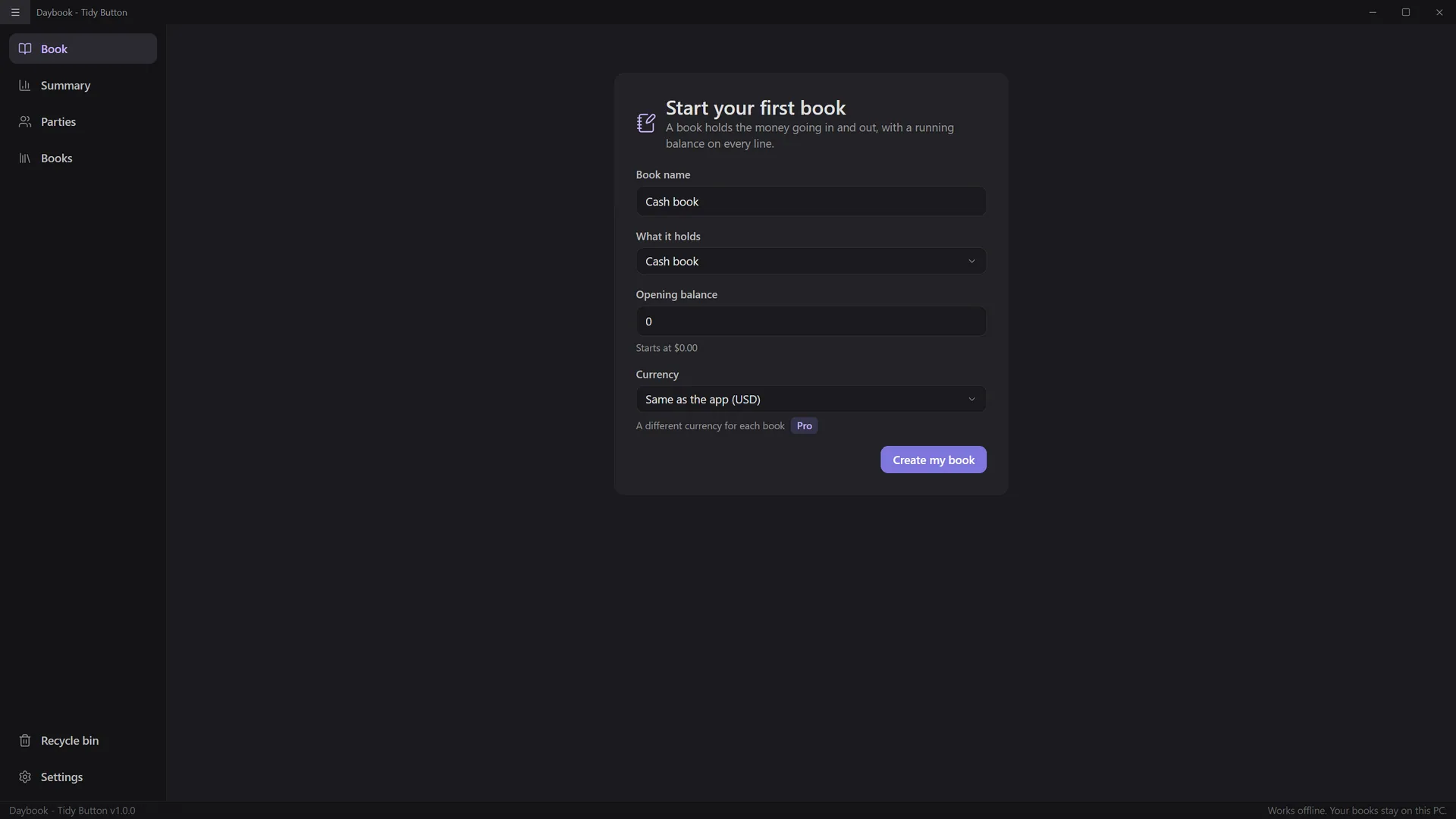
Start your first cash book
A book holds your money in and out, with a balance on every line.
- Open the app. On first launch you see Start your first book.
- Type a name in Book name, for example Shop cash book.
- Choose what the book holds in What it holds.
- Type the money you already have in Opening balance.
- Press Create my book.
The balance on every line is worked out from the opening balance and your entries.
Write down cash in and cash out
- Open Book in the left menu.
- Press Cash in for money you received, or Cash out for money you paid.
- Check the date in Date and type the money in Amount.
- Fill in Party (optional), Category, Payment mode and Note (optional) if you want to.
- Press Save entry.
An entry dated in the past changes the balance on every later line.
Record a sale on credit and see who owes you
A sale on credit changes what a person owes you, not your cash balance.
- Open Parties in the left menu.
- Press New party, type the Name, and press Save party.
- Choose the person in the list on the left.
- Press Sold on credit, type the amount, and press Save entry.
- Later, when they pay, press Cash received and save the entry.
The list shows what each person owes you or what you owe them. You will get and You will give show the totals.
Check each day's totals
- Open Summary in the left menu.
- Stay on the Daily tab.
- Press Today, This month, Last 30 days or Everything, or pick your own dates in the From and To boxes.
- Read Balance at the start, Cash in, Cash out and Balance at the end. The table below shows each day.
Fix or delete a mistake
- Open Book in the left menu.
- Find the line. Use the search box if the list is long.
- Press Edit on that line, change what is wrong, and press Save changes.
- To remove it, press Delete on the line and confirm with Move to the recycle bin.
- To bring it back, open Recycle bin, tick the entry, and press Restore.
The History button on a line shows the changes made to it.
If something goes wrong
Why did the balance change on lines I did not touch?
Balances are worked out in date order. If you add or edit an entry with an earlier date, every later line is worked out again.
Does a search or filter change my balance?
No. A search only changes which lines you see. Press Clear filters to see every line again.
I deleted an entry by mistake. Where did it go?
It waits in Recycle bin. Tick it and press Restore. If you press Erase for good or Empty the bin, it is gone.
How do I back up my books?
Open Settings and find the Backups section. Press Back up now to save a copy at once. The section also shows the folder where dated copies are saved, and a Restore button beside each one.
How do I change the currency or the way numbers are grouped?
Open Settings. In the Currency and numbers section, pick a currency, and switch on Indian number grouping if you want 1,00,000 style numbers.
Still stuck? Support is by email, and a person reads it.