How to make and print your own business cards at home
This guide shows how to design a business card on your PC, save a sheet of ten with cut marks as a PDF, and save the card as a picture.
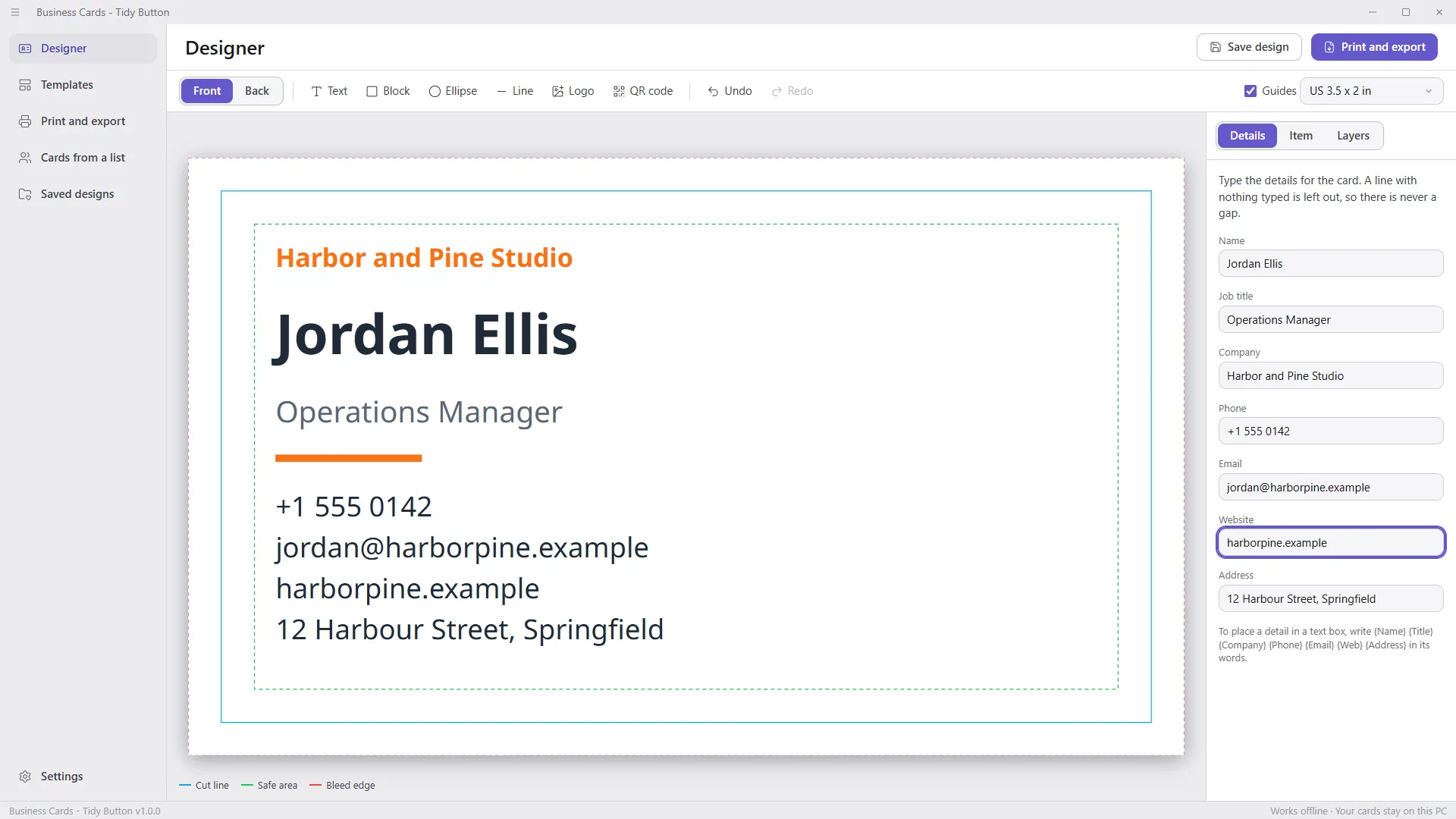
This app is not on the Microsoft Store yet. This guide is ready for the day it arrives.
Start from a template and type your details
Your details are typed once and appear on the card straight away.
- Open Templates in the left menu.
- Click a template marked Free. If you have already changed the card, press Use this template to confirm.
- The Designer opens with the template filled in. Open the Details tab on the right.
- Type your Name, Job title, Company, Phone, Email and Website.
- Pick the card size in the box at the top right, for example US, Europe or Japan.
A line with nothing typed is left out, so there is no gap on the card.
Add a logo, text or shapes
- Open Designer in the left menu.
- Press Logo above the card and choose a picture from your PC.
- Press Text, Block, Ellipse or Line to add more to the card.
- Click an item on the card. The Item tab opens, where you can change its colour, size and position.
- Press Forward or Back to move an item above or below the others.
- Press Undo if you make a mistake.
Turn on Guides to see the safe area, so nothing important sits too close to the edge.
Save a sheet of ten cards with cut marks
- Open Print and export in the left menu.
- Under Sheet, choose Letter or A4 in Paper.
- Look at the picture of the sheet to see where each card will land.
- Press Save sheet as PDF and choose where to save the file.
- Open the saved PDF and print it.
Type a name in the Details tab first. The name is the one detail that must be filled in before you can export.
Save the card as a picture
- Open Print and export in the left menu.
- Find the section One card as a picture. It shows the size in pixels.
- Press Save as PNG and choose where to save the file.
The picture is made at 300 dpi.
If something goes wrong
The Save sheet as PDF button does not work. Why?
Open the Details tab and type a name. The name must be filled in before you can export. If a red message shows under Sheet, the cards do not fit the paper you chose, so try the other paper size.
My cards print a little off the cut lines. What can I do?
Printers often cannot print right to the paper edge. If the Sheet section shows a note about a small margin, check a test print before you print many.
How do I start again from nothing?
Open Templates and press Start from a blank card. Your details stay, and you can press Undo in the Designer to go back.
My card has Hebrew, Arabic or Indic text. Is it safe to print?
A note on the Details tab warns that this text may not print correctly in a PDF. Use Save as PNG for a picture of the card instead.
Good to know
- Long text shrinks to fit its box and then wraps onto more lines, so very long text can end up small.
Still stuck? Support is by email, and a person reads it.