How to make a monthly budget and track your spending
This guide shows how to plan a monthly budget on your PC, add your spending as you go, and keep track of bills and a savings goal. Your budget is saved on your computer.
This app is not on the Microsoft Store yet. This guide is ready for the day it arrives.
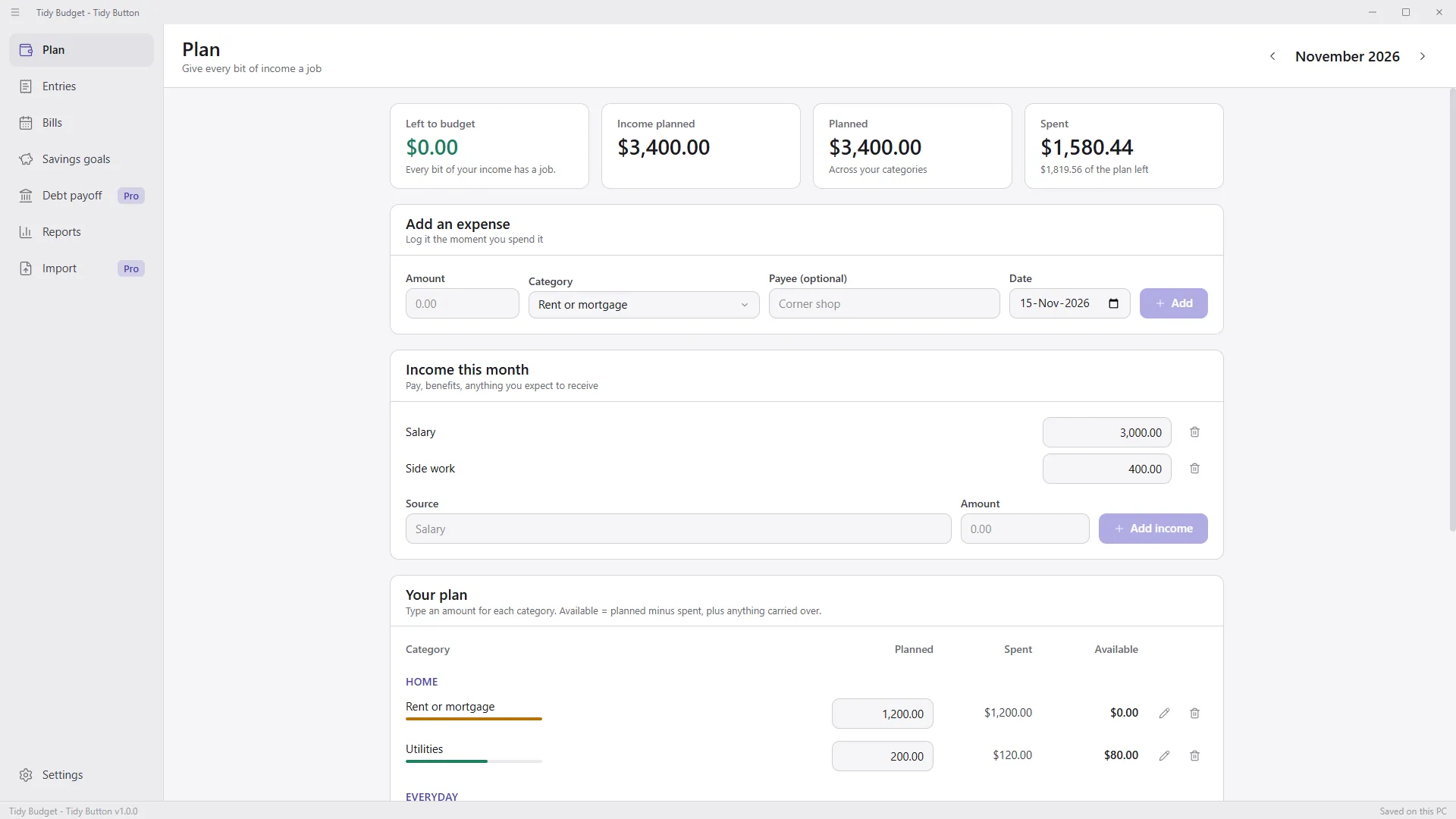
Plan your month and give your income a job
Planning means telling each part of your income where it should go.
- Open Plan in the left menu.
- In Income this month, type a name in Source, for example Salary, and an amount in Amount.
- Press Add income. Repeat for any other money you expect.
- Press Add a category, type a Name such as Groceries, then press Save.
- In Your plan, type a planned amount for each category.
- Watch Left to budget. When it says every bit of your income has a job, the plan is balanced.
When you add or edit a category, you can turn on Roll over to next month so what is left over, or overspent, carries forward.
Add what you spend
- Open Plan in the left menu.
- In Add an expense, type the amount in Amount.
- Pick a category in Category. You can type a shop or person in Payee (optional).
- Check the Date, then press Add.
- Look at the Spent and Available columns in your plan to see how the category is doing.
You can also open Entries, press New entry and choose Money received to record money you were paid.
Find, change or delete an entry
- Open Entries in the left menu.
- Use the month arrows at the top to pick the month.
- Type a payee, note or category in Search entries to narrow the list.
- On the line you want, press the pencil icon (Edit entry) to change it, or the bin icon (Delete entry) to remove it.
- If you are deleting, press Delete in the box that asks you to confirm.
Keep track of a bill
A bill can repeat. With Bill reminders on in Settings, Windows shows a notification before it is due.
- Open Bills in the left menu and press New bill.
- Type the Name and Amount.
- Pick the First due date and choose how often it happens in Repeats.
- Choose a Category and set Remind me, then press Save.
- When you pay it, press Mark paid on that bill, check Amount paid and Date paid, then press Mark paid again. This adds a spending entry for you.
- If you pressed it by mistake, press Undo on that bill. The entry it added is removed.
Save toward a goal
- Open Savings goals in the left menu and press New goal.
- Type what you are saving for in What are you saving for?, and the Target amount.
- Add a Target date (optional) if you want the app to work out a monthly amount.
- Press Save.
- When you put money aside, press Add money, type the Amount and press Add.
If something goes wrong
Where is my budget saved?
In a Tidy Budget folder inside your Documents folder on this PC. Open Settings and press Open the folder to see it.
Left to budget is not zero. What does that mean?
If it shows an amount still needing a job, add more planned amounts to your categories. If you planned more than your income, lower an amount or add income.
I deleted a category. Where did my spending go?
Entries in that category are kept and shown as Uncategorised. Only its planned amounts are removed.
How do I save my entries to a spreadsheet file?
Open Reports and press Export entries (CSV). Then choose where to save the file.
Can I get back an older version of my budget?
Open Settings and look under Automatic backups. A backup is made once a day and the last 30 are kept. Press Restore beside one, or use Restore from a file.... You can also press Back up now to make one yourself.
Good to know
- The app does not connect to your bank, so you add each entry yourself.
Still stuck? Support is by email, and a person reads it.