How to make a tournament bracket from a list of names
This guide shows how to turn a list of names into a bracket or a league table, enter results as the games are played, and print the result. Your names stay on this PC.
This app is not on the Microsoft Store yet. This guide is ready for the day it arrives.
Build a bracket from a list of names
You can type the names or paste them from a message or a spreadsheet.
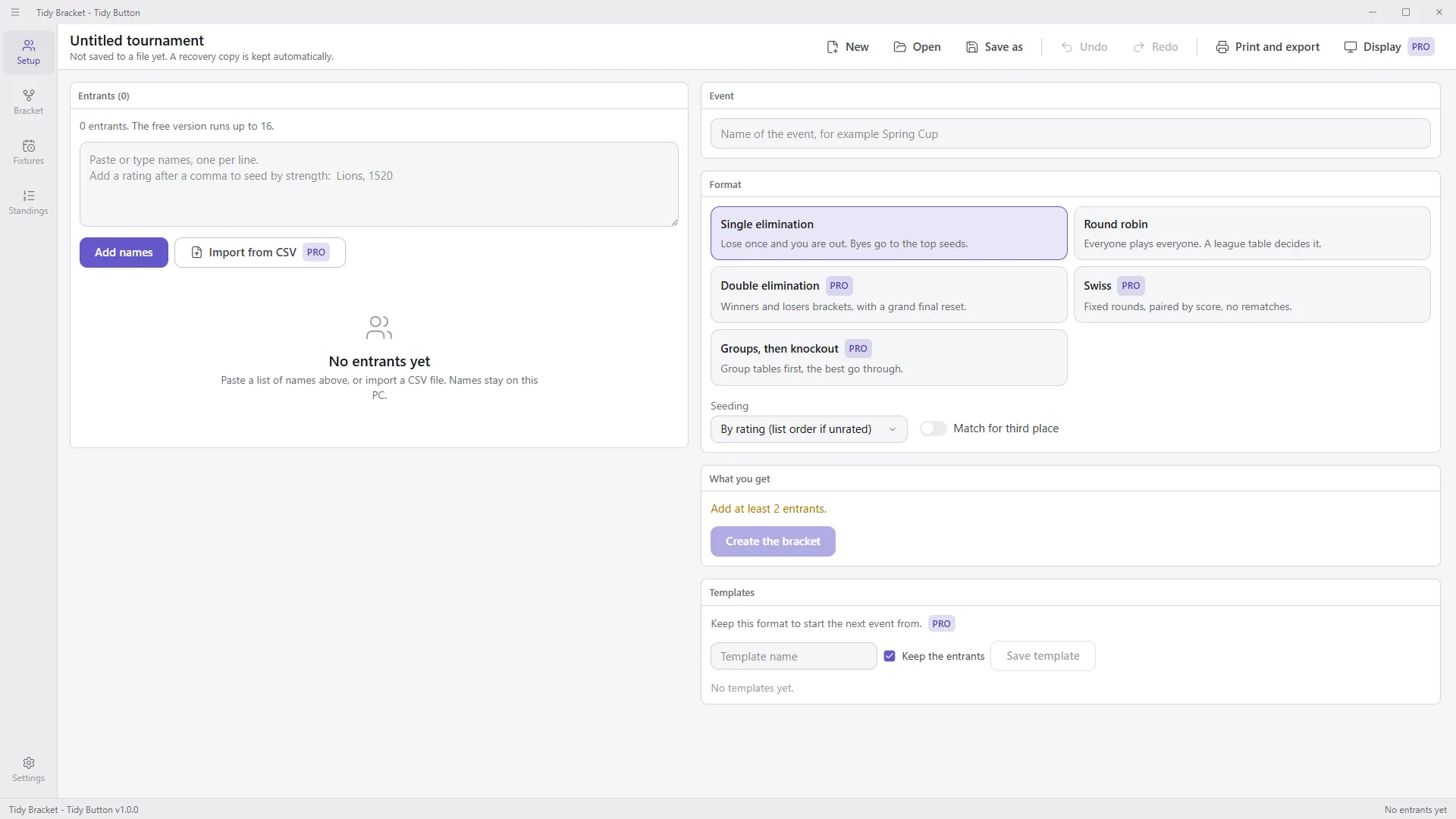
- Open Setup in the left menu.
- Type the name of the event in the Event box, for example Spring Cup.
- Click the large box under Entrants that says Paste or type names, and type or paste one name per line.
- Press Add names. Each name appears in the Entrants list.
- Under Format, choose Single elimination for a knockout bracket.
- Open the Seeding list and choose how to place the names, for example Random draw or Exactly as listed.
- Press Create the bracket. The Bracket screen opens.
To seed by strength, add a rating after a comma on each line, like Lions, 1520.
Enter the result of a match
- Open Bracket in the left menu.
- Click a match in the bracket, or press Result beside a match under Now playing.
- Type the score for each side. Or leave both boxes empty and press the button that shows the winner's name followed by wins.
- Press Save score. The winner moves on to the next round by itself.
- To change a result later, click the match again and press Clear result, or type new scores and press Save score.
If the scores are level, pick the winner with the button that shows their name followed by wins.
Run a round robin league and read the table
In a round robin everyone plays everyone.
- On Setup, add your names and choose Round robin under Format.
- Choose Once each or Home and away in the Meetings list.
- Below the format choices, set Points for a win and turn Allow draws on or off.
- Press Create the bracket and enter each result as in the task above.
- Open Standings in the left menu to see played, won, drawn, lost, score and points for every entrant.
Entrants who are level on points are split by the tie-breakers listed under Format on the Setup screen. You can switch them on or off and change their order.
Print the bracket or save it as a PDF
- Press Print and export at the top of the window.
- Choose the paper in Paper size and the direction in Page direction.
- Press Print to send it to a printer, or Save as PDF to make a file.
- To get a picture instead, press Save as PNG and choose where to save it.
A big bracket is cut into several sheets, between matches where it can be.
Save the tournament and open it later
- Press Save as at the top of the window and choose a place and a file name.
- Once the file exists, the button reads Save. The file is kept up to date as you work.
- Next time, press Open and choose the file to carry on where you stopped.
- Press Undo if you make a mistake. Redo brings the change back.
If something goes wrong
Why can I not change the names after I created the bracket?
Once the bracket is built, the list is locked. You can still correct a name. To add or remove people, press Change entrants on the Setup screen. This takes the bracket apart and clears the results, but you can press Undo to get them back.
Nothing happens when I press Add names. Why?
The box for names is empty. Type or paste at least one name first, with one name on each line.
I entered the wrong score. How do I fix it?
Click the match to open its result window. Type the right scores and press Save score, or press Clear result to start that match again.
I closed the app before saving. Is my tournament gone?
The top bar says when a file has not been saved yet and that a recovery copy is kept automatically. Press Save as to keep your work in a file you choose.
Good to know
- The app has no share or send button. To share a bracket, print it, save it as a PDF or save it as a PNG picture.
Still stuck? Support is by email, and a person reads it.