How to check your laptop battery health in Windows
This guide shows how to read the health of a laptop battery, scan again after using it on battery, and what to do when the app shows no battery.
This app is not on the Microsoft Store yet. This guide is ready for the day it arrives.
Check how healthy your laptop battery is
Use this to see how much charge the battery holds now compared with when it was new.
- Open Laptop Battery Report. It reads the battery report Windows keeps as soon as it starts.
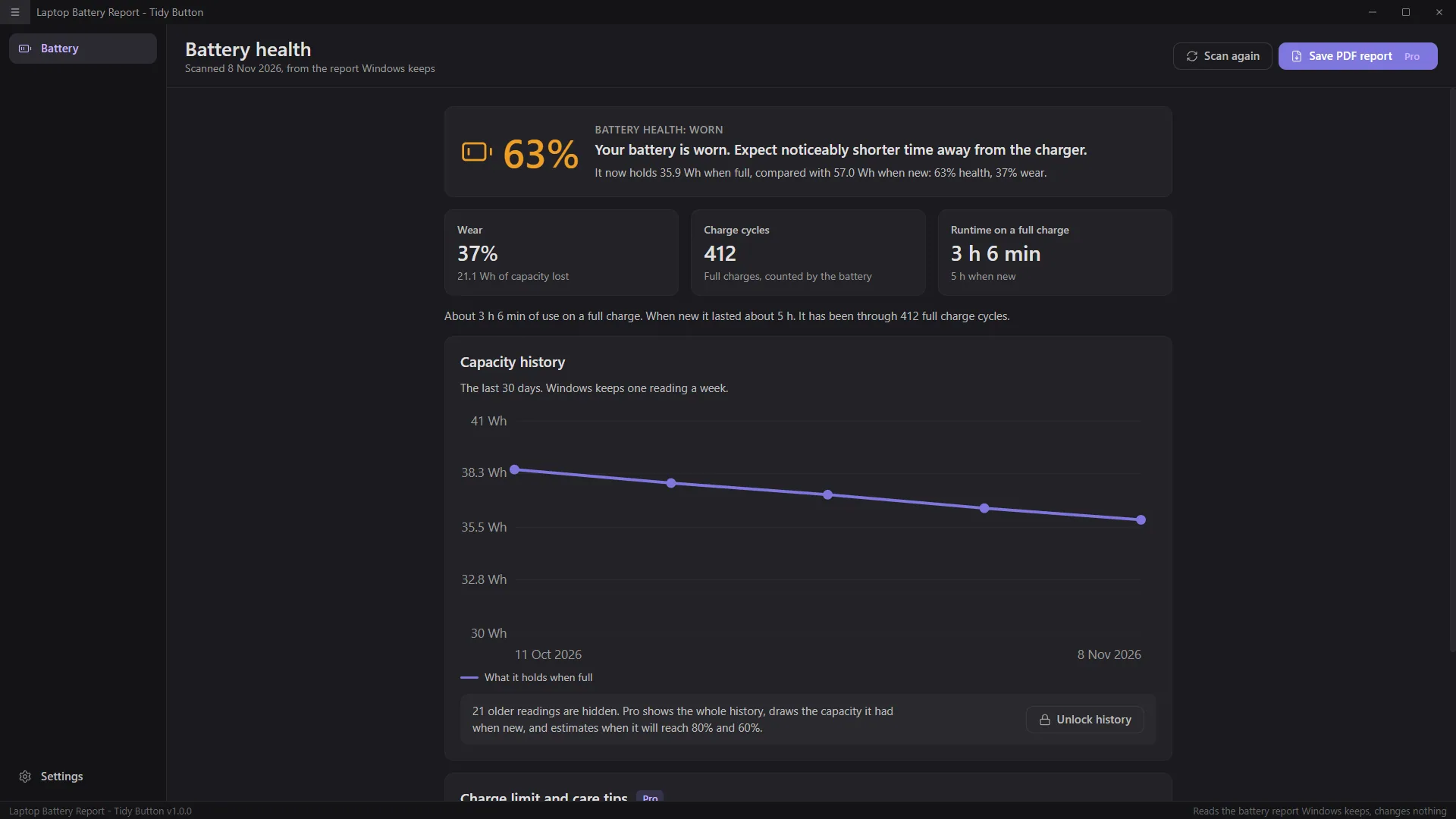
- Wait a few seconds until the Battery health screen shows a large percentage.
- Read the sentence next to the percentage. It gives a verdict from excellent to replace soon.
- Read the line under it. It says how much the battery holds now and how much it held when new.
The app only reads the battery. It changes no power or charge setting.
Understand wear, charge cycles and runtime
- Look at the three boxes under the verdict.
- Wear shows how much capacity the battery has lost.
- Charge cycles shows how many full charges the battery has had, counted by the battery itself.
- Runtime on a full charge shows about how long a full charge lasts, with the figure for a new battery under it.
Some batteries do not report every figure. The box then says so instead of guessing.
Read the capacity chart
- Scroll down to Capacity history.
- Follow the line from left to right. It shows how much the battery held when full at each reading.
- Point at a dot to see the date and value of that reading.
Windows keeps one reading a week, so the line has one dot a week.
Scan again after using the laptop on battery
- Use the laptop for a while on battery and charge it fully.
- Open Laptop Battery Report and press Scan again.
- Wait for the button to say Scan again once more. The figures are now up to date.
Change the look of the app
- Press Settings at the bottom left.
- Under Theme of this window, choose Light, Dark or Same as Windows.
- Press Battery to go back to your battery.
If something goes wrong
The app says No battery found. Why?
This PC has no battery, as most desktop PCs do, so there is nothing to report. Open the app on a laptop or tablet.
A box says Not reported or Not measured. What does that mean?
The battery or Windows did not give that figure. Some laptops do not report a cycle count. For the runtime, use the laptop on battery for a while and press Scan again.
The app says Could not read the battery. What should I do?
Press Scan again. If it still fails, Windows may not be able to make a battery report on this PC, for example on some virtual machines.
Why does the chart have so few points?
Windows saves one reading a week. A PC that was set up recently has only a few readings, and the chart fills in as weeks pass.
Good to know
- The app shows what the battery and Windows report. It cannot measure the battery itself, and it cannot change how the battery charges.
Still stuck? Support is by email, and a person reads it.