How to convert a bank statement PDF to Excel
This guide shows how to open a bank statement, check the table the app builds from it, correct it if needed and save it as an Excel or CSV file. The statement stays on your PC.
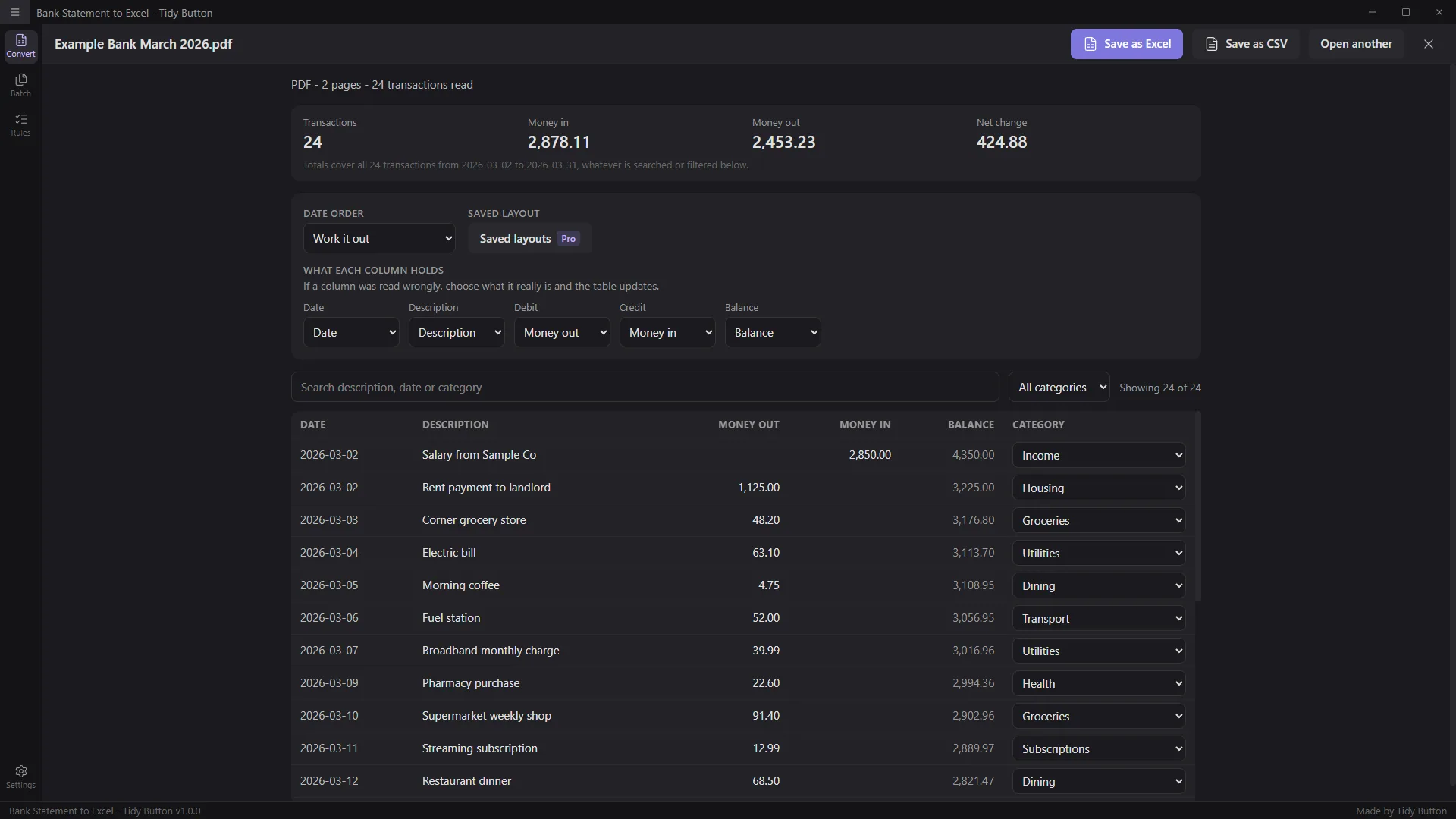
This app is not on the Microsoft Store yet. This guide is ready for the day it arrives.
Convert a statement to an Excel file
Use this when you have a statement as a PDF with selectable text, or as a CSV file.
- Open Bank Statement to Excel and press Open statement, or drop the PDF or CSV file on the window.
- Read the line above the totals. It says how many pages and how many transactions were read.
- Look at the totals for Money in, Money out and net change, and compare them with the statement.
- Scroll the table and check that each row matches the statement.
- Press Save as Excel and choose where to save the file.
The Excel file has a sheet called Transactions and a sheet called Summary with a total for each category.
Fix a column that was read wrongly
Use this when money out and money in are mixed up, or a column holds the wrong thing.
- Open a statement and find the part called What each column holds.
- Under each column name, open the drop-down and choose what that column really is, for example Money out, Money in or Balance.
- Watch the table and the totals update.
- If the dates look wrong, such as 03/04/2026 read as 4 March instead of 3 April, open Date order and choose Day first (31/12/2024) or Month first (12/31/2024).
- When the table matches the statement, save it.
If a column is not needed, choose Ignore for it.
Find transactions and check categories
- Open a statement.
- Type a word in Search transactions to list only the rows that contain it.
- Open Show category and pick a category to list only those rows.
- To change the category of one row, use the drop-down at the end of that row.
- Note that the totals above the table always cover the whole statement, whatever you search or filter.
Save the statement as a CSV file or open another one
- With a statement open, press Save as CSV and choose where to save the file.
- To work on a different statement, press Open another and choose it.
- To go back to the start screen, press Close this statement.
If something goes wrong
The app says the PDF has no text to read. What can I do?
The PDF is probably a scan or a photo of paper, which has no text for the app to read. Ask your bank for the PDF or CSV version of the statement, or export a CSV from your online account.
The table is empty or the columns look wrong.
Look at What each column holds and choose the right type for each column. If the statement has no column headings, the app guesses the columns and says so, so check them one by one.
A message says the rows do not add up with the balance column.
The app compares each row with the balance printed next to it. A mismatch usually means a column was read as the wrong type, or a line was left out. Check the columns first, then compare the rows with the statement.
The PDF is password protected.
The app cannot open it while it is protected. Remove the password in the program that made the PDF, then open it again.
Good to know
- The app reads PDFs that contain real text and CSV files. It does not read scanned pages or photos.
- Statements are laid out in many ways, so always check the table against the original before you use the figures.
Still stuck? Support is by email, and a person reads it.