How to make your mouse click automatically on Windows
This guide shows how to have your PC click for you at the pointer or at a fixed spot, and how to stop it again when you want.
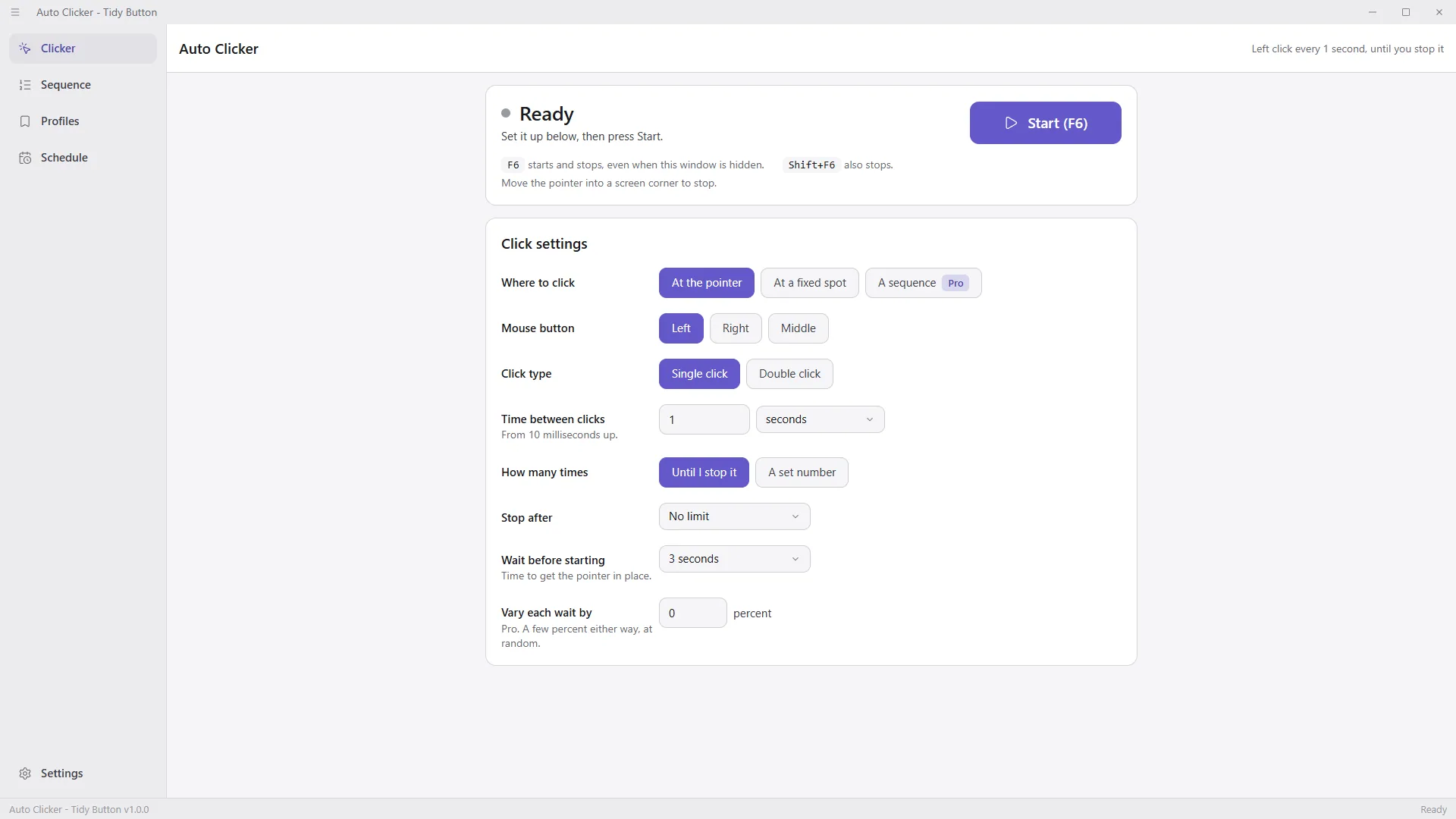
This app is not on the Microsoft Store yet. This guide is ready for the day it arrives.
Click again and again at the pointer
Use this when you want to click in the same place, such as a button on a page.
- Open Clicker in the left menu.
- Under Where to click, choose At the pointer.
- Under Mouse button, choose Left, Right or Middle.
- Under Click type, choose Single click or Double click.
- Press Start. The app counts down the time you chose under Wait before starting. The window steps aside if Step aside while clicking is on in Settings, which it is at first.
- Move the pointer to the place you want to click.
- Press the same key again, F6 unless you changed it, to stop.
The key works in any program, even when the app window is hidden.
Click at a fixed spot on the screen
Use this when the pointer will be moved around but the clicks must land in one place.
- Open Clicker in the left menu.
- Under Where to click, choose At a fixed spot.
- Press Pick the spot. The window steps aside for 4 seconds.
- Put the pointer on the spot and keep it still. A beep means the spot was read.
- Check the line that says where it clicks. Change the numbers in the boxes if the spot is a little off.
- Press Start.
To choose a different place later, press Pick another spot.
Set the speed and decide when it stops
- Open Clicker in the left menu.
- In the box next to Time between clicks, type a number. Then pick milliseconds, seconds or minutes.
- Under How many times, choose Until I stop it or A set number.
- If you chose A set number, type the count in the box that appears.
- Use Stop after to end the run after a time, such as 5 minutes.
- Use Wait before starting to give yourself a few seconds to get ready.
The shortest time between clicks is 10 milliseconds, and the longest is 1 hour.
Change the start and stop key
- Open Settings at the bottom of the left menu.
- Find the Keys and safety section.
- Click the key box under Start and stop key, then press the key you want to use.
- If you want a second key that only stops the clicking, click the key box under Extra stop key and press that key. Clear removes it.
- Switch on Stop in a screen corner if you want to stop by moving the pointer into a corner.
These settings can only be changed while nothing is clicking.
If something goes wrong
The clicking started but I cannot stop it. What do I do?
Press the start and stop key again. It is F6 unless you changed it. You can also move the pointer into a corner of the screen if Stop in a screen corner is on.
The clicks land in the wrong place. Why?
With At the pointer, the app clicks wherever the pointer is. If you need the same place every time, choose At a fixed spot and press Pick the spot.
The Start button is greyed out. What is wrong?
The app cannot click until its click helper is ready. Wait a moment and read the title and the line under it at the top of the screen. They say when the helper is still starting or could not start.
I cannot change my settings. Why?
The settings are locked while clicking is running. Stop the clicking first, then change them.
Good to know
- A key that another program already uses cannot be the start and stop key. The app shows a message and you pick another key.
Still stuck? Support is by email, and a person reads it.