How to build an audiobook library and play it on a Windows PC
This guide shows how to add your audiobook folder, play a book and set a sleep timer.
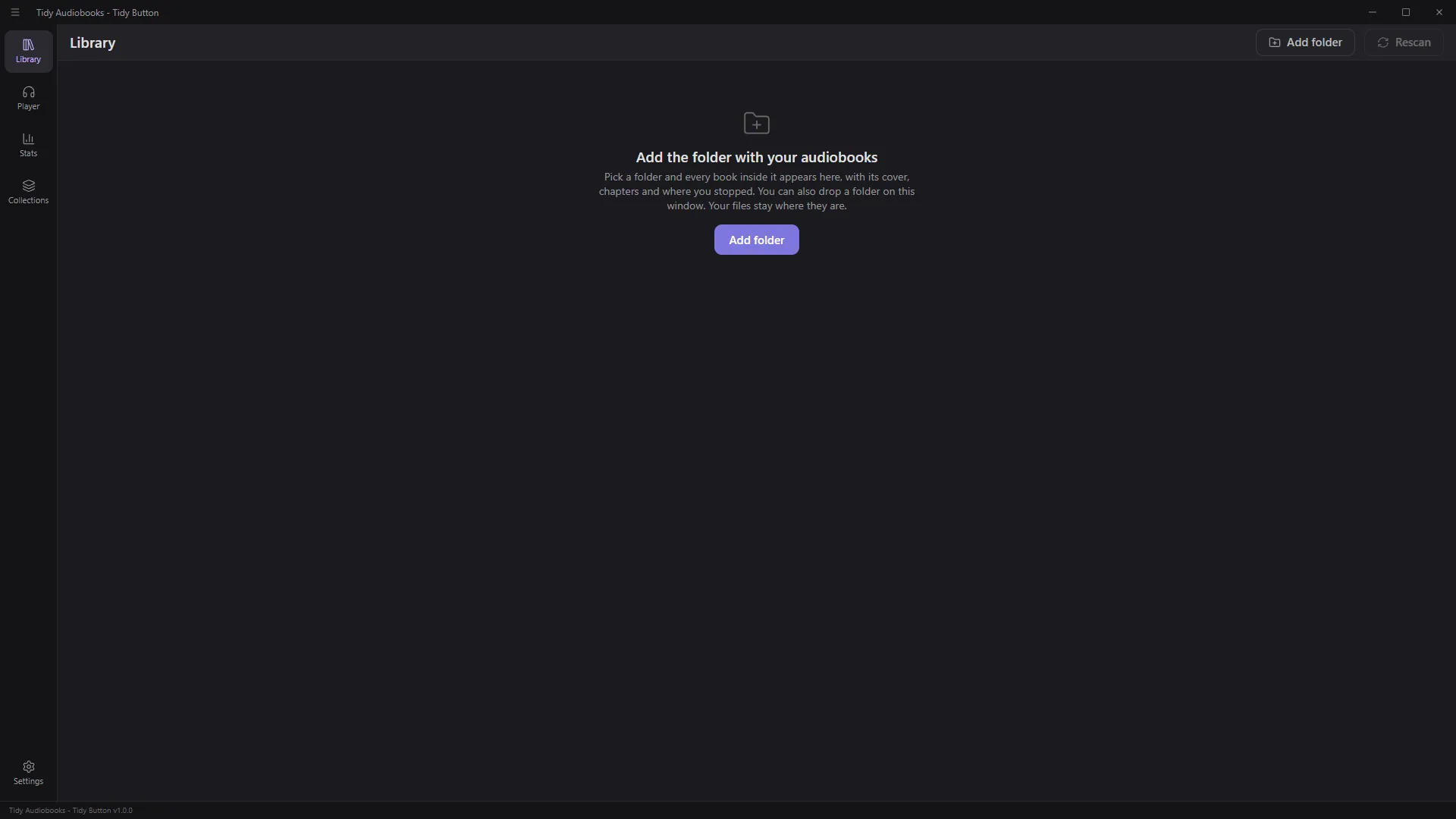
This app is not on the Microsoft Store yet. This guide is ready for the day it arrives.
Add your folder
- Open Tidy Audiobooks. The Library is the first screen.
- Press Add folder and choose the folder with your audiobooks, or drop it on the window.
- Wait while books, covers and authors appear.
- Press Rescan after you add new files.
Your audio files are never changed, moved or deleted. Only DRM-free files are played.
Play a book
- Click a book in the library.
- Press the play button in Now playing.
- Click a chapter in the Chapters list to jump to it.
- Use the skip buttons to go back or forward.
- Choose a speed from 0.5x to 3x.
Use the sleep timer and bookmarks
- Open the Sleep timer list and choose a number of minutes or the end of the chapter.
- Open the Bookmarks tab and press Add bookmark here to mark a moment and add a note.
- Press Mark as finished when you are done with a book.
If something goes wrong
Does the app remember where I stopped?
Yes. Every book resumes where you stopped, and a Continue listening row shows what you started.
How many bookmarks can I add for free?
Three bookmarks per book. Everything else in the library and player is free.
Will it play my protected files?
No. It plays only DRM-free files you already have.
Does an uninstall lose my progress?
No. Your library and progress are also kept in your Documents folder.
Coming to the Microsoft StoreAbout Tidy Audiobooks
Still stuck? Support is by email, and a person reads it.