How to take attendance and make a monthly report
This guide shows how to keep a daily attendance register on your PC, read each person's percentage, and save a monthly report as a spreadsheet.
This app is not on the Microsoft Store yet. This guide is ready for the day it arrives.
Set up a group and add your people
A group is a class or a team. You add its people once.
- Open People in the left menu.
- Type a name in New group name, for example Class 5A, and press Add group.
- Type a name in Full name. Add a number in Roll number if you want one.
- Press Add person. Repeat for each person.
- To bring in a whole list at once, press Import from CSV and choose your file.
A CSV file needs a column of names. An ID column is optional.
Take the register for a day
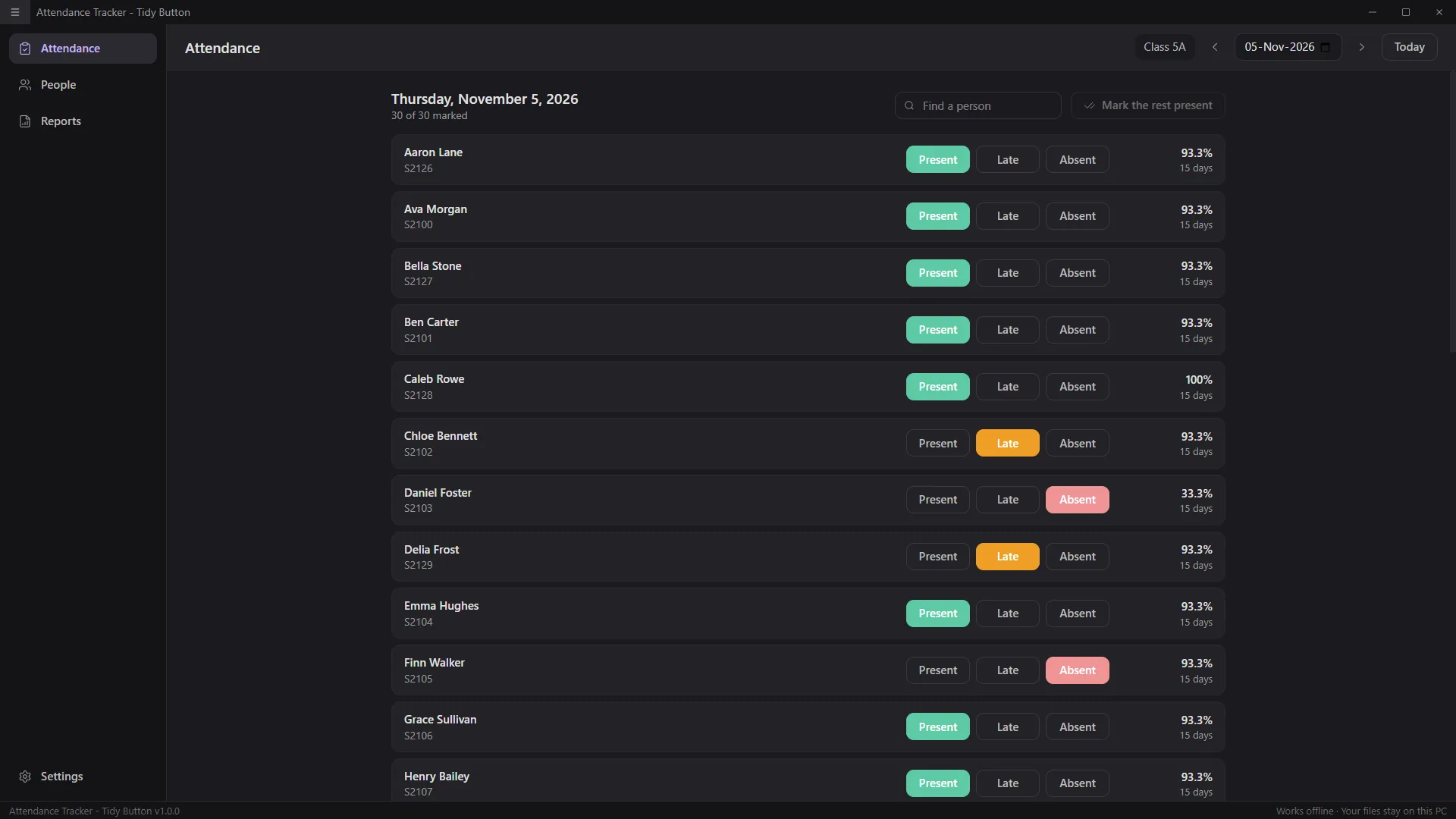
- Open Attendance in the left menu.
- Pick the date in the Date box, or press Today.
- Press Mark the rest present to mark everyone who has no mark yet as Present.
- Press Late or Absent beside anyone who was not on time or did not come.
- Type a short note about the day in Note for this day, then click away to save it.
- Use Find a person to search the list by name or ID.
Press the same button again to clear a mark.
Read each person's percentage
- Open Attendance and look at the right side of each row.
- The percentage is the days a person attended out of the days that were marked.
- Present and Late count as attended. Absent counts as missed.
- Days where nobody was marked are left out.
Save a monthly report to Excel
- Open Reports in the left menu.
- Choose the month in Month. The grid shows a letter for every day marked.
- Check the numbers in the Attended, Missed and Attendance columns.
- Press Export to Excel and choose where to save the file.
Your day notes are saved on a second sheet in the same file.
If something goes wrong
Where are my records saved?
In a folder called Attendance Tracker inside your Documents folder on this PC. They are not sent anywhere.
The report says nothing is marked. Why?
The report only shows days you marked. Check that Month is set to the month you took the register in, and that the group at the top is the right one.
A person has the wrong mark. How do I fix it?
Open Attendance, pick the date, and press the right button beside the name. Press the same button again to clear the mark.
My CSV file did not bring in the names. What should I check?
Make sure the first column holds the names and that the file is a plain CSV. After you press Import from CSV, the dialog lists the names it found before anything is added.
Good to know
- The percentage only counts days that were marked, so it does not know about days when no register was taken.
Still stuck? Support is by email, and a person reads it.