How to make a simple frame by frame animation on Windows
This guide shows how to start a new animation, draw your frames, play them back and share the result as a GIF, a video or a set of pictures.
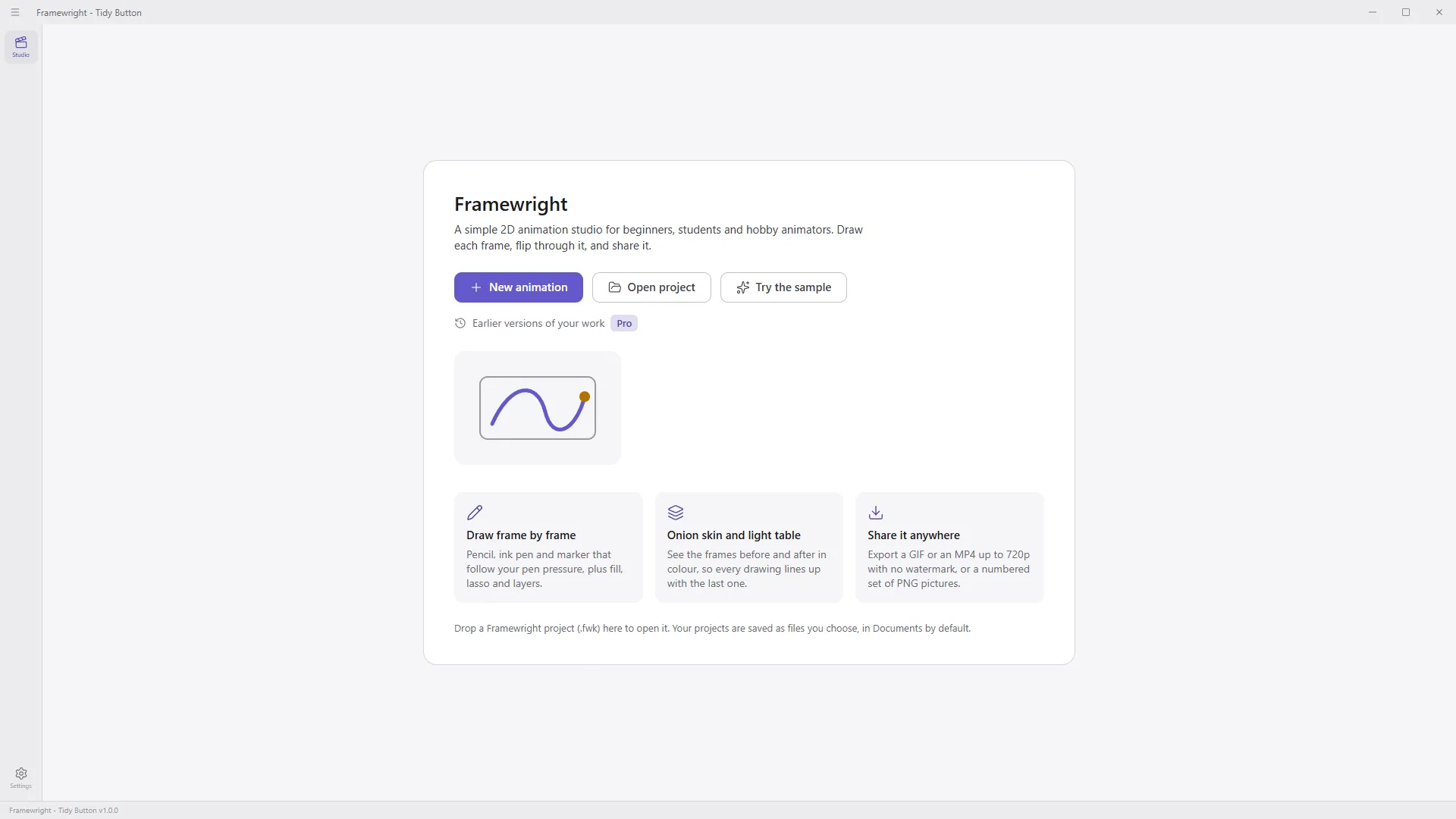
This app is not on the Microsoft Store yet. This guide is ready for the day it arrives.
Start an animation and draw your first frames
You can use a mouse or a pen tablet.
- Press New animation on the start screen.
- Type a title in Name, pick a size in Canvas size, and choose how fast it plays in Speed.
- Press Create.
- Choose Pencil in the tool bar on the left and draw on frame 1.
- Press New frame and draw the next position on the new frame.
- Press Play to watch it. Press Pause to stop.
Not sure where to start? Press Try the sample on the start screen to open a bouncing ball that you can play and change.
Line up your drawings with onion skin
Onion skin shows the frames before and after the one you are drawing, in colour.
- Find Onion skin in the bar above the frames and make sure it is switched on.
- Use Frames before and Frames after to choose how many nearby frames you can see, from 0 to 3.
- Draw on the current frame so it follows the faint drawings.
- Switch on Light table to fade the other layers, so the layer you are drawing on stands out.
Change the timing of your animation
- Click a frame in the timeline.
- Press Duplicate to copy it, then change the copy a little.
- Press Hold to keep the frame on screen for longer. Press Shorten to undo that.
- Press Delete to remove a frame you do not need.
- Change the speed with the frames per second box beside the play controls.
If you delete a frame by mistake, press the undo button at the top.
Save your project and export a GIF or video
- Press Save at the top to keep your project as a file you can open later.
- Press Export at the top.
- Under Format, choose Animated GIF, MP4 video or PNG pictures.
- Pick the picture size in Size.
- Press Export in the dialog and choose where to save it.
To open a saved project later, press Open project.
If something goes wrong
I cannot see my earlier drawing while I draw the next one. What should I do?
Make sure Onion skin is switched on in the bar above the frames. Then check that Frames before is not set to 0.
My drawing does not appear when I draw. Why?
Look at the Layers panel on the right. The layer you are drawing on may be hidden or locked, or another layer may be selected. Click the name of the layer you want to draw on.
The export says my computer cannot encode video. What now?
Choose Animated GIF or PNG pictures under Format instead. Both work without video encoding.
My animation plays too fast or too slow. How do I change it?
Change the frames per second box next to the play controls. A lower number plays slower. You can also press Hold on a frame to keep it on screen longer.
Where is my project saved?
In the file you chose when you pressed Save. The save window starts in your Documents folder.
Good to know
- An animated GIF loops and has no sound.
Still stuck? Support is by email, and a person reads it.