How to find broken links on your website from Windows
This guide shows how to crawl a website, find the pages that need fixing, and save the list so you can work through it.
This app is not on the Microsoft Store yet. This guide is ready for the day it arrives.
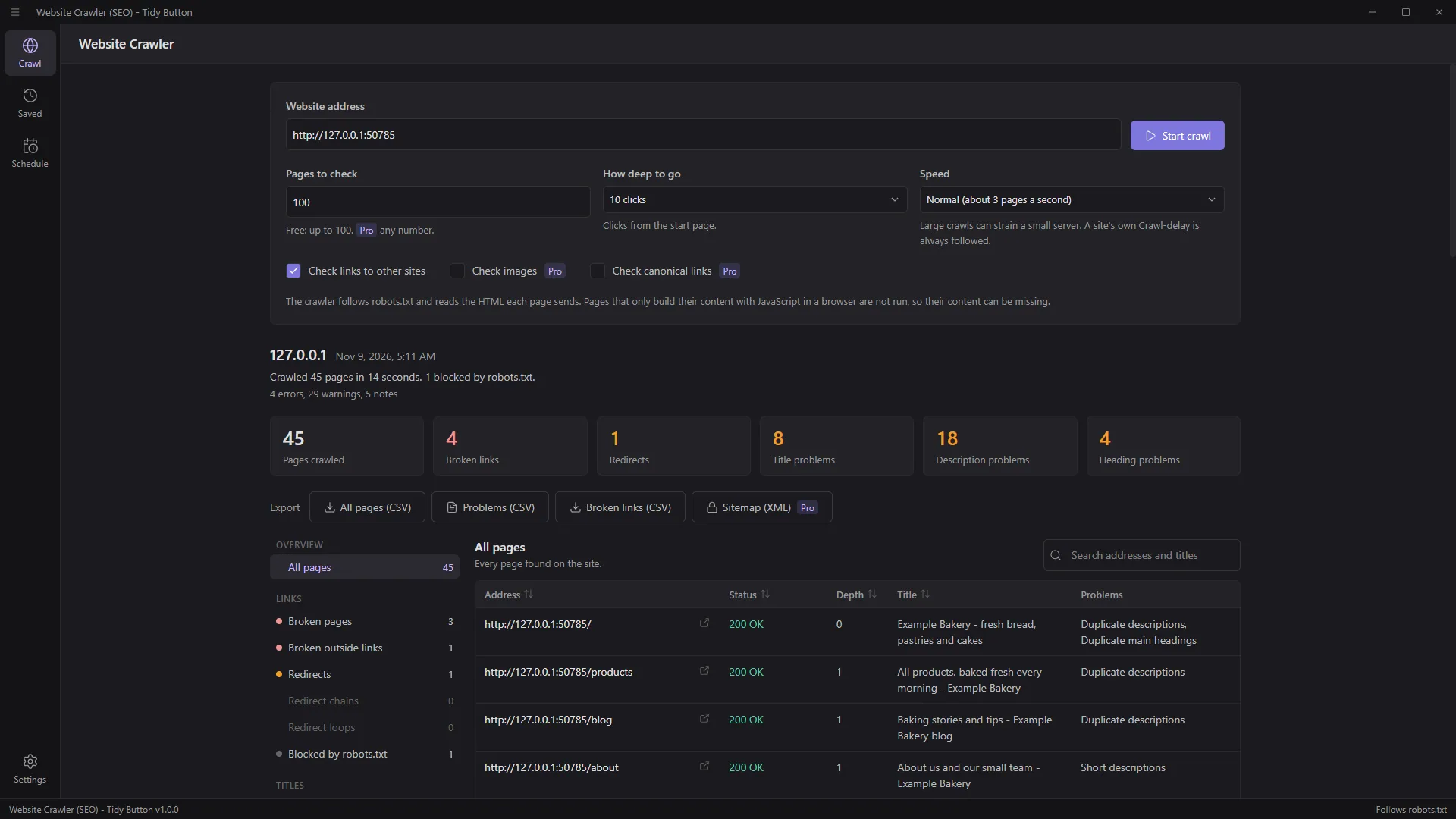
Crawl a website
- Open Website Crawler and stay on the Crawl screen.
- Type your site's address in Website address, for example https://www.example.com.
- Choose Pages to check and How deep to go. A deeper setting follows links further from the start page.
- Pick a setting in Speed. Use Gentle for a small or slow server.
- Press Start crawl and watch the progress. When it finishes, the results appear below the form.
The crawler follows the site's robots.txt rules and does not visit addresses the site asks crawlers to avoid.
Find and fix broken links
- After a crawl, look at the cards at the top. The Broken links card shows how many were found.
- In the list on the left, choose Broken pages. Each row shows the address, its status and the page where the broken link was found.
- Open that page on your site and fix or remove the link.
- Choose Broken outside links to see links that lead to other sites and no longer work.
- Crawl again to check that the problems are gone.
Fix page titles and descriptions
- In the list on the left, choose Duplicate titles to see pages that share the same title.
- Choose Missing descriptions to see pages with no meta description.
- Read the What to fix column for each row.
- Update the titles and descriptions on your site, then crawl again.
The lists for short and long titles help you keep titles to a length that search results usually show in full.
Save the results to a file
- After a crawl, look for the row of export buttons above the list.
- Press All pages (CSV) to save every page found.
- Press Problems (CSV) to save only the problems, or Broken links (CSV) for the broken links.
- Choose where to save the file, then open it in a spreadsheet program.
Open an earlier crawl
- Open Saved in the sidebar.
- Find the crawl in the list, by site and date.
- Press View results to open it again.
If something goes wrong
The crawl found only one or two pages. Why?
The crawler reads the HTML each page sends. If a site builds its menus with JavaScript in the browser, the links are not in that HTML and are not followed. Also check that the address is typed correctly, including https://.
Some addresses are marked Blocked by robots.txt. What does that mean?
The site's robots.txt file asks crawlers not to visit them, and the app respects that. They are listed so you know they were skipped.
A link works in my browser but the app says it is broken.
Some servers answer crawlers differently from browsers, or were busy at that moment. Try the crawl again with the Speed set to Gentle.
How do I check only part of a big site?
Type the address of that section in Website address, and use Pages to check to set how many pages to crawl.
Good to know
- The app does not run JavaScript, so content that is built in the browser is not seen.
- It reports what it finds and does not change your website.
Still stuck? Support is by email, and a person reads it.