We will link the Store listing here the day it is live. Until then there is nothing to download.
Real app, with invented sample files.
Works offline
No account, no ads, no tracking
Reads names only
Free name search
See it
Eight views. One search, answered.
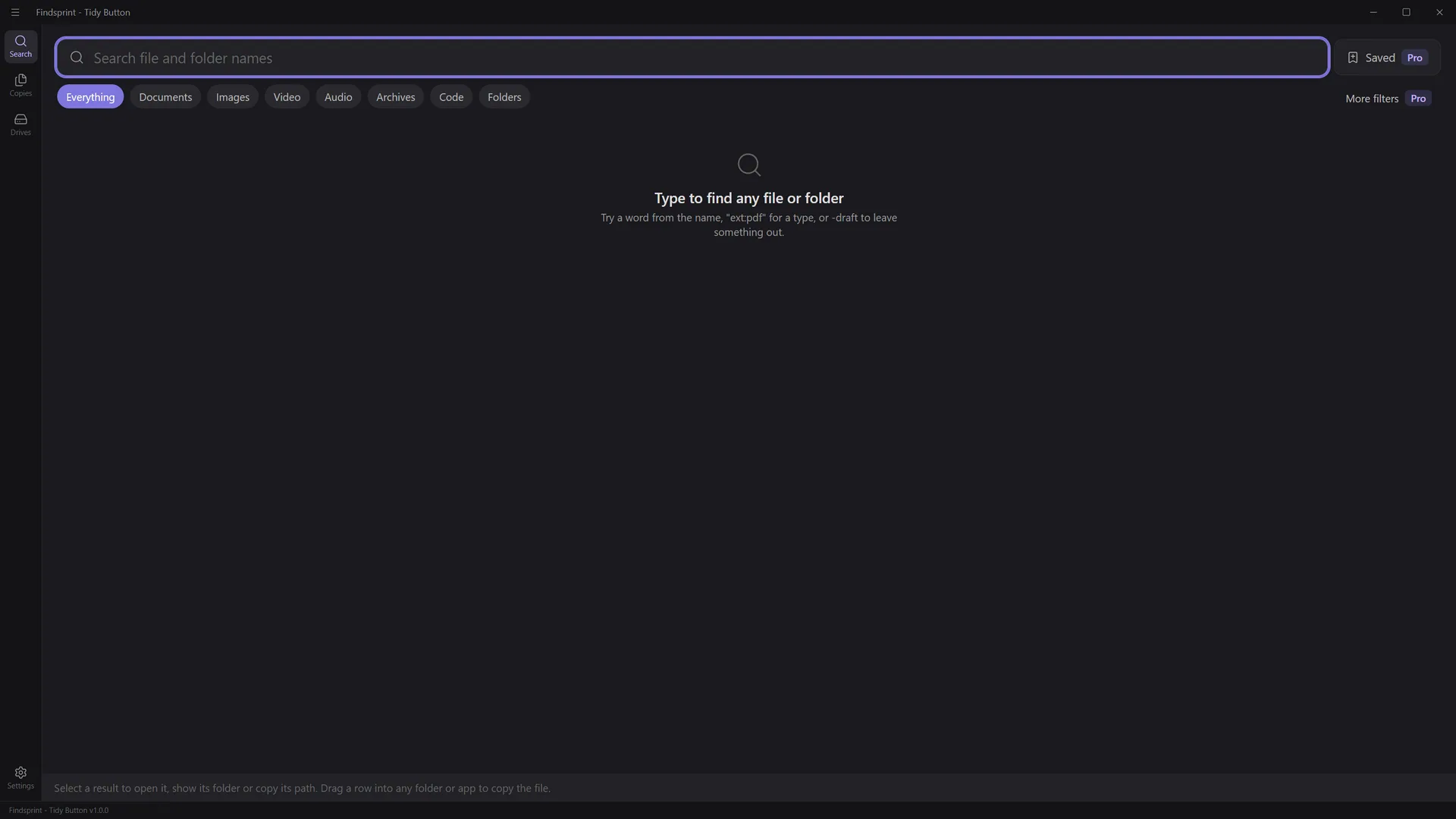
Start
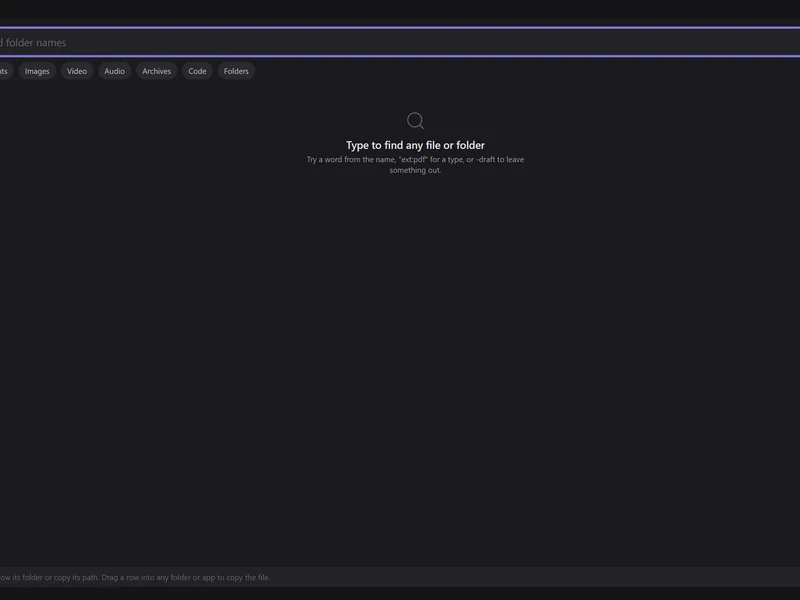
Type to find any file or folder. Type buttons and search tips sit under the box.
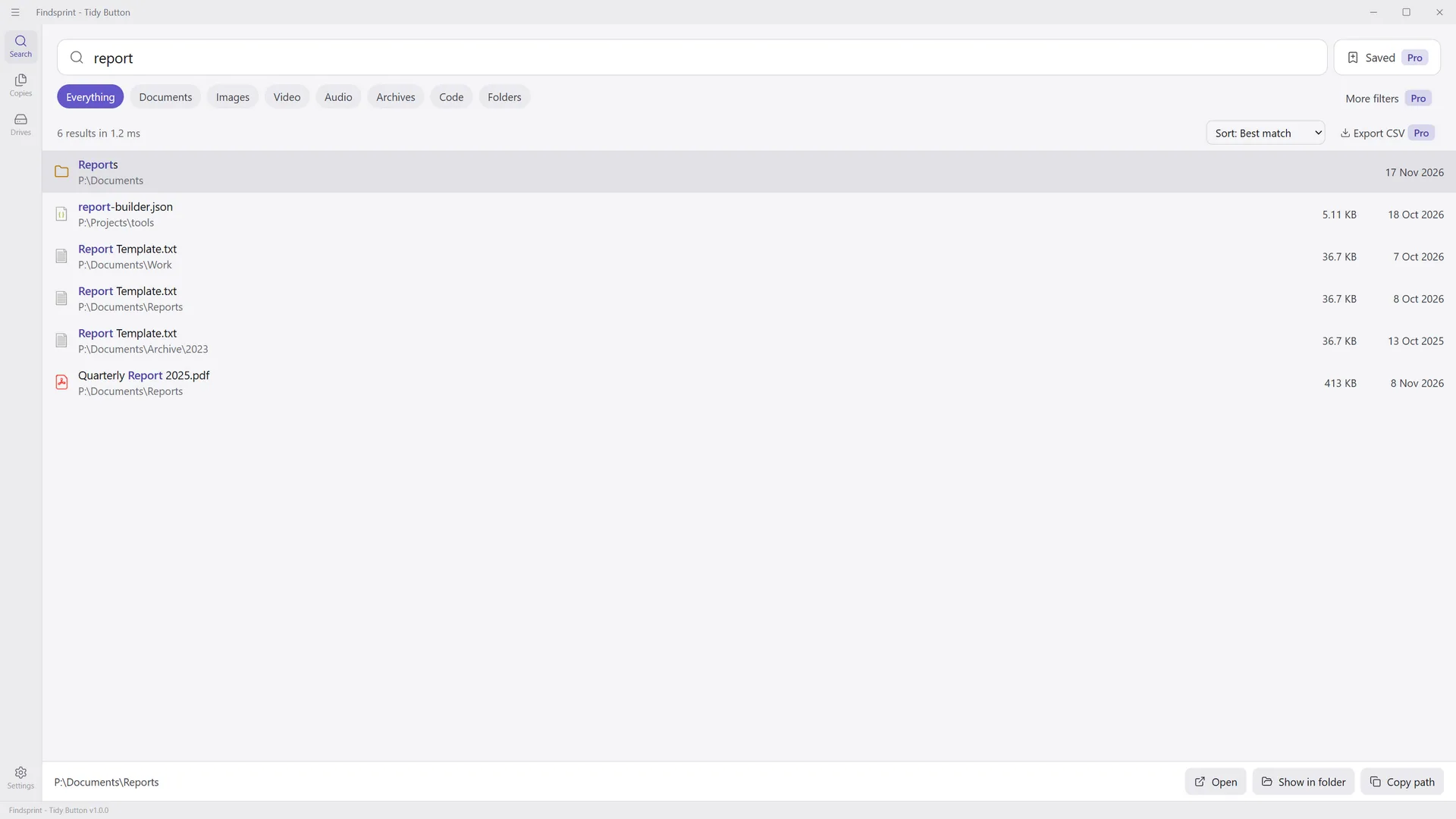
Results
Matches appear as you type, with the folder, size and date. Open, show in folder or copy the path.
Type filter
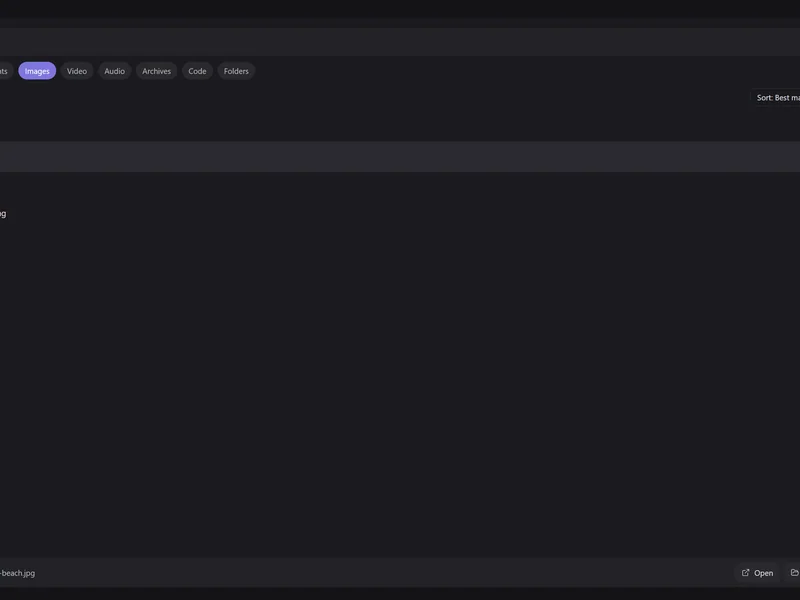
Narrow results with a type button, such as Images, and see every copy of a name at once.
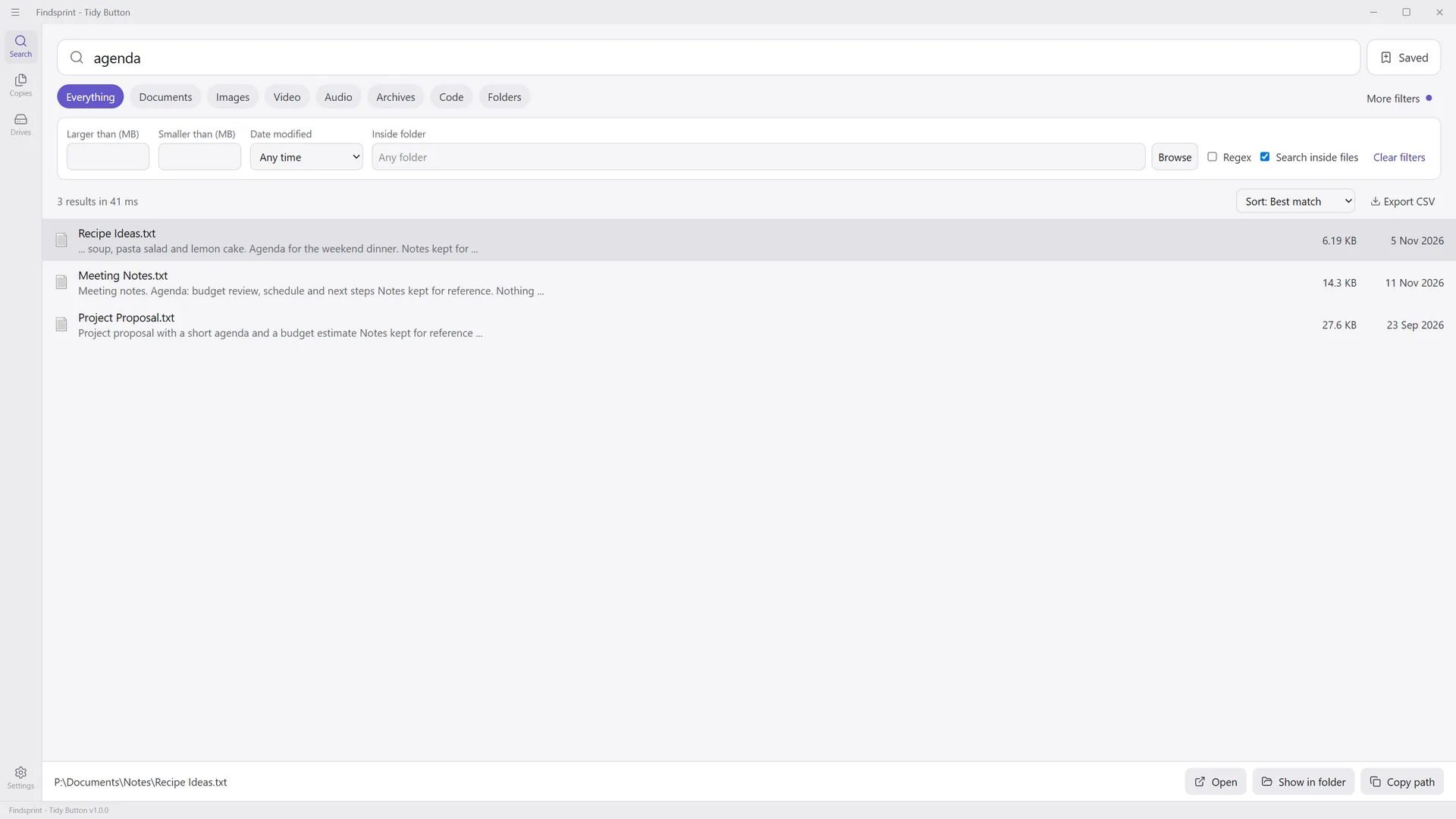
Inside files
Pro: search inside text, code and PDF files, and see the words around each match.
Filters
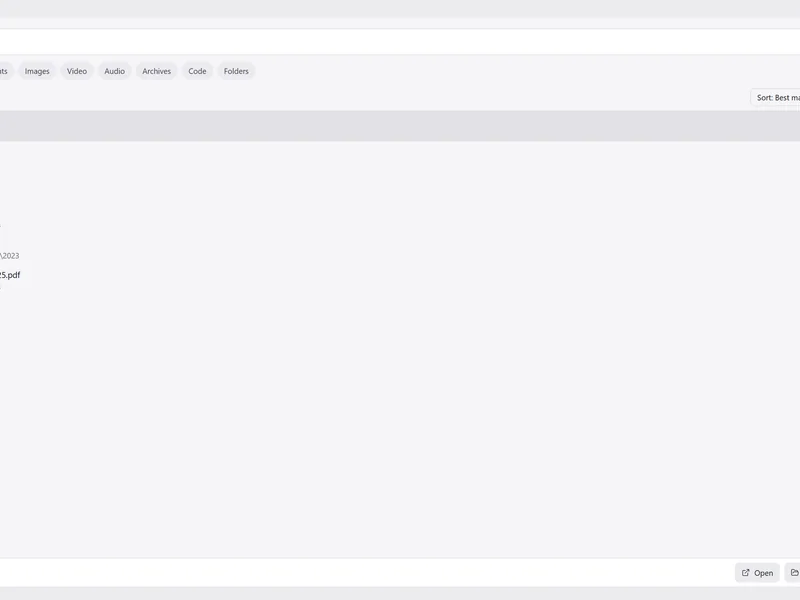
Pro: filter by size and date, use regular expressions, or limit a search to one folder.
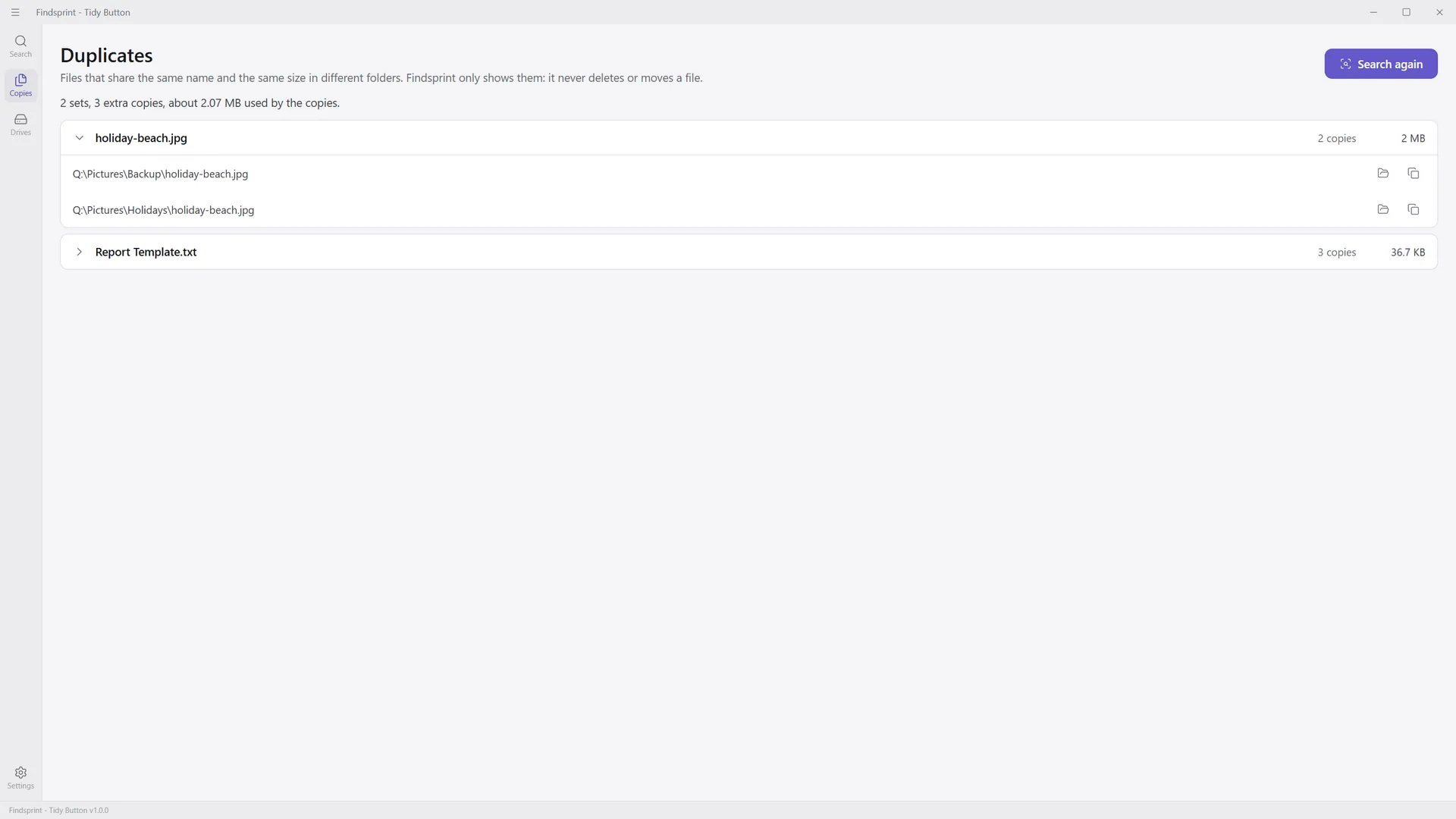
Duplicates
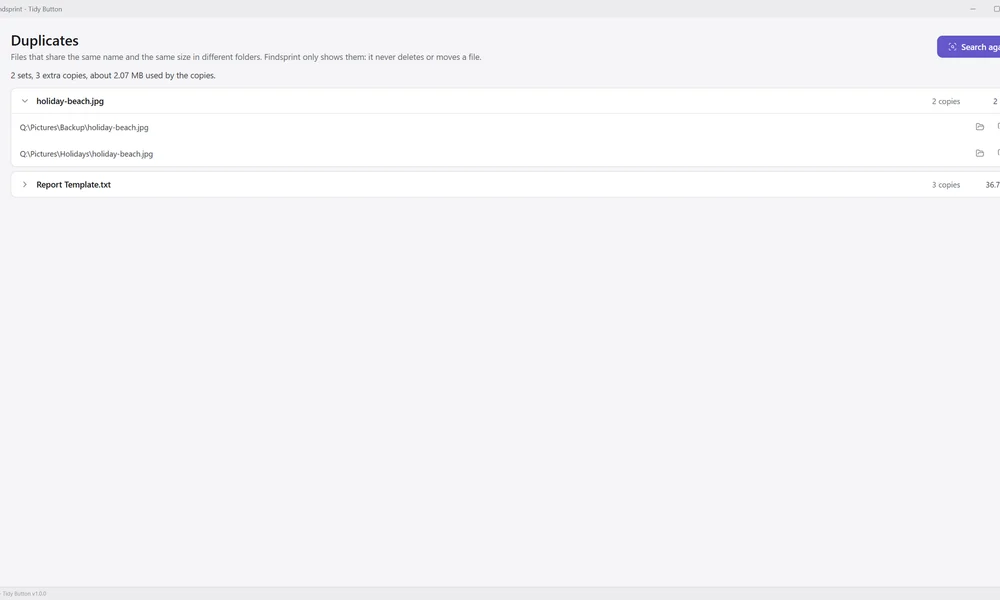
Pro: find files that share a name and size in different folders. Findsprint only shows them and never deletes.
Drives
Choose which drives are searched and which folders are read for words inside files.
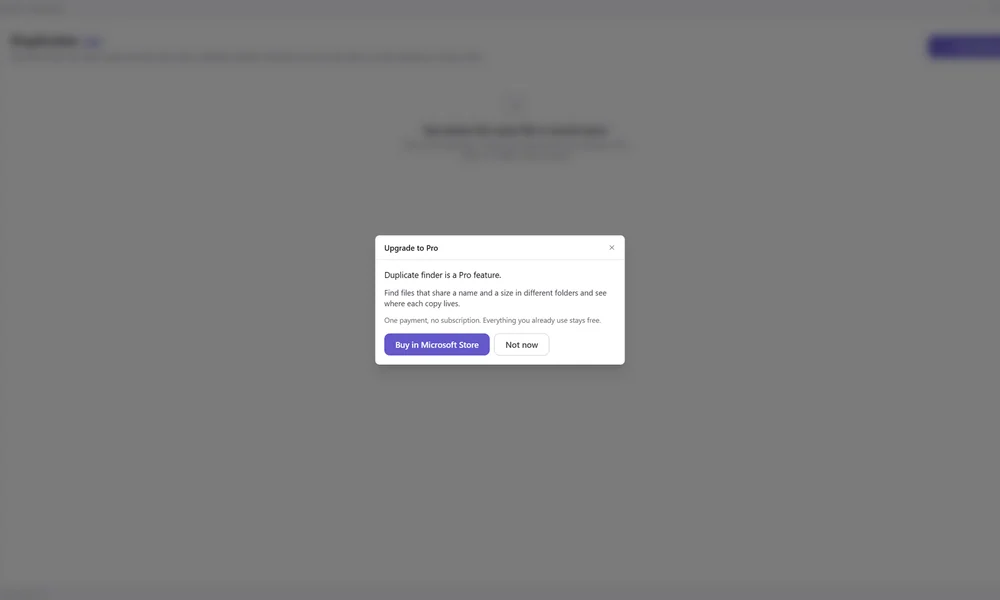
Pro prompt
Pro tools ask before they open. Everything else stays free, with one payment and no subscription.
Screens show invented sample files. The app has light and dark themes.
How it works
Three steps. No manual.
01
Type
Type a few letters and the list narrows at once.
02
Narrow it
Use a type button, ext:pdf, -word or "exact phrase" to cut the list down.
03
Open it
Open the file, show its folder or copy its path from the result list.
What it does
What it does.
Lose a file, find it in seconds. Findsprint reads the names of the files and folders on your drives once, keeps them ready in memory, and shows matches as you type. Narrow the list with type buttons for Documents, Images, Video, Audio, Archives, Code and Folders. In the search box, ext:pdf finds one file type, -draft leaves a word out, and "exact phrase" matches a phrase. Press Ctrl+Alt+Space from any window to open a small search box, type, press Enter and the file opens. Findsprint only reads file names, sizes and dates, and it never deletes, moves or renames a file. Searching names on your internal drives is free. Pro adds searching inside files, saved searches, a duplicate finder and more.
Results as you type
Matches appear at once from a name list kept in memory, with the folder, size and date.
Type buttons and search words
Narrow by Documents, Images, Video, Audio, Archives, Code or Folders, and use ext:pdf, -word and "exact phrase".
Hotkey pop-up
Press Ctrl+Alt+Space from any window, type, press Enter and the file opens. You can change the shortcut.
Open, show or copy
Open a result, show its folder or copy its path. Drag a row into any folder or app to copy the file.
Ready at start
Your list is saved on your PC so search works straight away, and it follows changes to your files while it runs.
Reads names only
It only reads file names, sizes and dates, and never deletes, moves or renames a file.
Search inside files
Pro: search inside text, code, PDF and office files in the folders you choose, and see the words around each match.
Filters and duplicates
Pro: regular expressions, size, date and folder filters, saved searches and a duplicate finder that only shows matches.
The small print, in plain English
Safe by design.
Pro: the duplicate finder only shows files. It never deletes anything.
Pro tools ask before they open. Everything else stays free.
Your file list stays on your PC.
No ads, no pop-ups and no waiting screens.
Works offline. No account. No tracking.
Name search is free. Pro is optional and one payment.
What it does
Every drive, searched at once.
From a lost file to a pile of copies.
Choose which drives and folders are searched.
Names
Free
Results as you type from a name list kept in memory.
Types
One click
Documents, Images, Video, Audio, Archives, Code and Folders.
Words
Search words
ext:pdf, -draft and "exact phrase" in the search box.
Hotkey
From anywhere
Ctrl+Alt+Space opens a small search box over any window.
Safe
Read only
It only reads names, sizes and dates and never deletes, moves or renames.
Pro
Pro
Search inside files, filters, saved searches, duplicates, USB drives and network shares, CSV export.
The free app searches names on your internal drives. Pro adds searching inside files and the extra tools.
Good for
Handy when a file has gone missing.
Finding a file when you forget where you saved it
Opening a file with one shortcut from any window
Finding every copy of a file name
Searching for words inside your documents
Spotting files that share a name and a size
Questions
Plain answers.
Does it change my files?
No. It only reads file names, sizes and dates. It never deletes, moves, renames or edits a file.
Is anything sent anywhere?
No. Your file list and file contents stay on your PC. The only network use is the check of a Pro licence.
Is it ready as soon as it starts?
Yes. Your list is saved on your PC so search works straight away, and it follows new, renamed and deleted files while it runs.
How does the hotkey work?
Press Ctrl+Alt+Space from any window, type and press Enter to open the file. You can change the shortcut in Settings. A tray icon keeps it working when the main window is closed.
What does the free version include?
Name search on your internal drives, type buttons, search words, open, show in folder, copy path and drag out, the hotkey pop-up and the tray icon.
What does Pro add?
One payment, no subscription. Pro adds search inside files, regular expressions, size, date and folder filters, saved searches, a duplicate finder, USB drives and network shares, CSV export and two extra themes.
Does it need an account or an internet connection?
Neither. There is no account, no ads and no tracking, and everything works offline.