How to tune a guitar with your PC microphone
This guide shows how to tune a string instrument with the microphone on your PC. The app listens, names the note and tells you whether to tighten or loosen the string.
This app is not on the Microsoft Store yet. This guide is ready for the day it arrives.
Tune a guitar string by string
Use a quiet room and keep the instrument close to the microphone.
- Open Tuner in the left menu.
- Open Instrument and tuning and choose your instrument, for example Guitar, standard.
- Make sure Strings is pressed in the Mode group.
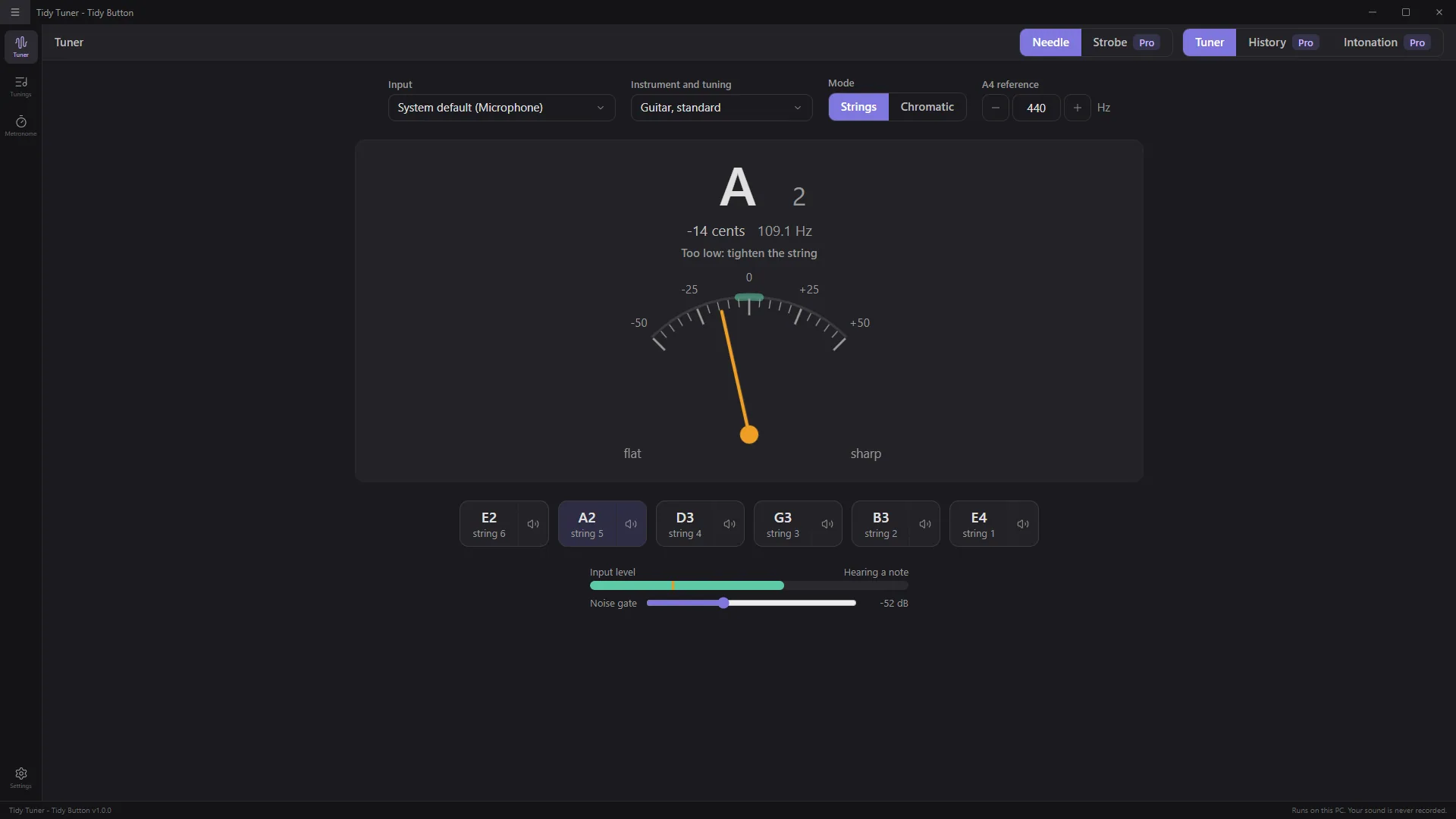
- Play one string. The big letter shows the note, and the line under it shows the cents, for example +5 cents.
- Read the hint. It says Too low: tighten the string, Too high: loosen the string, or In tune.
- Turn the peg slowly until the hint says In tune. Then play the next string.
The app finds which string you are playing. To hold it on one string, press that string's button. Press it again to go back to automatic.
Find out which note you are playing
- Open Tuner and press Chromatic in the Mode group.
- Play a note on your instrument.
- Read the note name, the octave and the frequency in Hz.
- Watch the needle and the cents to see how far the note is from the right pitch.
Press Strings to go back to tuning string by string.
Choose the microphone and cut out room noise
- Open the Input list at the top and pick your microphone or audio interface.
- Play a string and watch the bar under Input level. It turns green and the label says Hearing a note when the sound is loud enough to count.
- If hiss moves the needle, drag the Noise gate slider to the right. Sound below the marker on the bar is ignored.
- If the app does not hear a quiet string, drag the Noise gate slider to the left.
Hear a reference tone
- In Strings mode, press the small speaker button on a string's chip. The app plays that note.
- Tune your string until it matches the tone. Press the button again to stop the tone.
- In Chromatic mode, press the button that starts with Play A4 to hear the A4 reference tone. Its label shows your A4 setting in Hz.
Change the A4 reference pitch
- Find the A4 reference box at the top of the Tuner screen.
- Type a number from 430 to 450, or press the plus and minus buttons to change it by 1 Hz.
- Press Enter, or click away, to keep it. A number outside that range is changed to the nearest allowed value.
The usual A4 reference is 440 Hz.
If something goes wrong
The app says the microphone is turned off. What do I do?
Open Windows Settings, then Privacy and security, then Microphone. Turn on access for desktop apps and for this app, then press Try again.
The app says no microphone was found. What do I do?
Plug in a microphone or an audio interface, or pick another one in the Input list. Then press Try again.
The app says the microphone is in use by another program. What now?
Close the program that is using it, such as a call or a recorder. Then press Try again.
The needle jumps around when nobody is playing. Why?
Room noise is reaching the app. Drag the Noise gate slider to the right until the label above the bar under Input level says Below the noise gate in silence.
Good to know
- The tuner needs a microphone or an audio input. It cannot tune without one.
Still stuck? Support is by email, and a person reads it.