How to make a printable calendar for this year
This guide shows how to make a calendar you can print, choose the paper and the look, and save it as a PDF. It works offline on Windows.
This app is not on the Microsoft Store yet. This guide is ready for the day it arrives.
Put the whole year on one page
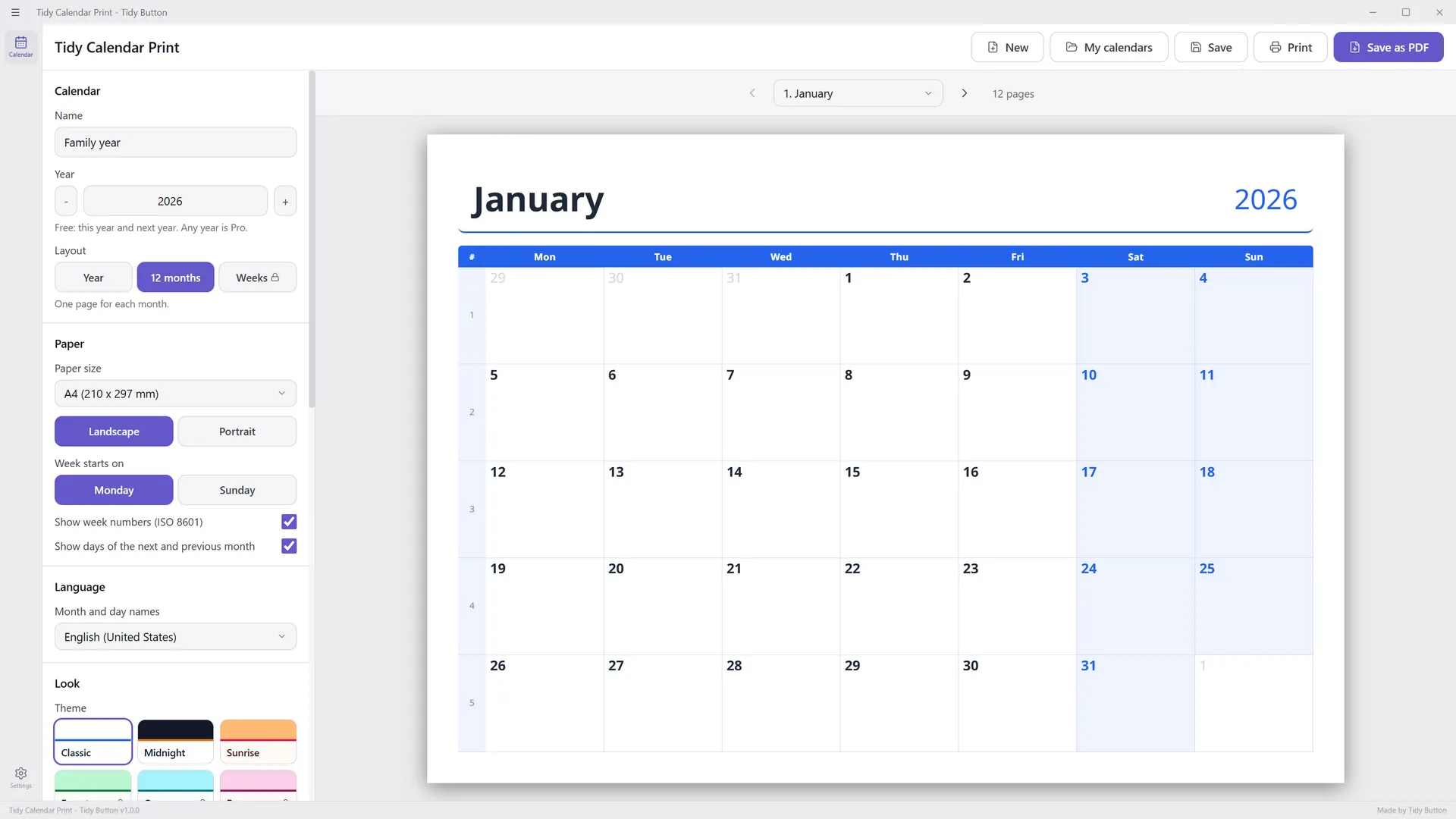
The page on the right shows what will print.
- Open the app. It shows the calendar you were last working on, or a new one for this year.
- In the Calendar section, type a name in the Name box if you want one.
- Check the Year box. The - and + buttons beside it switch between this year and next year.
- In the Layout row, press Year.
- Look at the page on the right to check it.
The line under the buttons says "The whole year on one page." when this layout is on.
Make a calendar with one page for each month
- In the Layout row, press 12 months.
- Use the left and right arrow buttons above the preview to turn through the months. You can also pick a page from the list between them.
- Under Week starts on, press Monday or Sunday.
- Tick Show week numbers (ISO 8601) if you want week numbers.
- Tick Show days of the next and previous month to fill the empty squares at the edges.
The number of pages is shown to the right of the arrows.
Choose the paper, language and look
- Under Paper, open the Paper size list and pick A4, Letter, A3 or Tabloid.
- Press Landscape or Portrait.
- Under Language, open the list and pick the language for the month and day names.
- Under Look, press one of the themes named Classic, Midnight or Sunrise.
- Check the page on the right after each change.
Save the calendar as a PDF or print it
- Check every page with the arrow buttons above the preview.
- Press Save as PDF at the top of the window.
- Choose a folder and a file name in the window that opens, then save.
- To print instead, press Print and pick your printer in the print window.
The page you see on the right is the page that prints.
If something goes wrong
The month names are in English, but I chose another language. Why?
Some languages may not print correctly in a PDF yet. The app shows a note under Language and uses English month and day names for those. The page on the right shows what will print.
I want to start again with a clean calendar. What do I press?
Press New at the top. The app asks you to confirm, because the calendar on screen is replaced.
Where does my PDF go?
To the folder you pick when you press Save as PDF. The app does not upload it.
The page looks too small or too large on screen. Is that the print size?
No. The preview is scaled to fit the window. The paper size you choose under Paper sets the printed size.
Still stuck? Support is by email, and a person reads it.