We will link the Store listing here the day it is live. Until then there is nothing to download.
Real app, with a folder of sample pictures ready to process.
Works offline
No account, no ads, no tracking
No watermark of ours
Free
See it
Eight views. One folder, done.
Start
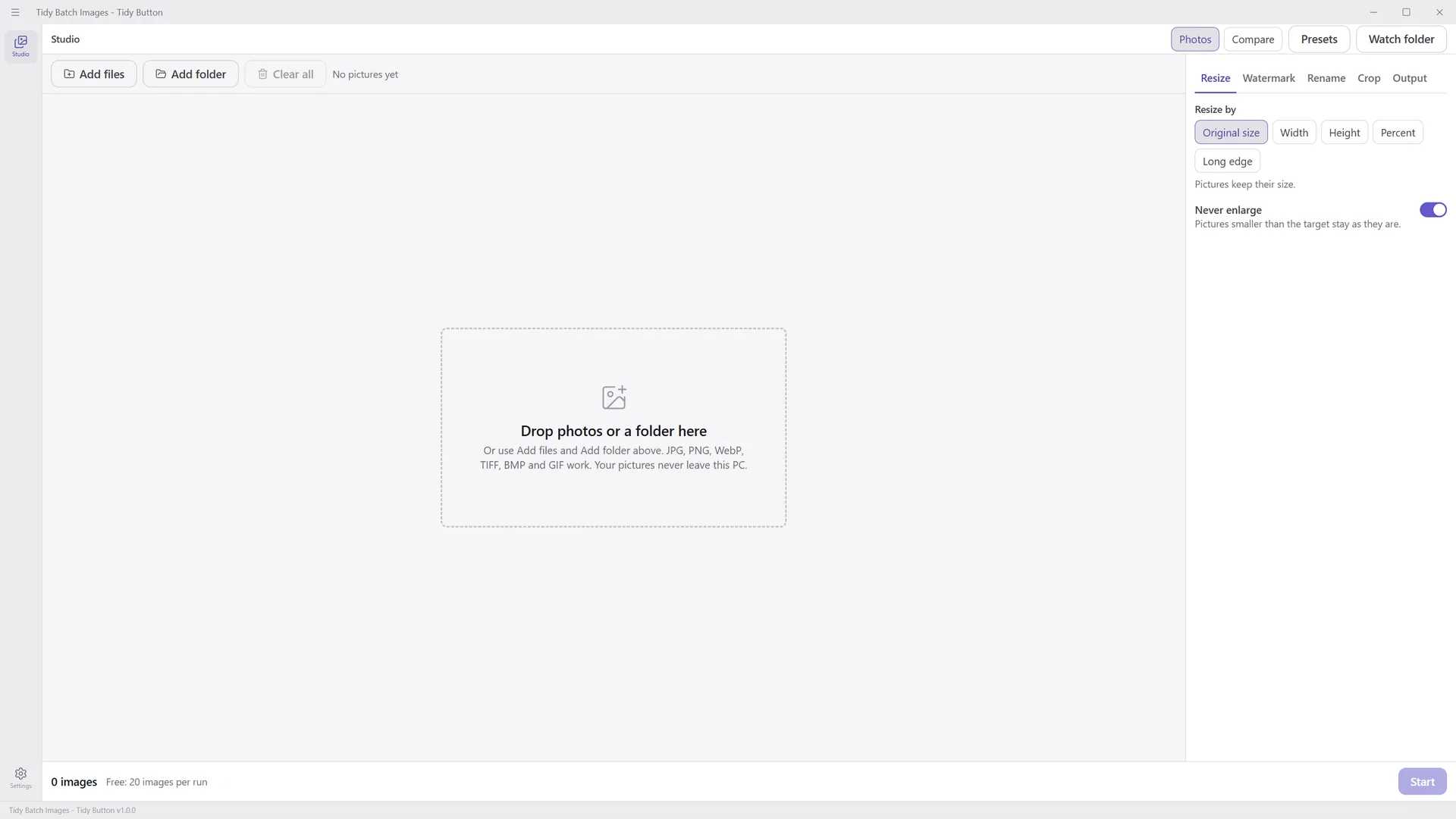
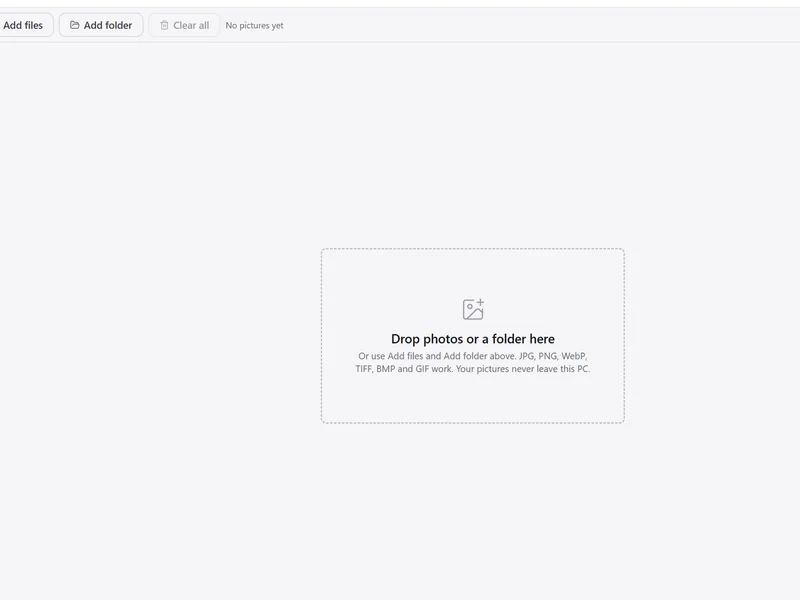
Start by dropping pictures or a folder on the window
Queue
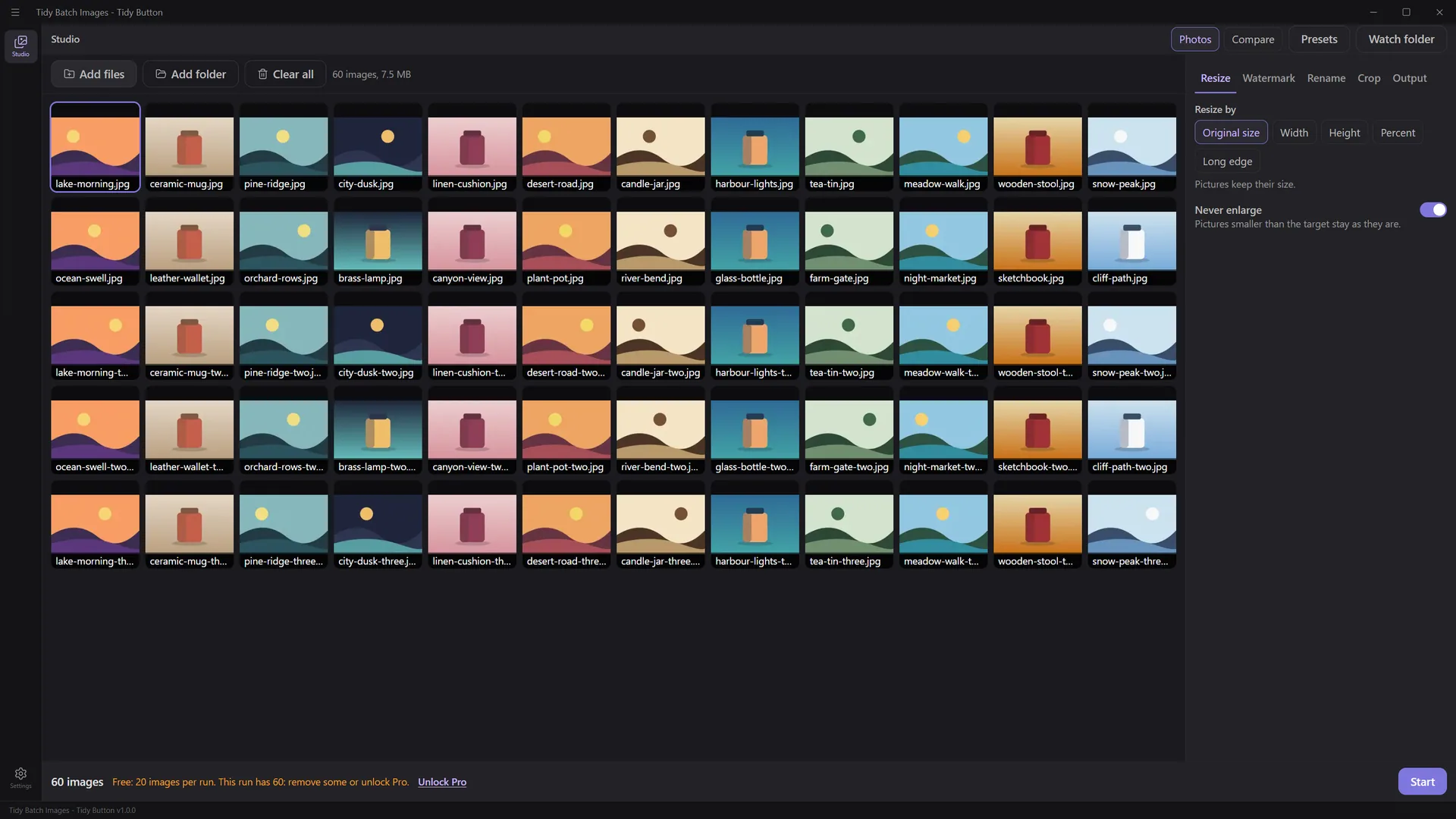
Drop in a whole folder and every picture gets a thumbnail
Resize
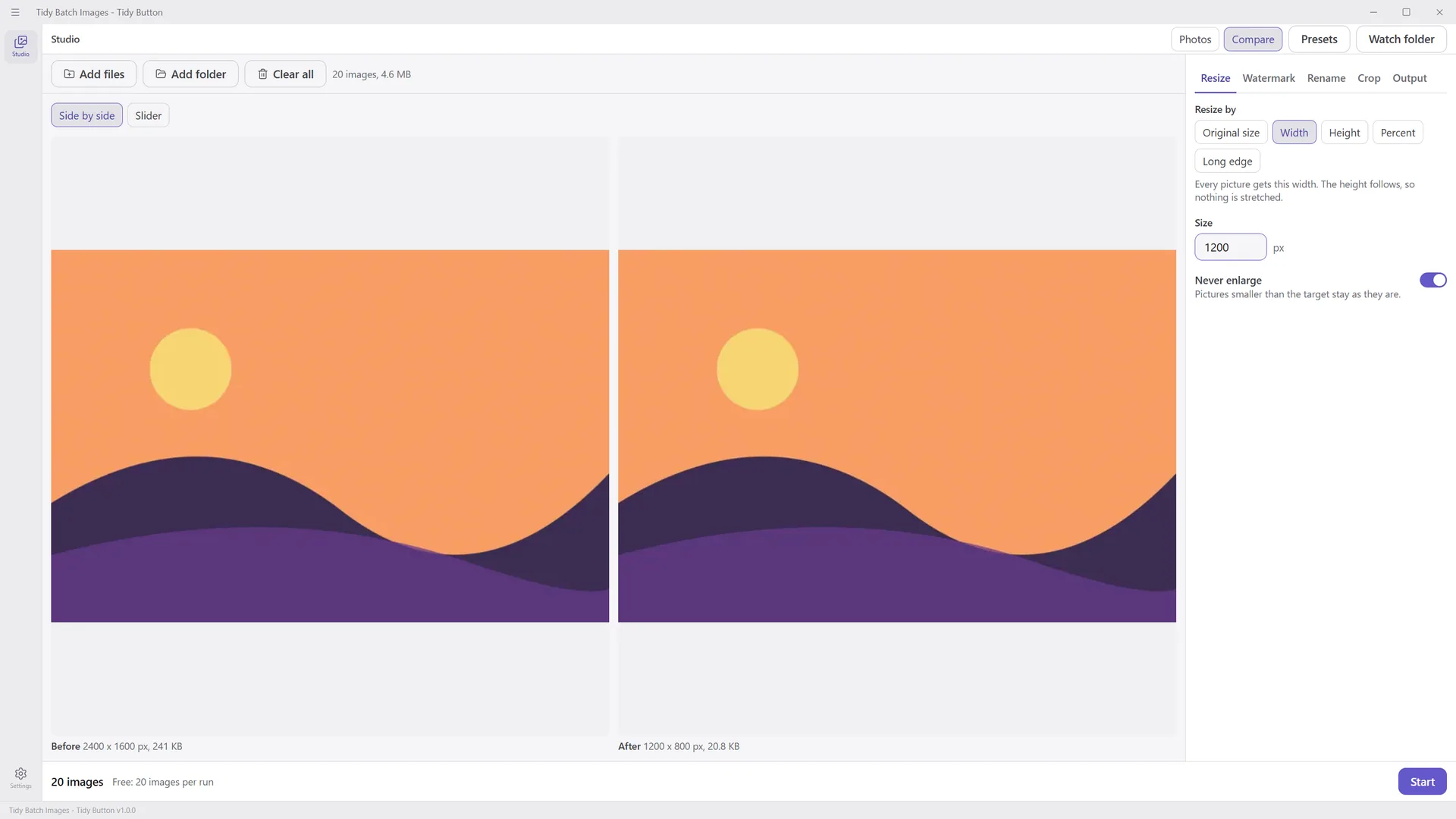
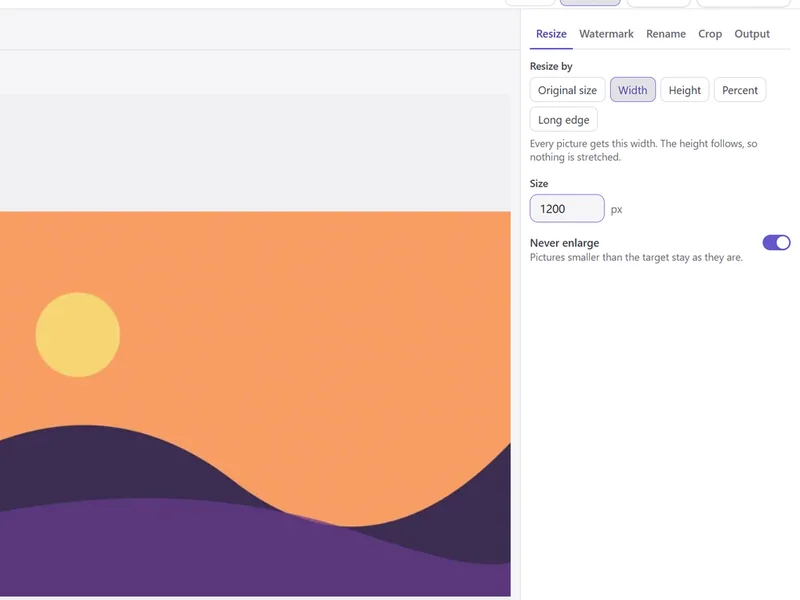
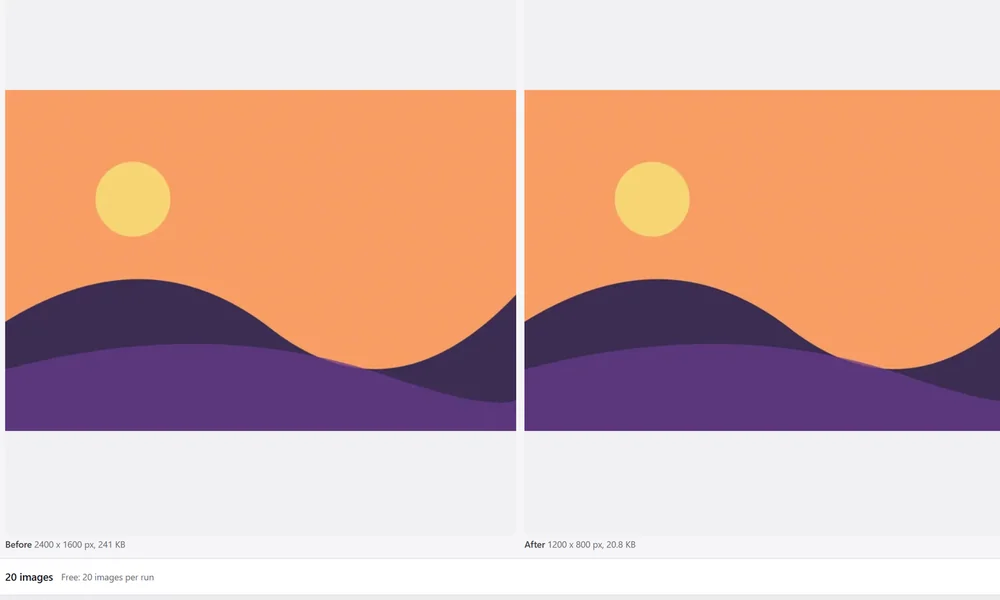
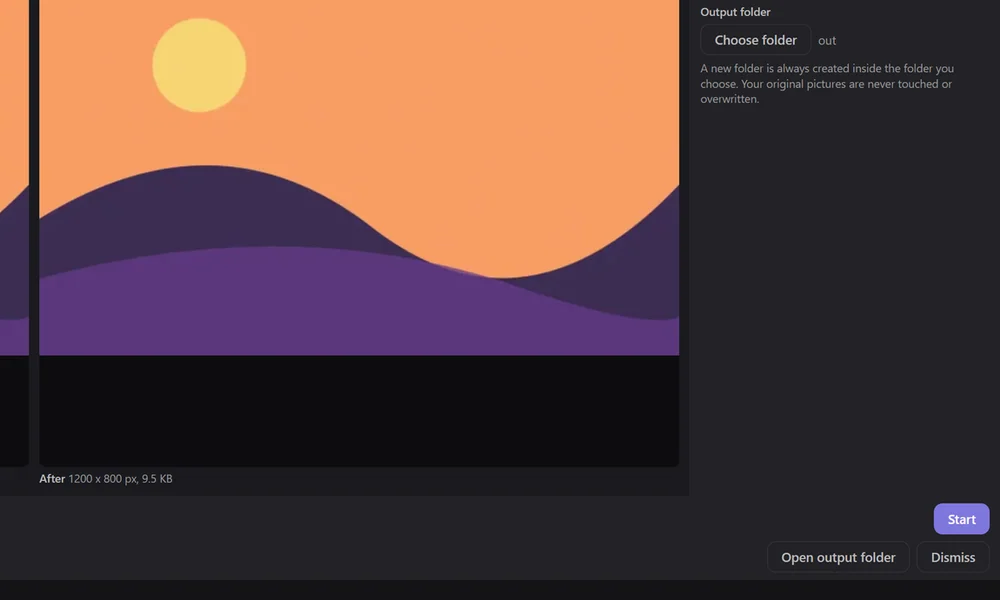
Resize every picture to the same width and compare before and after
Watermark
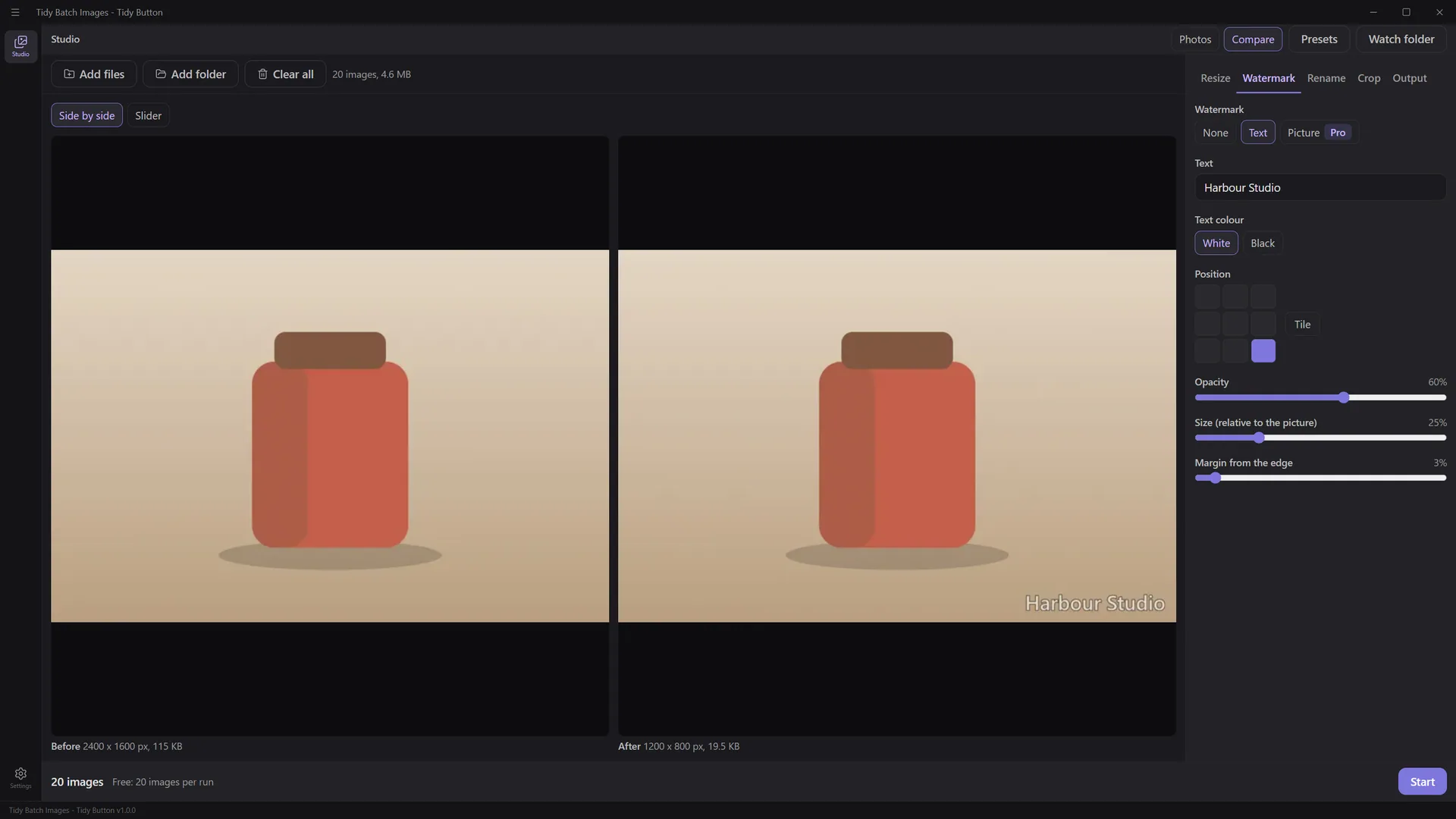
Add your own text as a watermark and check it before you start
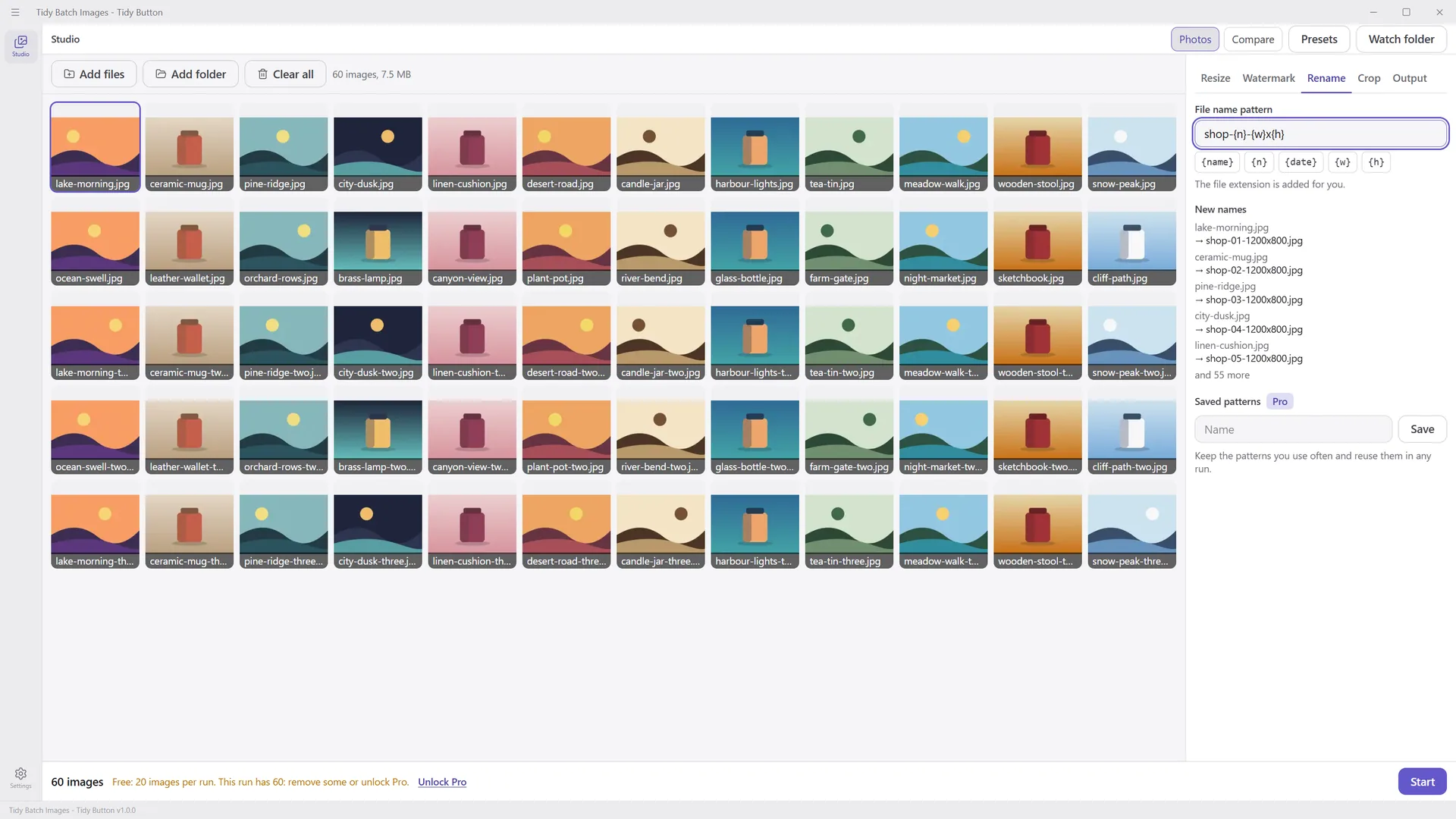
Rename
Name files with a pattern and see every new name first
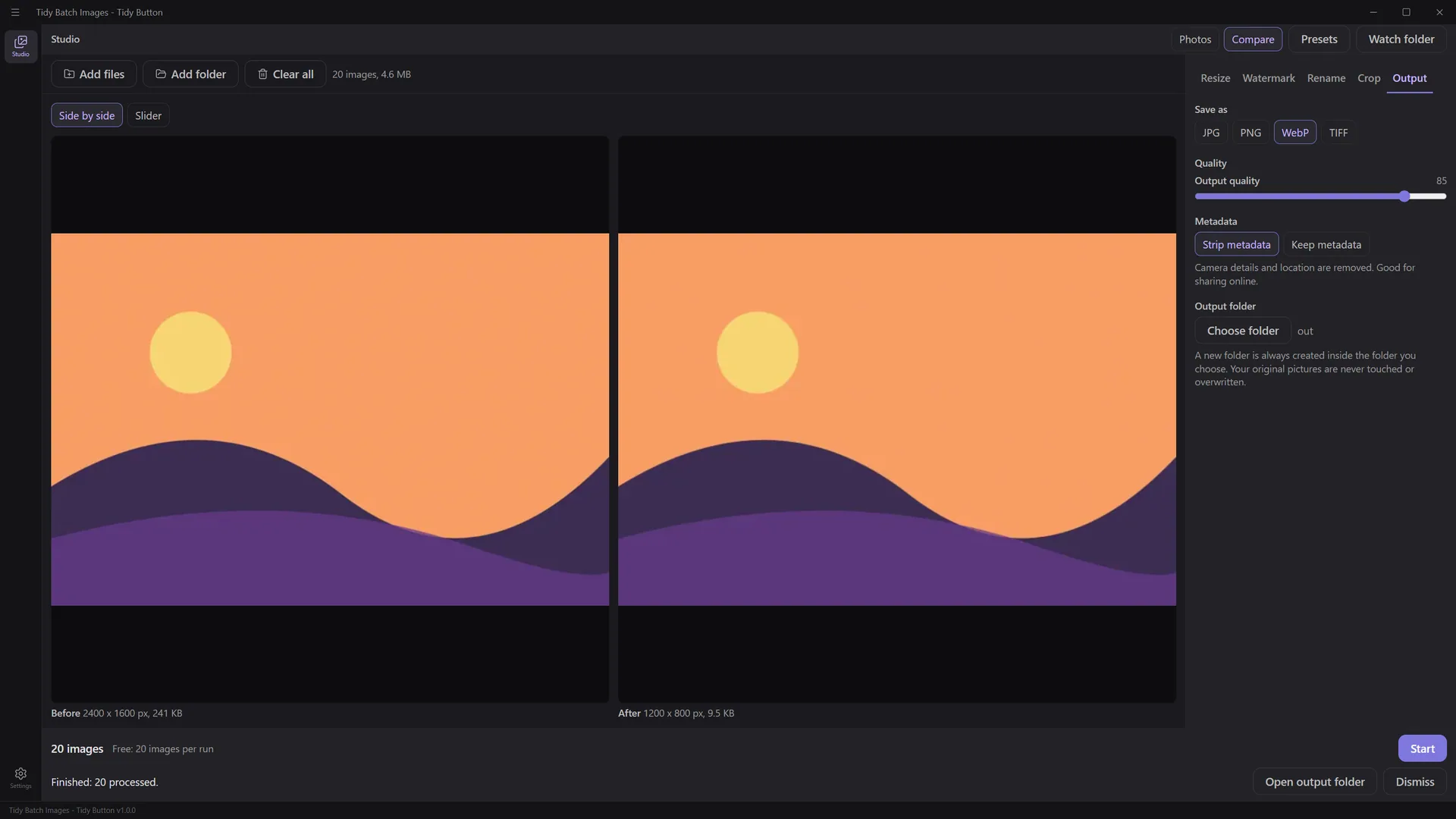
Done
A clear summary after every run
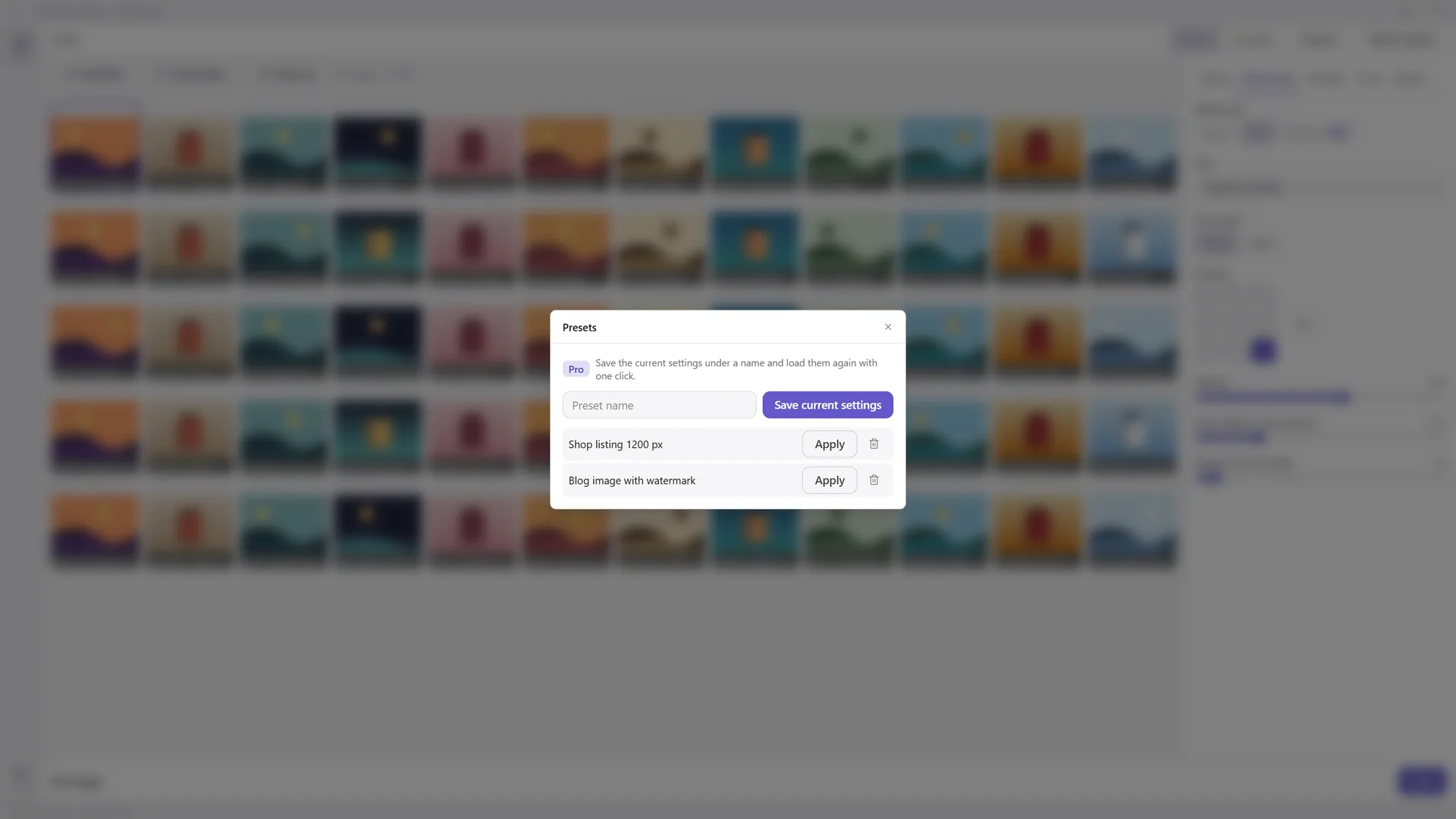
Pro presets
Pro: save your settings as presets and apply them in one click
Free limit
The free version processes up to 20 pictures per run and says so plainly
Screens show original sample pictures, not real photos. The app has light and dark themes.
How it works
Three steps. No manual.
01
Drop your pictures
Drag pictures or a folder onto the window, or use Add files and Add folder.
02
Choose what to do
Set the size, a watermark, a name pattern or a crop, and check the before and after.
03
Press Start
Your new pictures go into a new folder. Your originals stay as they are.
What it does
What it does.
Online shops, blogs and clubs often need a whole folder of pictures made the same size, named the same way and marked with a name. Drop your pictures or a folder onto the window, choose what to do and press Start. Your originals are never changed. New pictures go into a new folder, and the app works with the internet turned off.
Resize a folder
Set the width, height, a percentage or the long edge. The shape is kept, and Never enlarge leaves small pictures alone.
Text watermark
Add your own text in white or black, in nine positions or tiled, with opacity, size and margin.
Rename with a pattern
Use the original name, a counter, the date and the new size, and see every new name before you start.
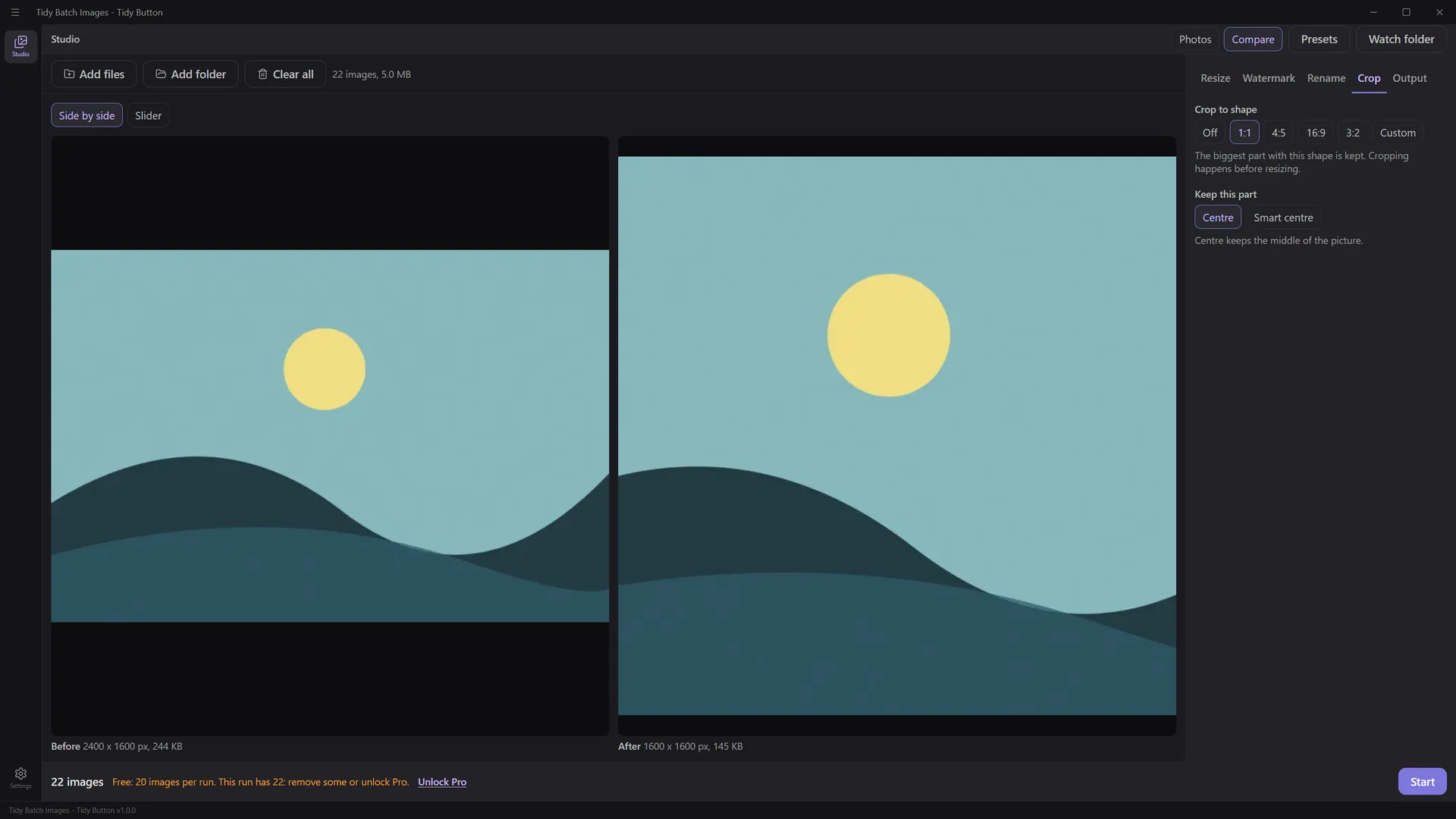
Crop to a shape
Crop to 1:1, 4:5, 16:9, 3:2 or your own shape, keeping the centre or the best part of the picture.
Before and after
Compare the selected picture side by side or with a slider, with its pixel size and file size.
Common picture formats
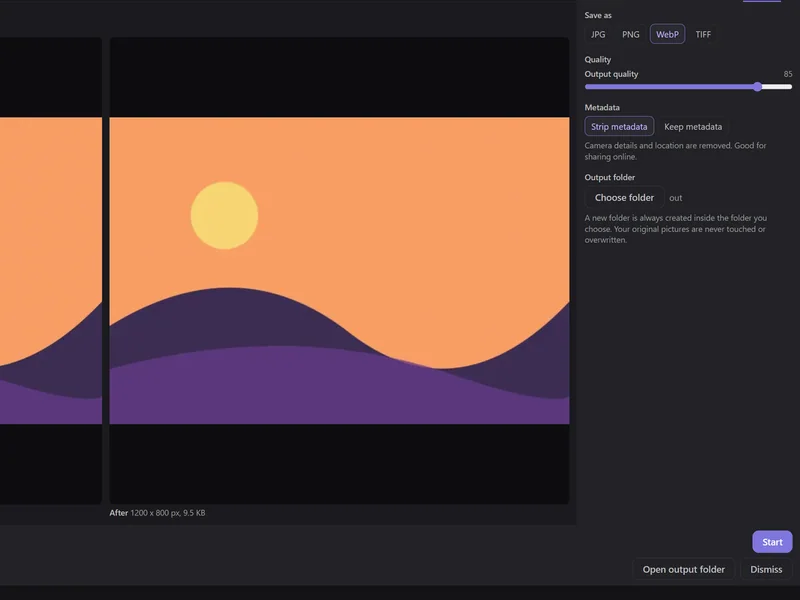
Open JPG, PNG, WebP, TIFF, BMP and GIF. Save as JPG, PNG, WebP or TIFF with a quality slider.
Right way up
Pictures taken sideways come out the right way up, and you can remove camera details and location.
Never freezes
Processing runs in the background with a progress bar and a Cancel button.
The small print, in plain English
Safe by design.
See the before and after, with sizes, before you press Start.
A clear summary after every run, and your originals are never touched.
Nothing is uploaded. Your pictures are read on your PC and never leave it.
Your originals are never changed, moved or deleted.
Nothing is ever overwritten. A number is added to a taken name.
The free version processes up to 20 pictures per run. Run it again for the rest.
Works offline. No account. No ads. No tracking. No watermark of ours.
What it does
Four jobs, one folder.
Pick any mix of resize, watermark, rename and crop, then run them all together.
Name files with a pattern and see every new name first.
Resize
Same size for all
Width, height, percentage or long edge. Pictures are never enlarged unless you turn that option off.
Watermark
Mark every picture
Your own text, nine positions or tiled, with opacity, size and margin. Picture watermarks are in Pro.
Rename
Tidy file names
A pattern with the original name, a counter, the date and the new size. Clashing names get a number.
Crop
Right shape
1:1, 4:5, 16:9, 3:2 or custom, keeping the centre or the best part of the picture.
Formats
Your choice
Open JPG, PNG, WebP, TIFF, BMP and GIF. Save as JPG, PNG, WebP or TIFF.
Details
Share safely
Camera details and location are removed by default. Keep them if you prefer.
Presets, the watch folder, picture watermarks and saved rename patterns are part of the optional one-time Pro add-on ($9.99).
Good for
Handy when they all need the same.
Shop photos that all need the same size
Blog and website pictures
Adding your name to a set of pictures
A whole folder of pictures renamed in one go
Questions
Plain answers.
Is anything uploaded?
No. Your pictures are read on your PC and never leave it. The app works with the internet turned off.
Does it change my original pictures?
No. New pictures go into a new folder named Tidy output inside a folder you choose. Your originals are never changed and nothing is overwritten.
Is there a limit in the free version?
The free version processes up to 20 pictures in one run with every tool, and you can run it again for the rest. The one-time Pro add-on ($9.99) removes the limit and adds picture watermarks, presets, a watch folder and saved rename patterns.
Will you put a watermark on my pictures?
Never. The only watermark is the one you choose to add yourself.
Which formats work?
You can open JPG, PNG, WebP, TIFF, BMP and GIF pictures, and save as JPG, PNG, WebP or TIFF.